
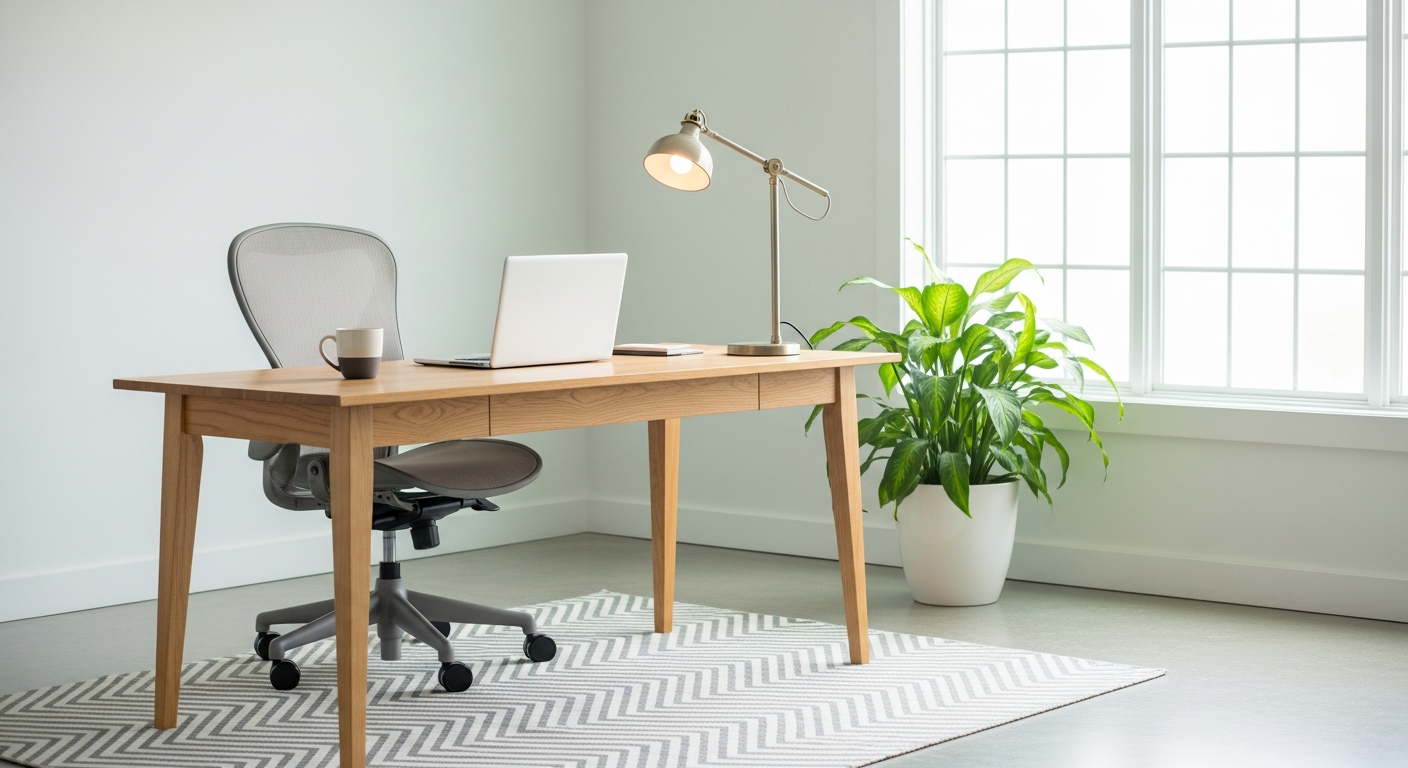
Setting up a home office can feel overwhelming, but it doesn't have to be. This guide will walk you through everything you need to create a comfortable and productive workspace for remote work.
1. What are the absolute essentials for a home office?
The core essentials are a reliable computer, a comfortable desk and chair, and a stable internet connection. These form the foundation of your workspace. Beyond that, consider a good webcam and microphone for video calls, and a power strip to protect your electronics.
2. How do I choose a good desk and chair?
For your desk, choose one large enough to hold your computer and other items comfortably. A standing desk can be great for health. For the chair, prioritize ergonomics. This means it should support your back, allow your feet to be flat on the floor, and have adjustable armrests. Try it out if possible!
3. What internet speed do I need for remote work?
For most remote work, including video calls and cloud document sharing, a download speed of at least 25-50 Mbps (megabits per second) and an upload speed of 5-10 Mbps is usually sufficient. If you handle very large files or have many people using the internet, aim for higher speeds.
Download Speed
How fast you receive data (e.g., watching videos, loading webpages).
- 25-50 Mbps: Good for basic work, video calls.
- 50-100 Mbps: Better for multiple users, large downloads.
Upload Speed
How fast you send data (e.g., sending files, your video feed on calls).
- 5-10 Mbps: Good for basic work, video calls.
- 10-20 Mbps: Better for frequent large file uploads, high-quality video.
4. Should I use a laptop or desktop?
Laptops offer portability, letting you work from different spots. Desktops usually offer more power, larger screens, and are easier to upgrade. For a dedicated home office, a desktop with a large monitor or two can boost productivity. A laptop connected to an external monitor, keyboard, and mouse offers a good balance.
5. How do I manage cables?
Cable clutter can be messy and even dangerous. Use cable ties, sleeves, or clips to bundle wires together. A cable management box can hide power strips and excess cables. Labeling cables can also save you headaches later when you need to unplug something specific.
6. What lighting is best for a home office?
Natural light is ideal, so try to place your desk near a window. Supplement with good artificial lighting to avoid eye strain. A desk lamp that provides adjustable, diffuse light is excellent. Avoid overhead lights that create glare on your screen. Warm white light is generally more comfortable than harsh blue light.
7. Do I need a dedicated room?
While a dedicated room is ideal for minimizing distractions, it's not always possible. A quiet corner, a spare bedroom, or even a section of your living room can work. The key is to create a space that feels separate from your personal life, signaling "work mode" when you're there.
Setting Up Your Work Zone
1. Identify Space
Find a quiet corner, spare room, or unused area.
2. Define Boundaries
Use a screen, rug, or furniture to visually separate it.
3. Optimize Layout
Position desk for light, minimize distractions.
4. Personalize
Add plants or photos to make it inviting.
8. How can I reduce noise distractions?
Noise-canceling headphones are a great investment. If possible, choose a quieter part of your home. Soft furnishings like rugs, curtains, and upholstered chairs can absorb sound. Communicate with family members about your work hours to minimize interruptions.
9. What basic accessories are helpful?
Beyond the essentials, consider a good quality webcam and microphone for clear video calls. An external monitor can significantly increase your screen space. A comfortable mouse and keyboard are also important for long work sessions. Don't forget a reliable surge protector for all your electronics.
10. How do I organize my files and documents?
For digital files, create a clear folder structure on your computer or cloud storage (like Google Drive or OneDrive). Name files consistently so they are easy to find. For physical documents, use a filing cabinet, folders, or trays. Go paperless where possible to reduce clutter and simplify access.