
How Do I Get Online? Internet & Wi-Fi Basics for Beginners
Getting online can seem complicated, but it's easier than you think. This guide will help you understand the basics of the Internet and Wi-Fi so you can connect with confidence.1. What is the "Internet" and how does it work?
The "Internet" is like a giant, worldwide network of computers and devices all connected together. It allows you to access information, send emails, watch videos, and talk to people across the globe. Think of it as a massive digital highway system. When you go online, your device sends small pieces of information, called "data packets," through cables and signals to powerful computers called "servers." These servers store websites and files. The servers then send the requested information back to your device, allowing you to see webpages or stream content.2. What is "Wi-Fi" and how do I connect to it?
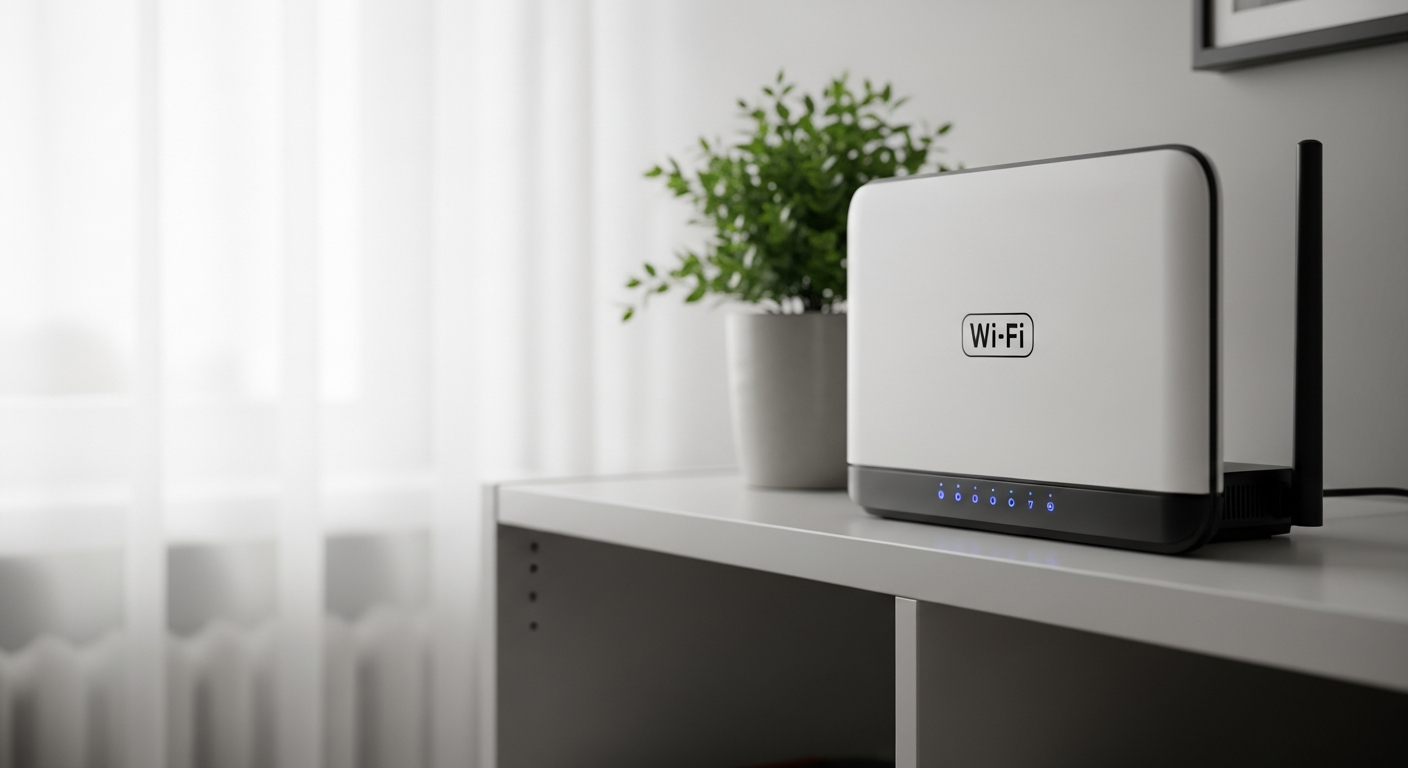
"Wi-Fi" is a technology that lets your devices connect to the Internet wirelessly, without needing a cable. It uses radio waves to send and receive information between your device and a special box called a router. This means you can move around your home or office while staying connected. To connect to Wi-Fi, go to your device's settings (like on a phone or laptop) and look for "Wi-Fi" or "Network & Internet." You'll see a list of available Wi-Fi networks, each with a name (called an "SSID"). Select your network's name, enter the password if it's protected, and you should connect.3. What is a "router" and do I need one?
A "router" is a small electronic device that acts like a traffic cop for your home network. It takes the Internet signal from your Internet provider and shares it with all your devices, both wirelessly (Wi-Fi) and sometimes through cables. Yes, if you want to use Wi-Fi at home, you absolutely need a router. It creates your personal Wi-Fi network, allowing multiple devices like phones, laptops, and smart TVs to all get online at the same time using that single Internet connection.Wired Connection (Ethernet)
- Uses a physical cable
- Often faster and more stable
- Less prone to interference
- Device must be near the router
Wireless Connection (Wi-Fi)
- Uses radio waves
- Offers freedom to move around
- Can be slower with distance/obstacles
- Easy setup for many devices
Best for Desktops, Gaming, Streaming
Best for Laptops, Phones, Tablets, Smart Devices
4. How do I find my Wi-Fi password?
The most common place to find your Wi-Fi password is on a sticker attached to your router itself. Look on the bottom or side of the device for labels like "Wi-Fi Password," "Wireless Key," or "Network Key." If it's not on the router, you might find it in the paperwork from your Internet provider. On a Windows computer, you can sometimes find it in your Wi-Fi settings. For a Mac, it might be in Keychain Access. If all else fails, your Internet provider can help you recover or reset it.5. What is an "Ethernet cable" and when should I use one?
An "Ethernet cable" is a physical wire that connects your device directly to your router for an Internet connection. It looks like a thicker phone cord with larger connectors. Unlike Wi-Fi, it provides a stable, wired connection. You should use an Ethernet cable when you need the fastest and most reliable connection, such as for a desktop computer, gaming console, or smart TV that streams a lot of video. It helps avoid Wi-Fi interference and often provides better speed and lower "lag" (delays).6. Why is my internet slow and how can I fix it?
Slow internet can happen for several reasons. You might have too many devices using Wi-Fi at once, or your device could be too far from the router. An old router or a basic Internet plan might also limit your speed. To fix slow internet, first try restarting your router by unplugging it for 30 seconds and plugging it back in. Move closer to your router, or try connecting with an Ethernet cable. If problems persist, consider upgrading your Internet plan or router, or contact your Internet provider.7. Is public Wi-Fi safe to use?
Public Wi-Fi, found in places like cafes or airports, is convenient but generally less secure than your home network. It's easier for others on the same network to potentially snoop on your online activity or steal personal information because the connection is often not encrypted. It's best to avoid doing sensitive tasks like online banking, shopping, or accessing personal accounts when using public Wi-Fi. If you must use it, consider using a Virtual Private Network (VPN) for extra security, which encrypts your data and makes it harder for others to see.How Internet Gets To Your Device
Internet Provider
Sends Internet signal to your home
➡️
Modem
Receives and translates the signal
➡️
Router
Shares Internet via Wi-Fi & cables
➡️
Your Devices
Connect wirelessly or with a cable