
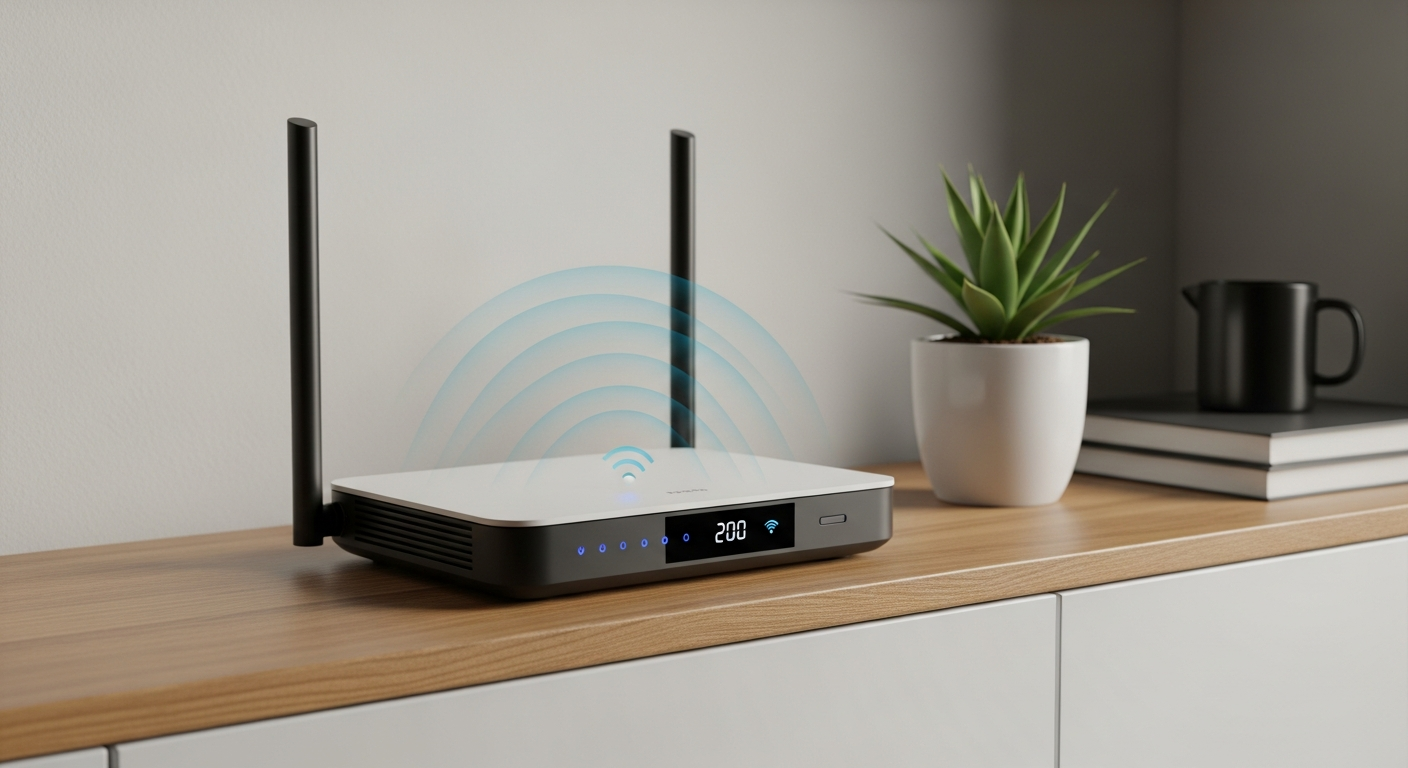
Welcome to the internet! Getting your devices online with Wi-Fi is easier than you think. This guide will walk you through everything you need to know to connect to Wi-Fi and start browsing.
1. What is Wi-Fi?
Wi-Fi is a technology that lets your devices, like phones and computers, connect to the internet wirelessly. Instead of using cables, Wi-Fi uses radio waves to send and receive information, allowing you to get online from almost anywhere in your home or office.
Think of it like an invisible cable that connects your device to a special box called a router. This router then connects to the internet, bringing the web to all your Wi-Fi-enabled gadgets.
2. How do I find available Wi-Fi networks?
Most devices have a built-in Wi-Fi setting. On a phone, you usually swipe down from the top or go into your Settings app and look for "Wi-Fi" or "Network & Internet." On a computer, you'll often find a Wi-Fi icon (looks like a few curved lines) in the bottom-right corner (Windows) or top-right corner (Mac).
Tapping or clicking this icon will show you a list of all the Wi-Fi networks nearby. These are the networks your device can "see" and potentially connect to.
3. What is an SSID?
SSID stands for Service Set Identifier, but you can just think of it as the "name" of a Wi-Fi network. When you see a list of available networks, each name you see is an SSID. For example, "MyHomeNetwork" or "CoffeeShop_FreeWiFi" are SSIDs.
You'll need to know the SSID of the network you want to join to pick the correct one from the list. It's how your device knows which network to connect to.
Home Wi-Fi
- Usually password-protected
- Private and secure
- Known network name (SSID)
- Connects all your devices
Public Wi-Fi
- Often open or simple password
- Less secure, use caution
- Found in cafes, airports, etc.
- Good for quick browsing
4. Where do I find my Wi-Fi password?
For your home Wi-Fi, the password (sometimes called a network key or security key) is often printed on a sticker on the bottom or side of your Wi-Fi router. If you have a custom password, you or whoever set up the network would have chosen it.
If you're connecting to a public Wi-Fi network, the password might be displayed on a sign, given to you by staff, or not needed at all for "open" networks.
5. How do I connect my phone to Wi-Fi?
First, open your phone's Settings app and tap on "Wi-Fi." Make sure Wi-Fi is turned "On." You'll see a list of available networks (SSIDs). Tap on the name of the network you want to join.
If it's a secured network, you'll be prompted to enter the Wi-Fi password. Type it carefully and then tap "Connect." Your phone should then show a Wi-Fi symbol, meaning you're online!
6. How do I connect my computer to Wi-Fi?
On a Windows computer, click the Wi-Fi icon in the bottom-right corner of your screen (near the clock). On a Mac, click the Wi-Fi icon in the top-right corner. This will open a list of available networks.
Click on the name of your desired network (SSID), then click "Connect." If prompted, enter the Wi-Fi password and click "Next" or "Join." Your computer will then connect, and the Wi-Fi icon will show it's online.
7. What if my device can't see the Wi-Fi network?
First, make sure your device's Wi-Fi is turned on. If it is, try moving closer to your Wi-Fi router, as signals can weaken with distance or through walls. Also, ensure your router is plugged in and its lights are on, indicating it's working.
Sometimes, simply restarting your device or unplugging your Wi-Fi router for 10 seconds and plugging it back in can fix the issue. If the network is "hidden," you might need to manually enter its name (SSID) and password.
Wi-Fi Troubleshooting Steps
- Check if Wi-Fi is ON on your device.
- Move closer to your Wi-Fi router.
- Restart your device (phone/computer).
- Unplug your Wi-Fi router for 10 seconds, then plug back in.
- Verify the network name (SSID) and password.
8. Is it safe to connect to public Wi-Fi?
Public Wi-Fi, like at a coffee shop or airport, is convenient but generally less secure than your home network. Other people on the same network might be able to see your online activity if they have bad intentions.
Avoid doing sensitive things like online banking or shopping with credit card details when using public Wi-Fi. If you must, use a "Virtual Private Network" (VPN) for extra protection, which encrypts your data.
9. How do I forget a Wi-Fi network?
Forgetting a network means your device will no longer automatically connect to it. On a phone, go to Wi-Fi settings, tap the network name, and look for an option like "Forget" or "Remove this network."
On a computer, go to your Wi-Fi settings, find "Manage known networks" (Windows) or click "Advanced" in Wi-Fi settings (Mac), select the network, and choose "Forget" or "Remove." This is useful for networks you no longer use.
10. What is a guest Wi-Fi network?
A guest Wi-Fi network is a separate Wi-Fi network that your main router can create, specifically for visitors. It has its own name (SSID) and password, different from your main home network.
This keeps your guests online without giving them access to your private devices or files on your main network, adding an extra layer of security for your home.