
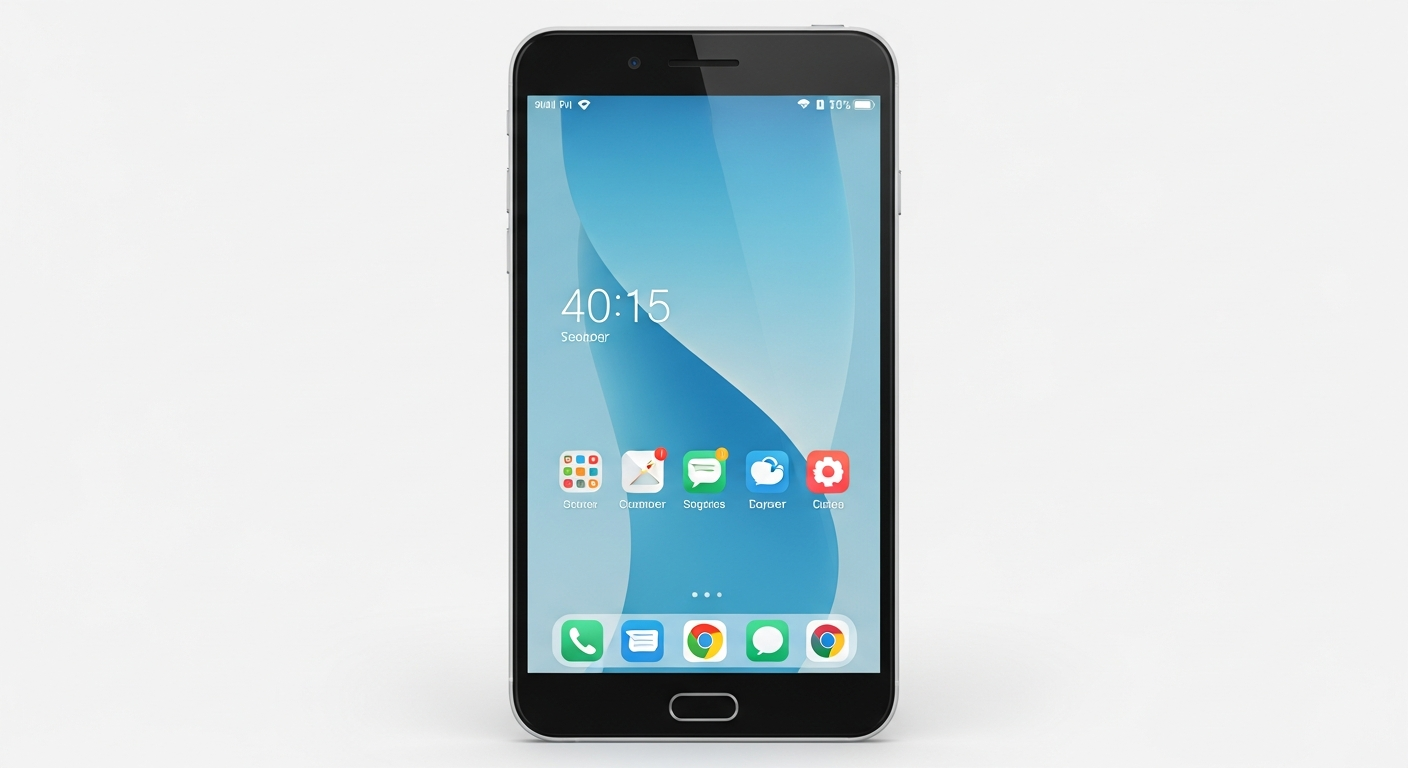
Navigating the internet on your smartphone or tablet is easy once you know the basics. This guide will help you understand how to browse websites, manage your settings, and make the most of your mobile device's internet capabilities.
1. Is there a special browser for my phone or tablet?
Yes, your phone or tablet uses special apps called "web browsers" to access the internet. These are designed to work perfectly on smaller touchscreens. Common ones include Chrome (from Google), Safari (for Apple devices), Firefox, and Microsoft Edge.
Most devices come with one pre-installed, like Safari on an iPhone or Chrome on an Android phone. You can also download other browsers from your device's app store if you prefer a different one.
2. How do I open a browser app on my mobile device?
To open a browser, simply find its icon on your device's home screen or in your app list. The icon usually looks like a colorful circle, a compass, or an "e" symbol. Tap the icon once with your finger.
The browser app will then open, showing you a blank page, a search bar, or your homepage. From there, you can start typing in website addresses or searching for information.
3. How do I type in a website address on a touchscreen?
When your browser is open, look for a long bar at the top of the screen. This is called the "address bar" or "URL bar." Tap on it, and a virtual keyboard will appear on your screen.
Carefully type the website address (like "bytecurate.com") into this bar. After typing, tap the "Go," "Enter," or "Search" button on your keyboard. The website will then load.
Typing a Website Address
- Tap the address bar at the top.
- Virtual keyboard appears.
- Type the full website address (e.g., "google.com").
- Tap "Go" or "Enter" on the keyboard.
Searching for Information
- Tap the address bar OR the search bar.
- Type keywords (e.g., "best coffee shops").
- Tap "Go" or "Search" on the keyboard.
- A list of results will appear; tap one to visit.
4. What are mobile browser tabs and how do I switch between them?
Tabs let you open multiple websites at the same time without closing your current one. Think of them like different pages in a notebook. You'll usually see a small square icon, often with a number inside (like "3"), near the top of your browser screen.
Tap this icon to see all your open tabs. You can then tap on any tab to switch to that website. To open a new tab, look for a "+" symbol on this tab screen. To close a tab, look for a small "x" on it.
5. How do I zoom in and out on a webpage?
Zooming helps you see small text or details more clearly. To zoom in, place two fingers (like your thumb and index finger) close together on the screen. Then, spread them apart as if you're stretching the page.
To zoom out, do the opposite: place two fingers apart on the screen and pinch them together. The page will shrink. You can also double-tap quickly on a section of text to zoom in on it.
6. Can I save bookmarks on my phone's browser?
Yes, bookmarks (often called "Favorites") let you save links to websites you visit often. This way, you don't have to type the address every time. Look for an icon that looks like a star or a bookmark ribbon, usually near the address bar.
Tap this icon while on a website to save it. You can usually find your saved bookmarks by tapping a menu icon (three dots or three lines) and selecting "Bookmarks" or "Favorites."
7. How do I download images or files to my phone?
To download an image, press and hold your finger on the picture you want to save. A small menu will pop up. Look for an option like "Save Image," "Download Image," or "Add to Photos." Tap it, and the image will be saved to your device's photo gallery.
For other files (like documents), tap the download link on the webpage. Your browser will usually ask for confirmation before downloading. Once downloaded, you can find these files in your device's "Downloads" folder or a similar location.
Saving an Image from a Webpage
8. What is 'Reader View' and how do I use it?
'Reader View' (sometimes called "Reader Mode") is a special feature that simplifies webpages. It removes ads, sidebars, and extra clutter, leaving only the main text and images of an article. This makes reading much easier and less distracting.
When you're on an article page, look for a small icon in the address bar that looks like a book, a pair of glasses, or text lines. Tap it to activate Reader View. Tap it again to go back to the normal view.
9. How do I clear my mobile browsing history?
Clearing your browsing history removes the record of websites you've visited. This can be useful for privacy or to free up a tiny bit of space. To do this, open your browser's menu (usually three dots or lines).
Look for "History" or "Settings," then find an option like "Clear Browsing Data" or "Clear History." You'll usually be asked what you want to clear (history, cookies, cached images) and for what time period. Confirm your choices to clear it.
10. What is data usage and how does browsing affect it?
Data usage refers to the amount of internet information your phone sends and receives. When you browse the internet without Wi-Fi, your phone uses "mobile data" provided by your phone company. This data is usually limited by your monthly plan.
Every time you load a webpage, watch a video, or download a file, you use data. Browsing text-heavy sites uses less data than streaming videos or downloading large files. Using Wi-Fi whenever possible is a great way to save your mobile data.