
How Can I Make My Wi-Fi Faster? Tips to Boost Internet Speed
Is your internet dragging its feet? Don't worry, you're not alone! This guide will help you understand why your Wi-Fi might be slow and give you simple steps to speed things up.
1. Why is my Wi-Fi so slow sometimes?
Your Wi-Fi can feel slow for many reasons, often because of how signals travel or how many devices are using it. Think of it like a busy road: if too many cars are on it, or if there are obstacles, traffic slows down. Your Wi-Fi works similarly, sharing its "road" with all your devices.
2. What causes slow Wi-Fi speeds?
Many things can slow your Wi-Fi. These include your router's location, other electronics interfering with the signal, too many devices connected at once, or even an outdated internet plan. Sometimes, your internet service provider (ISP) might also be experiencing issues.
3. How can I test my internet speed accurately?
To test your speed, connect a computer directly to your router with an Ethernet cable if possible. Then, visit a reliable speed test website like Speedtest.net or Fast.com. Run the test a few times at different times of day. This gives you a clearer picture of your actual internet speed.
Wi-Fi Speed Check Flow
4. Should I restart my router often to improve speed?
Yes, restarting your router regularly can often help. It's like giving your computer a fresh start. A quick restart (unplug for 30 seconds, then plug back in) can clear minor glitches, refresh connections, and improve overall performance. Try doing this once a month or whenever you notice a slowdown.
5. What is Wi-Fi interference and how does it affect speed?
Wi-Fi interference happens when other electronic devices or signals disrupt your Wi-Fi signal. Things like microwaves, cordless phones, Bluetooth devices, and even your neighbor's Wi-Fi can cause this. This disruption weakens your signal, leading to slower speeds and unreliable connections.
6. Can too many devices slow down my Wi-Fi?
Absolutely! Every device connected to your Wi-Fi shares the same internet "pipeline." If you have many devices streaming video, gaming, or downloading simultaneously, they all compete for bandwidth. This can quickly overwhelm your router and slow down everyone's connection.
7. Does router placement really affect speed?
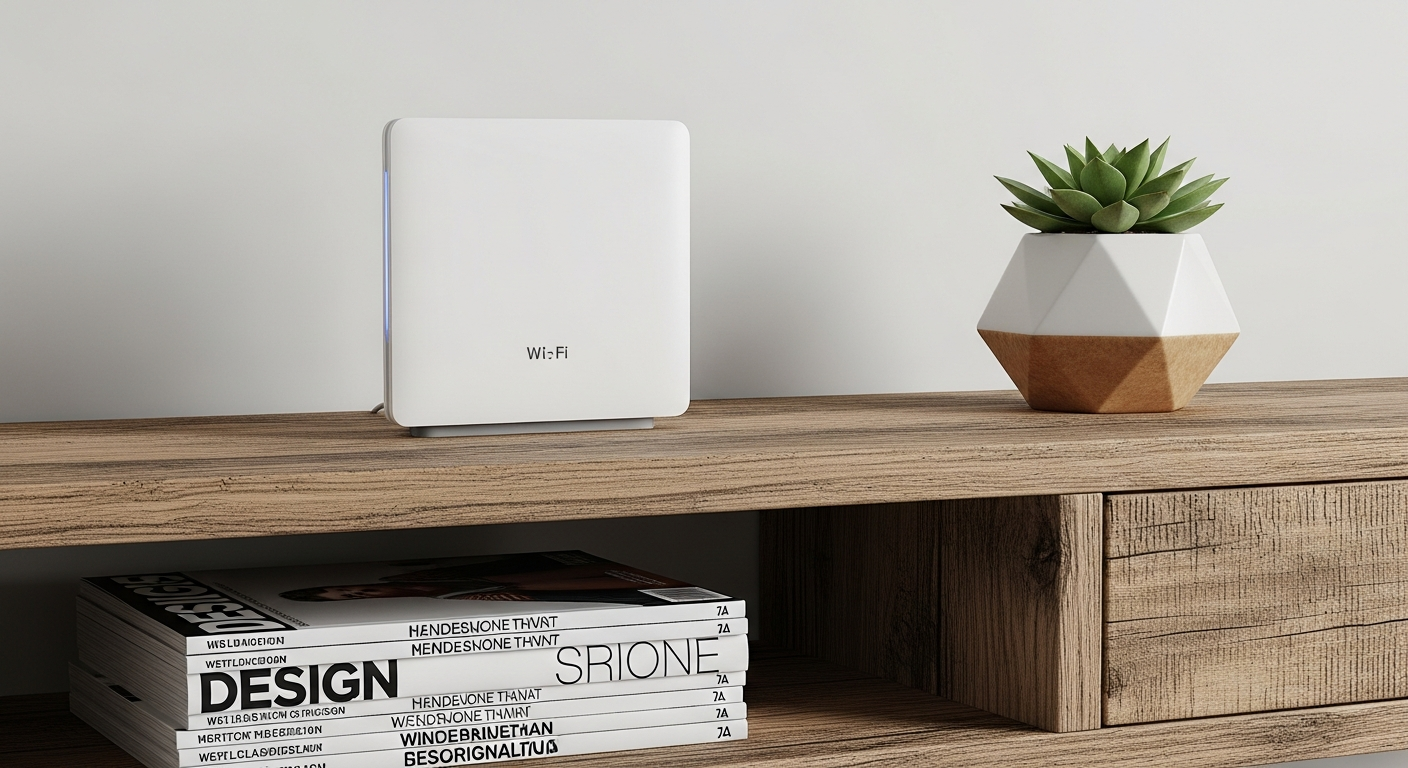
Yes, router placement is crucial. Wi-Fi signals get weaker as they travel further or pass through walls and large objects. Placing your router in a central, open location in your home, away from thick walls and other electronics, ensures the best signal strength and coverage for all your devices.
Router Placement: Good vs. Bad
Good Placement
- Central location in home
- High up (e.g., on a shelf)
- Away from walls, metal, and electronics
- Open space
Bad Placement
- Hidden in a cabinet
- Near microwave or cordless phone
- In a basement or corner
- Behind a TV or large appliance
8. What is a Wi-Fi extender, and do I need one?
A Wi-Fi extender (also called a repeater) boosts your existing Wi-Fi signal to cover larger areas or reach "dead zones" in your home. You might need one if your Wi-Fi is strong near the router but very weak or non-existent in other rooms, like a far-off bedroom or basement. It helps spread the signal further.
9. When should I consider upgrading my internet plan?
Consider upgrading your internet plan if you consistently get speeds much lower than what you need, even after trying other tips. This is especially true if you have many users, stream 4K video, play online games, or work from home with large file transfers. Check your speed test results against your plan.
10. How do I check for background downloads on my devices?
Background downloads can secretly hog your bandwidth. On Windows, open Task Manager (Ctrl+Shift+Esc) and look at the "Network" column. On macOS, use Activity Monitor (Applications > Utilities). For phones, check app settings for automatic updates or cloud backups. Close or pause unnecessary downloads to free up speed.