
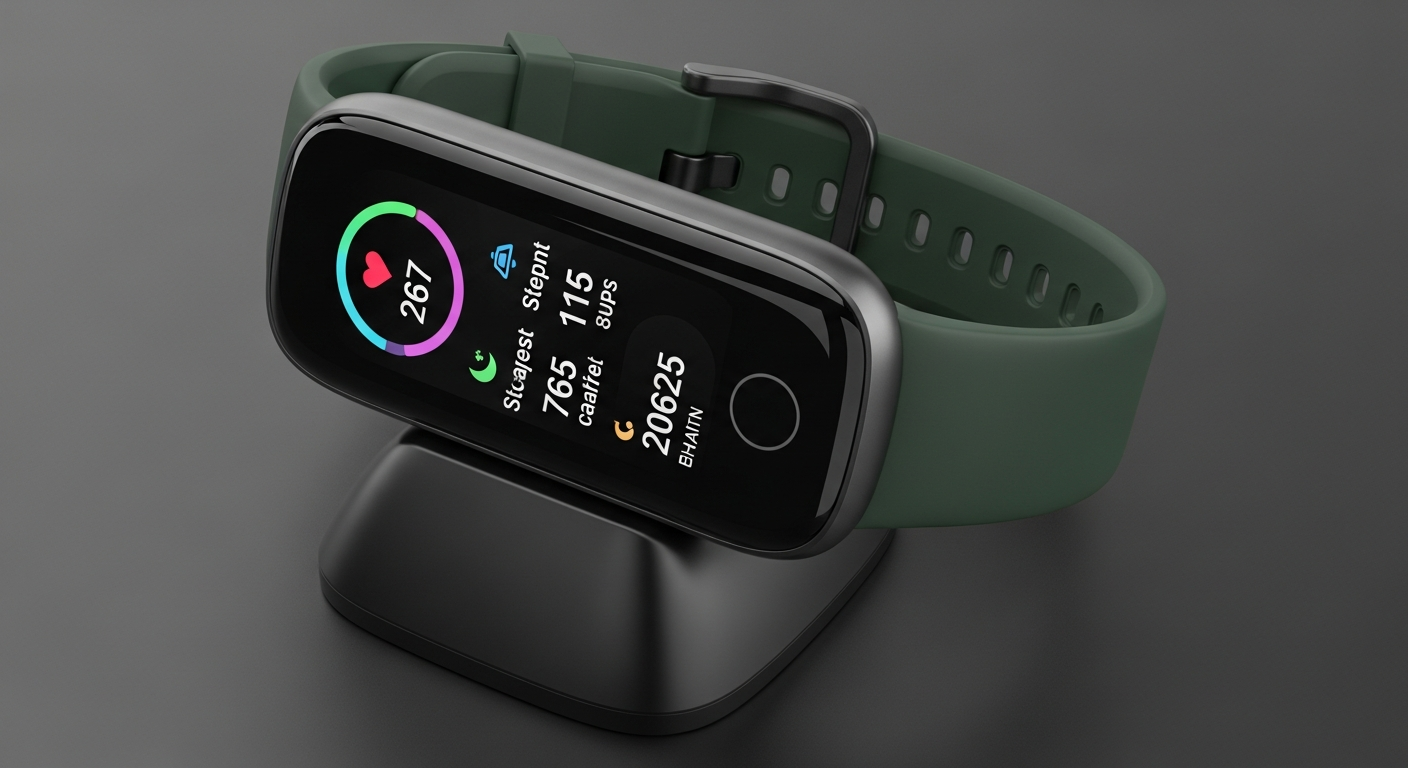
Welcome to the world of fitness tracking! Your new device is designed to help you understand your activity and health better. Let's get it set up and ready to go with these simple steps.
1. What should I do first after unboxing my new tracker?
First, give your tracker a full charge. Most trackers come with a special charging cable. While it's charging, take a moment to read the quick start guide that came in the box. This guide often has important information specific to your model.
2. How do I charge my fitness tracker correctly?
Connect the charging cable to your tracker, making sure it snaps into place securely. Plug the other end into a USB port, like on your computer or a wall adapter. A full charge usually takes 1-2 hours. Your tracker's screen or an indicator light will show when it's charging and when it's full.
3. What's the process for pairing it with my smartphone?
After charging, turn on your tracker. Then, open the companion app on your smartphone (you'll download it in the next step). The app will guide you through finding and connecting to your tracker using Bluetooth. Make sure your phone's Bluetooth is turned on during this process.
First Time Setup Flow
4. Which app do I need to download for my device?
Each fitness tracker brand has its own official app. For example, if you have a Fitbit, you'll download the Fitbit app. If it's a Garmin, you'll need Garmin Connect. Check your tracker's packaging or quick start guide for the exact app name. You can find it in your phone's app store (Apple App Store for iPhones, Google Play Store for Androids).
5. How do I create and set up my personal profile in the app?
Once the app is installed, open it and follow the prompts to create an account. You'll usually enter your email and create a password. Then, you'll be asked for personal details like your age, height, weight, and gender. This information helps your tracker accurately calculate things like calories burned and step distance.
6. What are the basic functions I can start tracking immediately?
Right away, your tracker will likely start counting your steps, estimating distance walked, and tracking calories burned throughout the day. Many also monitor your heart rate continuously. If you wear it to bed, it can even track your sleep patterns, showing you how long and how well you slept.
7. How often should I sync my tracker's data?
It's a good idea to sync your tracker's data at least once a day. This transfers all the information from your tracker to the app on your phone, so you can see your progress. Most trackers sync automatically when the app is open and your phone is nearby, but you can usually trigger a manual sync within the app too.
Manual vs. Automatic Sync
Manual Sync
- You open the app and tap 'Sync'.
- Good for checking data on demand.
- Ensures data is transferred when you want it.
Automatic Sync
- Happens in the background when app is open.
- Convenient, always up-to-date data.
- Requires app to be running (sometimes in background).
8. Can I receive notifications from my phone on my tracker?
Yes, most modern fitness trackers can display notifications from your smartphone. This includes calls, text messages, and alerts from other apps. You'll usually need to enable these features within your tracker's app settings. It's a handy way to stay connected without constantly checking your phone.
9. What are some tips for extending my tracker's battery life?
To make your battery last longer, you can turn off features you don't use often, like continuous heart rate monitoring or all-day sync. Reducing screen brightness, turning off 'always-on display,' and limiting phone notifications can also help. Remember to fully charge it regularly, rather than letting it completely die.
10. What should I do if my tracker isn't connecting?
First, make sure your phone's Bluetooth is on and the tracker is charged. Try restarting both your phone and your tracker. If that doesn't work, try "forgetting" the device in your phone's Bluetooth settings and then re-pairing it through the app. As a last resort, consult your tracker's manual for specific troubleshooting steps or a factory reset option.