
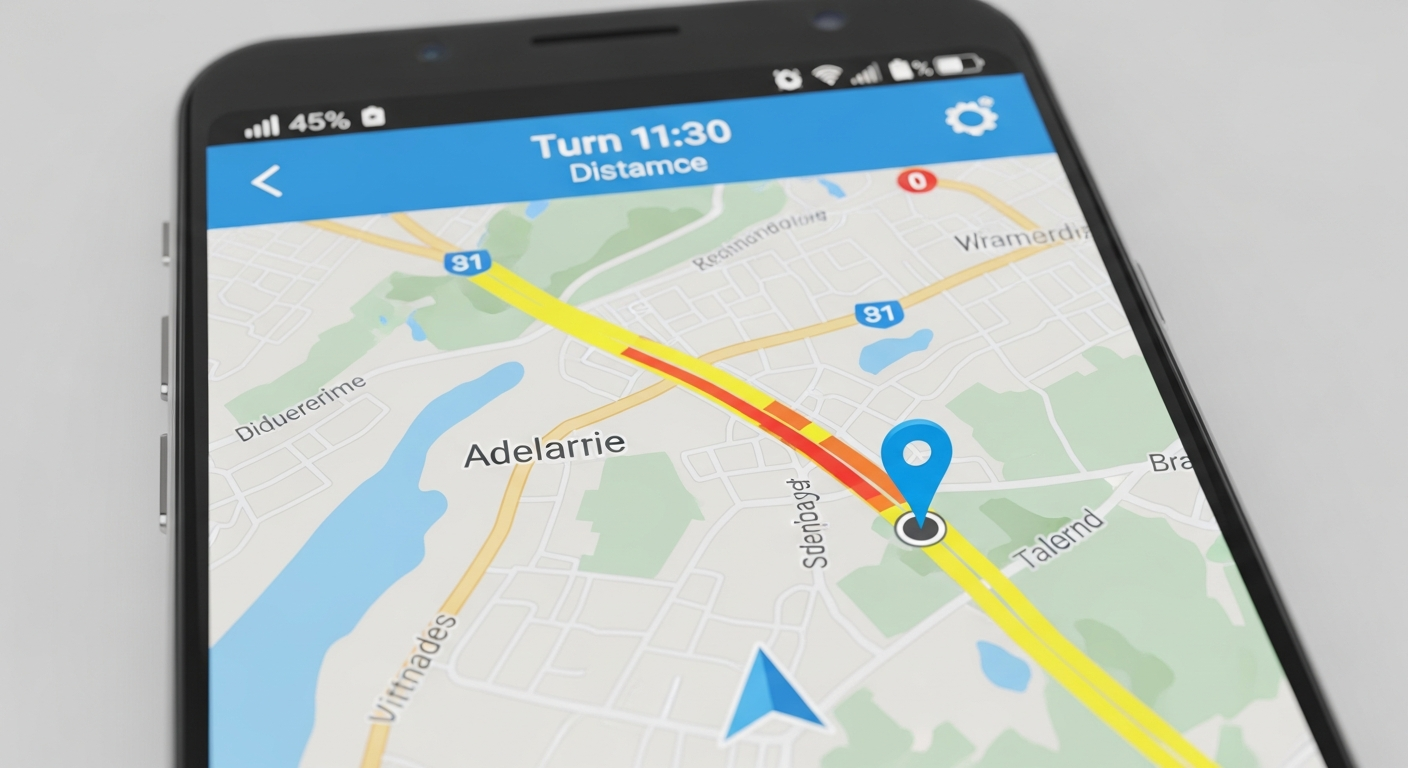
Getting around new places or even your hometown is easier than ever with navigation apps on your phone. This guide will help you understand how these apps work and how to start using them today.
1. What is a navigation app?
A navigation app is like a digital map on your phone that tells you how to get from one place to another. It uses your phone's location to show you where you are and gives you spoken directions, turn by turn, to reach your destination.
These apps help you find the best routes, avoid traffic, and discover nearby places like gas stations or restaurants. They are designed to make traveling by car, walking, or even public transport much simpler.
2. How do I download a navigation app?
You can download navigation apps from your phone's app store. If you have an iPhone, open the "App Store" app. If you have an Android phone, open the "Play Store" app. Search for apps like "Google Maps" or "Waze."
Once you find the app, tap the "Get" or "Install" button. You might need to enter your phone's password or use your fingerprint to confirm. The app will then download and appear on your phone's home screen.
3. Is Google Maps free to use?
Yes, Google Maps is completely free to download and use. Most popular navigation apps, like Waze and Apple Maps, are also free. They make money through optional ads or by offering premium features that most users don't need.
While the apps themselves are free, they do use your phone's internet data to get real-time traffic updates and map information. If you're worried about data usage, you can often download maps for offline use beforehand.
Google Maps
- Detailed worldwide maps
- Reliable directions
- Public transport info
- Street View feature
Waze
- Community-reported traffic
- Real-time hazard alerts
- Police presence alerts
- Fun voice options
4. How do I enter a destination in an app?
Open your navigation app and look for a search bar, usually at the top of the screen. Tap on it, and a keyboard will appear. You can type in an address, a business name (like "Central Park Cafe"), or even a type of place (like "gas station").
As you type, the app will often suggest places. Tap on the correct suggestion or the search button. The app will then show you the location on the map and give you an option to "Start" or "Directions."
5. Can I use navigation apps without internet?
Yes, many navigation apps allow you to download maps to your phone for offline use. This means you can get directions even if you lose internet signal, like in rural areas or during international travel without data roaming.
To do this, you usually go into the app's settings, find "Offline maps" or "Download maps," and select the area you need. Remember, real-time traffic updates won't work without an internet connection.
6. What are common symbols in navigation apps?
You'll see a few common symbols: a blue arrow or dot usually shows your current location. A red line often indicates heavy traffic, while orange means moderate traffic. A magnifying glass is for searching, and a speaker icon controls voice directions.
Other symbols might include gas pumps for fuel stations, dining icons for restaurants, and parking symbols for parking lots. Over time, you'll quickly learn to recognize these helpful icons on your map.
7. How do I change voice directions or language?
To change voice directions or language, open your navigation app and go to its "Settings" menu. Look for options like "Voice & navigation," "Spoken directions," or "Language." You can often choose from different voices, languages, or even turn the voice off completely.
Some apps, like Waze, even offer fun celebrity voices. Experiment with the settings to find a voice and language that you find clear and pleasant for your journeys.
Changing Voice Directions
- Open Navigation App
- Tap "Menu" or "Profile"
- Select "Settings"
- Find "Voice & Sound" or "Navigation Settings"
- Choose "Voice Type" or "Language"
- Select your preferred option
8. Can I save my favorite places or routes?
Absolutely! Most navigation apps let you save places you visit often, like your home, work, or a friend's house. Look for options like "Save," "Favorites," or "Starred places" when you view a location on the map.
Saving these locations makes it much quicker to get directions later, as you won't have to type in the full address every time. Some apps also let you save entire routes for future use.
9. How do I avoid tolls or highways?
When you get directions to a destination, before you start your trip, the app usually shows you a summary of the route. Look for an option that says "Route options," "Avoid tolls," or "Avoid highways."
Tap on these options to toggle them on or off. The app will then recalculate your route to avoid tolls, highways, or even ferries, giving you alternative paths to your destination.
10. What should I do if I miss a turn?
Don't worry if you miss a turn! Navigation apps are designed to automatically recalculate your route. Just keep driving safely, and the app will quickly update and give you new directions to get back on track or find an alternative path to your destination.
Avoid making sudden, unsafe maneuvers to correct a missed turn. Trust the app to guide you, and it will usually find the quickest way to adjust your journey without much delay.