
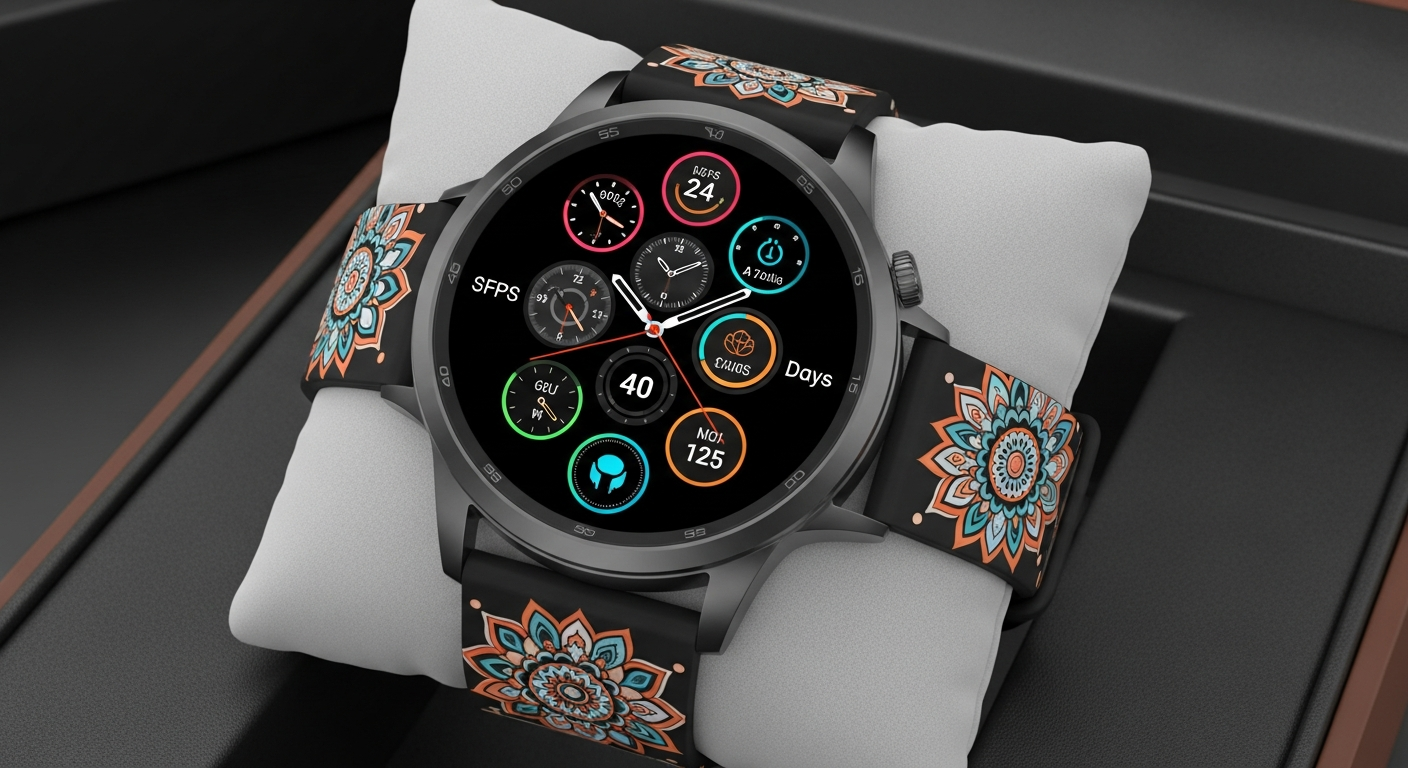
Welcome to the exciting world of smartwatches! These handy devices can do so much more than just tell time, right from your wrist. This guide will help you set up and start using your very first smartwatch with ease.
1. What are the initial steps after unboxing a new smartwatch?
First, fully charge your smartwatch. Most smartwatches come with a special charging cable or dock. While it's charging, download the companion app for your smartwatch onto your smartphone. This app is usually mentioned in the smartwatch's quick start guide or found by searching its brand name in your phone's app store.
2. How do I pair my smartwatch with my smartphone?
Once charged, turn on your smartwatch. Open the companion app on your smartphone. The app will guide you through the pairing process, usually involving Bluetooth. You might need to confirm a code shown on both your watch and phone to ensure they connect securely.
3. What is the process for installing essential apps?
Many smartwatches come with pre-installed apps for basic functions like fitness tracking or weather. To add more, use the companion app on your smartphone. Look for an "App Store" or "Discover Apps" section within the companion app, where you can browse and install new apps directly to your watch.
Smartwatch Apps
- Small, simple apps
- Quick glances, notifications
- Basic controls (play/pause music)
- Fitness tracking, timers
Smartphone Apps
- Full-featured, complex apps
- Detailed viewing, typing
- Extensive controls, settings
- Browsing, social media
4. How do I navigate the smartwatch interface?
Smartwatches typically use a combination of touch, swipes, and physical buttons. Swiping up, down, left, or right will move between different screens or menus. Pressing a button might take you back to the watch face or open a list of all your apps. Experiment to get a feel for it!
5. Can I change my watch face, and how?
Yes, changing your watch face is one of the most popular customizations! You can usually do this directly on the watch by pressing and holding the current watch face, then swiping through options. Alternatively, your smartphone's companion app will have a dedicated section for browsing and applying new watch faces.
6. How do I set up notifications to appear on my wrist?
Notifications are a key feature. Open your smartwatch's companion app on your smartphone. Look for a "Notifications" or "Alerts" section. Here, you can choose which apps are allowed to send notifications to your watch, ensuring you only get alerts for what matters most.
7. What's the easiest way to make or receive a call?
If your smartwatch has a speaker and microphone, you can make and receive calls directly. When a call comes in, simply tap the "answer" button on your watch. To make a call, open the "Phone" or "Contacts" app on your watch and select a contact, or use voice commands if available.
Smartwatch Call Flow
8. How do I use basic apps like weather or timers?
Most smartwatches have these apps pre-installed. To access them, swipe through your watch faces or press a button to open your app list. Tap on the "Weather" or "Timer" icon. For weather, ensure your location services are enabled. For timers, simply set your desired time and start it.
9. What security features should I enable?
It's wise to set up a PIN or pattern lock for your smartwatch, especially if it handles payments or personal data. This usually activates when you take the watch off your wrist. Also, ensure "Find My Device" or a similar feature is enabled through your companion app, in case your watch gets lost.
10. What should I do if my smartwatch isn't connecting?
First, check that both your smartwatch and smartphone have Bluetooth turned on. Restart both devices. Ensure your smartwatch's companion app is updated and running in the background on your phone. If problems persist, try "forgetting" the device in your phone's Bluetooth settings and re-pairing it from scratch.