
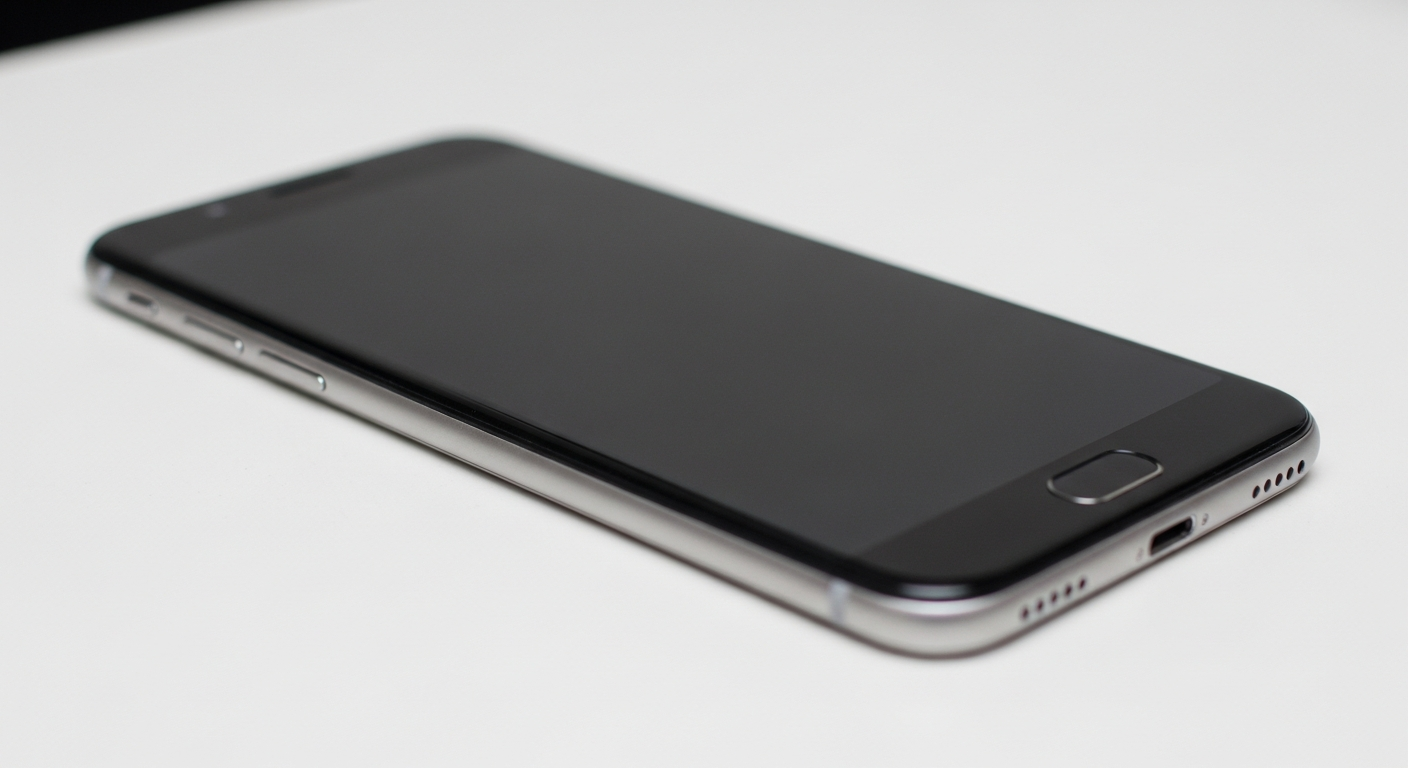
Welcome to the world of smartphones! Getting a new phone is exciting, and this guide will walk you through setting it up for the very first time, step by simple step.
We'll cover everything from turning it on to making your first call, even if you've never used a smartphone before.
1. What's in the box when I get a new phone?
When you unbox your new smartphone, you'll typically find the phone itself, a charging cable (often USB-C), and a wall adapter to plug the cable into. Some phones might also include a small tool to open the SIM card tray, or a quick start guide.
Headphones and protective cases are sometimes included but are becoming less common. Always check the packaging carefully for all components.
2. How do I turn on my new smartphone?
To turn on your smartphone, locate the power button. This button is usually on the right side of the phone. Press and hold it for a few seconds until you see the screen light up and the brand logo appear.
The phone will then go through a startup sequence. It might take a minute or two to fully boot up before you see the setup screen.
3. How do I set up my SIM card?
Your SIM card connects your phone to your mobile network for calls and texts. First, find the small tray on the side of your phone. Use the tiny tool (or a paperclip) to gently push into the small hole next to the tray until it pops out.
Place your SIM card into the tray, making sure the cut corner aligns correctly. Then, carefully push the tray back into the phone until it clicks flush. Your phone should then recognize the SIM card.
SIM Card Setup Flow
4. How do I connect my phone to Wi-Fi?
Connecting to Wi-Fi uses your home internet instead of your mobile data. Go to your phone's "Settings" app, which often looks like a gear icon. Tap on "Network & Internet" or "Connections," then "Wi-Fi."
Turn Wi-Fi on if it's off. Your phone will show a list of available networks. Tap on your home network's name, enter the password (usually found on your router), and tap "Connect."
5. How do I create an account (Apple ID or Google Account)?
You'll need an account to download apps and use many phone features. If you have an iPhone, you'll create an Apple ID. For Android phones, you'll create a Google Account.
Your phone will guide you through this during the initial setup. You'll enter details like your name, birthdate, and choose a username and password. This account is free and essential for your smartphone experience.
6. How do I make my first phone call?
To make a call, find the "Phone" app, which usually looks like a phone receiver icon. Tap it to open the dial pad. Enter the phone number you wish to call.
Once the number is entered, tap the green call button, which often looks like a phone receiver. To end a call, tap the red end call button.
7. How do I send my first text message?
Open the "Messages" app, which often looks like a speech bubble. Tap the "New Message" or "+" icon to start a new conversation. In the "To" field, type the phone number or contact name of the person you want to text.
Tap in the "Message" or "Text Message" field to bring up the keyboard and type your message. When you're done, tap the "Send" button, which often looks like a paper airplane.
Sending Messages: Text vs. App
Text Message (SMS)
- Uses your phone's mobile network.
- Reliable for basic messages.
- Works with any phone number.
- May have character limits.
App Message (e.g., WhatsApp)
- Uses internet (Wi-Fi or mobile data).
- Rich features: photos, videos, group chats.
- Requires both users to have the app.
- Often free over Wi-Fi.
8. How do I find and open an app?
Apps are programs that perform specific tasks. To find an app, swipe left or right on your home screen to browse through pages of apps. You can also swipe down from the top of the screen (or up from the bottom on some phones) to open a search bar.
Type the app's name in the search bar, then tap on the app icon to open it. Once open, you can interact with the app's features.
9. How do I adjust the volume on my phone?
Your phone has physical volume buttons, usually on the left side. The top button increases the volume, and the bottom button decreases it. These control the ringtone, notification, and media volume.
You can also adjust volume more precisely in the "Settings" app under "Sound & Vibration." Here, you can set separate levels for calls, media, and alarms.
10. How do I turn off my smartphone safely?
To turn off your smartphone, press and hold the power button (the same one you used to turn it on) for a few seconds. A menu will appear on your screen with options like "Power Off" or "Restart."
Tap "Power Off." Your phone will then go through a shutdown sequence and the screen will turn black. Always use this method to avoid potential data corruption.