
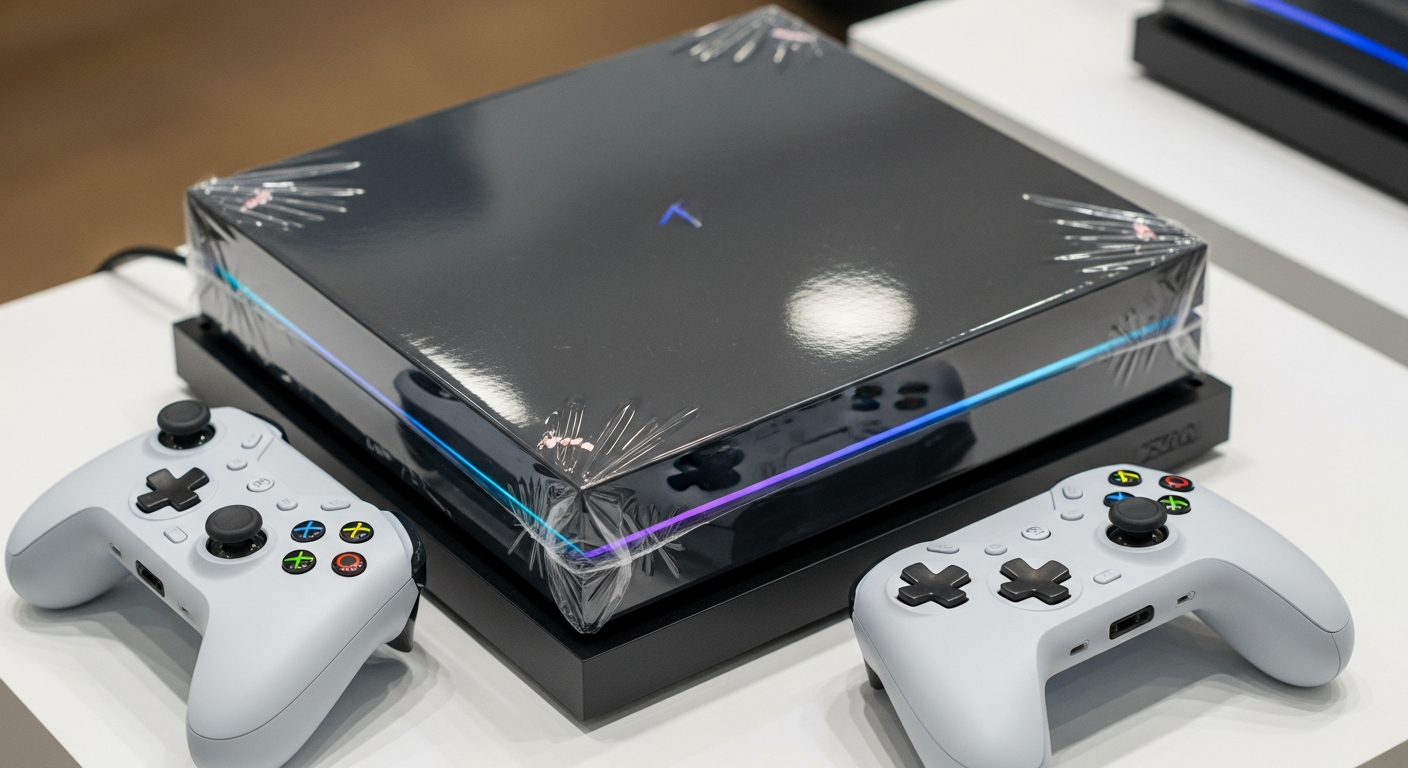
Getting a new gaming console is exciting! This guide will walk you through setting it up for the very first time, step-by-step, even if you've never done it before.
We'll cover everything from plugging in cables to downloading your first game, making sure you're ready to play in no time.
1. What cables do I need to connect my console to my TV?
You'll primarily need two cables. The first is an HDMI cable, which sends both video and sound to your TV. The second is the power cable, which connects your console to a wall outlet to turn it on. Both of these usually come in the box with your new console.
2. How do I connect my console to the internet (Wi-Fi or wired)?
For Wi-Fi, go to the console's settings, find "Network" or "Internet," and select your home Wi-Fi network from the list. Enter your Wi-Fi password. For a wired connection, plug an Ethernet cable from your internet router directly into the "LAN" port on your console. This often provides a more stable connection.
3. What is a system update and why is it important?
A system update is like a software upgrade for your console. It adds new features, fixes problems, and improves security. It's very important to install these updates as they ensure your console runs smoothly, securely, and can play the latest games. Your console will usually prompt you to do this automatically.
Wi-Fi Connection
- Wireless convenience
- Easy setup anywhere in range
- Can be slower or less stable
Wired (Ethernet) Connection
- Faster, more stable internet
- Better for online gaming
- Requires a cable to your router
4. How do I create a user profile or account?
When you first turn on your console, it will guide you through creating a user profile. This profile stores your game saves, settings, and online identity. You'll likely need an email address and to choose a username. This account connects you to the console's online services, like its game store.
5. Where do I plug in my controller?
Modern console controllers are usually wireless. They connect to the console automatically or by pressing a sync button. You'll typically use a USB cable (often included) to plug the controller into the console only for its first setup or to charge its battery. The USB ports are usually on the front or back of the console.
6. How do I download my first game?
Once your console is connected to the internet and you have a user profile, navigate to the console's "Store" or "Shop" section. You can browse for games, both free and paid. Select a game, choose "Download" or "Purchase," and follow the on-screen prompts. The game will then install onto your console.
7. What if my TV doesn't have an HDMI port?
Most modern consoles require an HDMI port. If your TV is older and lacks one, you might need an adapter. These adapters convert the HDMI signal to an older format like RCA (red, white, yellow cables) or component (red, green, blue, red, white cables). However, this might reduce video quality, and some consoles might not fully support older connections.
First Time Setup Flow
- Unbox Console & Cables
- Connect Power & HDMI to TV
- Turn On Console & TV
- Connect to Internet (Wi-Fi/Wired)
- Install System Updates
- Create User Profile/Account
- Pair Controller
- Start Gaming!
8. How do I adjust display settings like resolution?
Go to your console's "Settings" menu, then look for "Display," "Screen," or "Video Output." Here, you can usually adjust the resolution (e.g., 1080p, 4K) to match your TV's capabilities. You might also find options for HDR (High Dynamic Range) or refresh rate, which improve picture quality. Your console often sets these automatically.
9. What are parental controls and how do I set them up?
Parental controls let you manage what content your children can access, how long they can play, and what they can spend money on. You can usually find these settings under "Family" or "Parental Controls" in the console's main settings. You'll set a PIN or password to protect these settings and then choose age ratings, time limits, and spending limits.
10. How do I turn off my console properly?
It's best to turn off your console using the system menu rather than just unplugging it. Most consoles have a "Power" option in their main menu or by holding down the console's power button or the controller's main button. Select "Turn Off" or "Shut Down." This ensures all data is saved and prevents potential issues.