
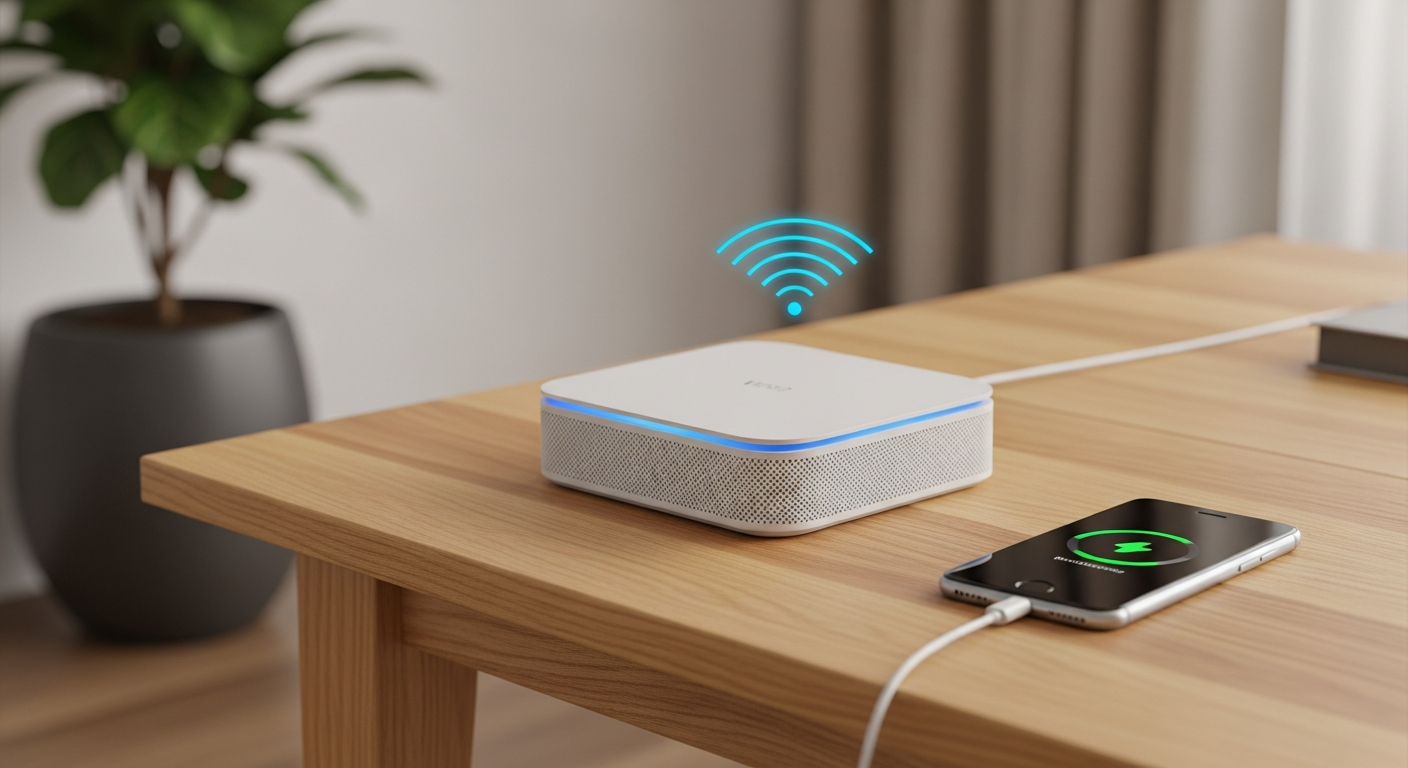
Frustrated with slow Wi-Fi in certain rooms? You're not alone! This guide will help you understand why you have Wi-Fi dead zones and how to fix them, so you can enjoy strong internet everywhere in your home.
1. Why do I have Wi-Fi dead zones?
Wi-Fi signals travel through the air, but they can be weakened or blocked by many things. Walls, floors, and even large appliances like refrigerators can act like barriers. The further you are from your main Wi-Fi box (router), the weaker the signal gets, creating "dead zones" where your internet barely works or doesn't work at all.
2. What is a Wi-Fi extender/repeater?
A Wi-Fi extender (also called a repeater) is a small device that grabs your existing Wi-Fi signal, boosts it, and then broadcasts it further. Think of it like a megaphone for your Wi-Fi. It helps your internet reach rooms that are too far from your main router, but it can sometimes make your internet a little slower.
3. How do mesh Wi-Fi systems work?
Mesh Wi-Fi systems use multiple devices (called "nodes") that work together to create one large, strong Wi-Fi network. Instead of just boosting a signal, they create a seamless blanket of Wi-Fi coverage across your entire home. Your devices automatically connect to the strongest node as you move around, ensuring a smooth and fast connection everywhere.
Wi-Fi Extender
- One main router, one booster device
- Connects to existing Wi-Fi, then re-broadcasts
- Can be cheaper upfront
- May reduce internet speed slightly
- Good for small areas or specific dead spots
Mesh Wi-Fi System
- Multiple devices (nodes) work together
- Creates a single, unified Wi-Fi network
- More expensive initially
- Provides consistent speed and coverage
- Ideal for large homes or many dead zones
4. Where should I place a Wi-Fi extender?
Place your Wi-Fi extender about halfway between your main Wi-Fi router and the dead zone. It needs to receive a good signal from your router to be effective. If you place it too far from the router, it will just boost a weak signal, which won't help much. Experiment with different spots to find the best balance.
5. Can powerline adapters extend Wi-Fi?
Yes, powerline adapters can extend Wi-Fi by using your home's electrical wiring. One adapter plugs into a wall outlet near your router and connects to the router with a cable. Another adapter plugs into an outlet in a dead zone, and some models can then create a new Wi-Fi hotspot there. This is great for thick walls that block Wi-Fi.
6. What's the difference between 2.4GHz and 5GHz?
These are two different "bands" your Wi-Fi can use. 2.4GHz travels further and goes through walls better, but it's generally slower and more prone to interference from other devices (like microwaves). 5GHz is much faster but has a shorter range and struggles more with obstacles. Many modern Wi-Fi devices use both, letting you pick the best one for your needs.
7. Does upgrading my router help range?
Absolutely! Newer Wi-Fi routers often have stronger antennas and more advanced technology designed to send signals further and handle more devices. If your router is several years old, upgrading to a newer model, especially one with Wi-Fi 6 or Wi-Fi 7 technology, can significantly improve your home's Wi-Fi range and speed, reducing dead zones.
Wi-Fi Signal Path
8. Can physical obstructions block Wi-Fi?
Yes, many things can block or weaken Wi-Fi. Thick concrete walls, metal objects (like filing cabinets or large mirrors), and even water (like a fish tank) can absorb or reflect Wi-Fi signals. Try to keep your Wi-Fi router in an open, central location, away from large obstructions, for the best coverage.
9. How do I check my Wi-Fi signal strength?
You can check your Wi-Fi signal strength using free apps on your smartphone or computer. Apps like "Wi-Fi Analyzer" (for Android) or built-in tools on Windows and Mac can show you how strong your signal is in different parts of your home. This helps you pinpoint dead zones and decide where to place extenders or mesh nodes.
10. When should I consider professional help for Wi-Fi?
If you've tried several solutions like extenders, mesh systems, or new routers, and still have persistent dead zones or slow speeds, it might be time for a professional. They can perform a detailed "site survey" to identify interference, optimal placement, and recommend advanced solutions tailored to your home's unique layout and construction.