
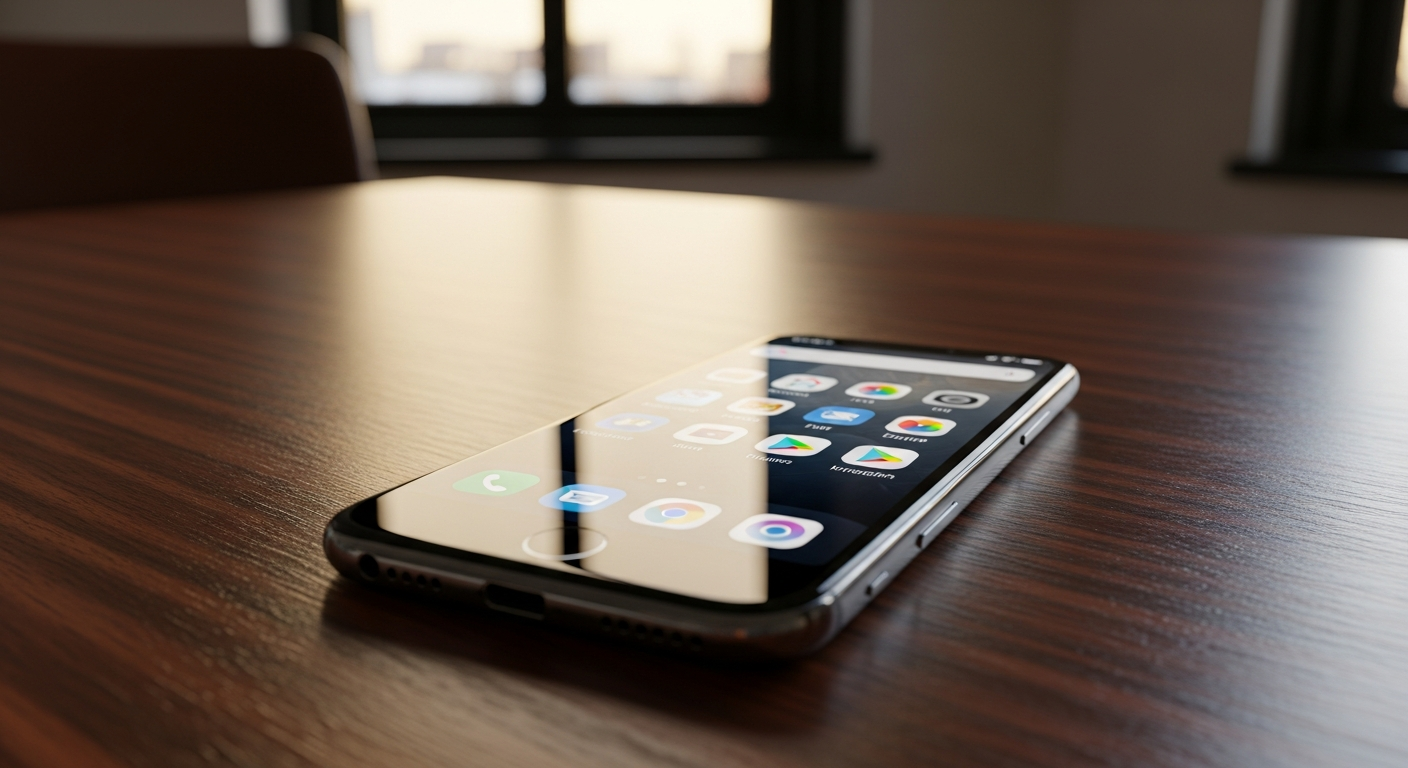
Getting a new smartphone can feel a bit overwhelming with all its options. Don't worry, this guide will walk you through the most important settings to help you get started and feel comfortable using your phone.
1. How do I change my screen lock?
Your screen lock keeps your phone secure. You can usually find this under "Settings" > "Security & Privacy" or "Lock screen & password." Here, you can choose a PIN (a number code), a pattern (drawing a shape), or a password. Some phones also offer fingerprint or face recognition for even faster unlocking.
2. Where do I find network settings?
Network settings control how your phone connects to the internet and other devices. Look for "Settings" > "Network & Internet" or "Connections." This is where you'll manage Wi-Fi, mobile data, Bluetooth, and even your phone's hotspot feature.
3. How do I adjust screen brightness and timeout?
You can change how bright your screen is and how long it stays on without touching it. Go to "Settings" > "Display." Here, you'll find a slider for brightness and an option called "Screen timeout" or "Sleep." Setting a shorter timeout saves battery life.
Screen Brightness
What it is: How light or dark your screen appears.
Why adjust: Easier to see in different light, saves battery when lower.
Screen Timeout
What it is: How long your screen stays on after you stop using it.
Why adjust: Shorter time saves battery, longer time is convenient for reading.
4. What are notification settings?
Notifications are the alerts you get from apps, like new messages or social media updates. Find these under "Settings" > "Notifications." You can choose which apps send notifications, how they appear (like a sound, vibration, or on the lock screen), and even turn them off completely for specific apps.
5. How do I change my ringtone and volume?
You can personalize your phone's sounds and control how loud they are. Go to "Settings" > "Sound & Vibration." Here, you can pick a new ringtone for calls, change the sound for text messages, and adjust the volume levels for calls, media (like music), and alarms separately.
6. What is "Do Not Disturb" mode?
"Do Not Disturb" (DND) mode silences all calls, alerts, and notifications, so your phone won't bother you. You can usually find it in "Settings" > "Sound & Vibration" or by swiping down from the top of your screen to access quick settings. You can set it to turn on automatically during certain times or allow calls from important contacts to still come through.
7. How do I set up Wi-Fi and mobile data?
These are your main ways to connect to the internet. For Wi-Fi, go to "Settings" > "Network & Internet" > "Wi-Fi," then select your network and enter the password. For mobile data, ensure it's turned on in the same "Network & Internet" section. Mobile data uses your cellular plan and works when Wi-Fi isn't available.
Connecting to Wi-Fi
- Go to Settings
- Tap Network & Internet
- Tap Wi-Fi
- Turn Wi-Fi On
- Select your Wi-Fi network name
- Enter the password
- Tap Connect
8. What are accessibility settings for?
Accessibility settings are designed to make your phone easier to use for everyone, especially those with visual, hearing, or dexterity challenges. You'll find them under "Settings" > "Accessibility." Options include larger text, screen readers that speak what's on the screen, color correction, and enhanced touch controls.
9. How do I find my phone's software version?
Knowing your phone's software version can be helpful for troubleshooting or checking for updates. You can usually find this information by going to "Settings" > "About phone" or "System." Look for "Software information," "Android version," or "iOS version" depending on your phone type.
10. What is a system update?
A system update is a package of improvements and fixes for your phone's operating system. These updates often include new features, better security, and performance enhancements. It's important to install them when available, usually found under "Settings" > "System" > "System update" or "Software update," to keep your phone running smoothly and securely.