
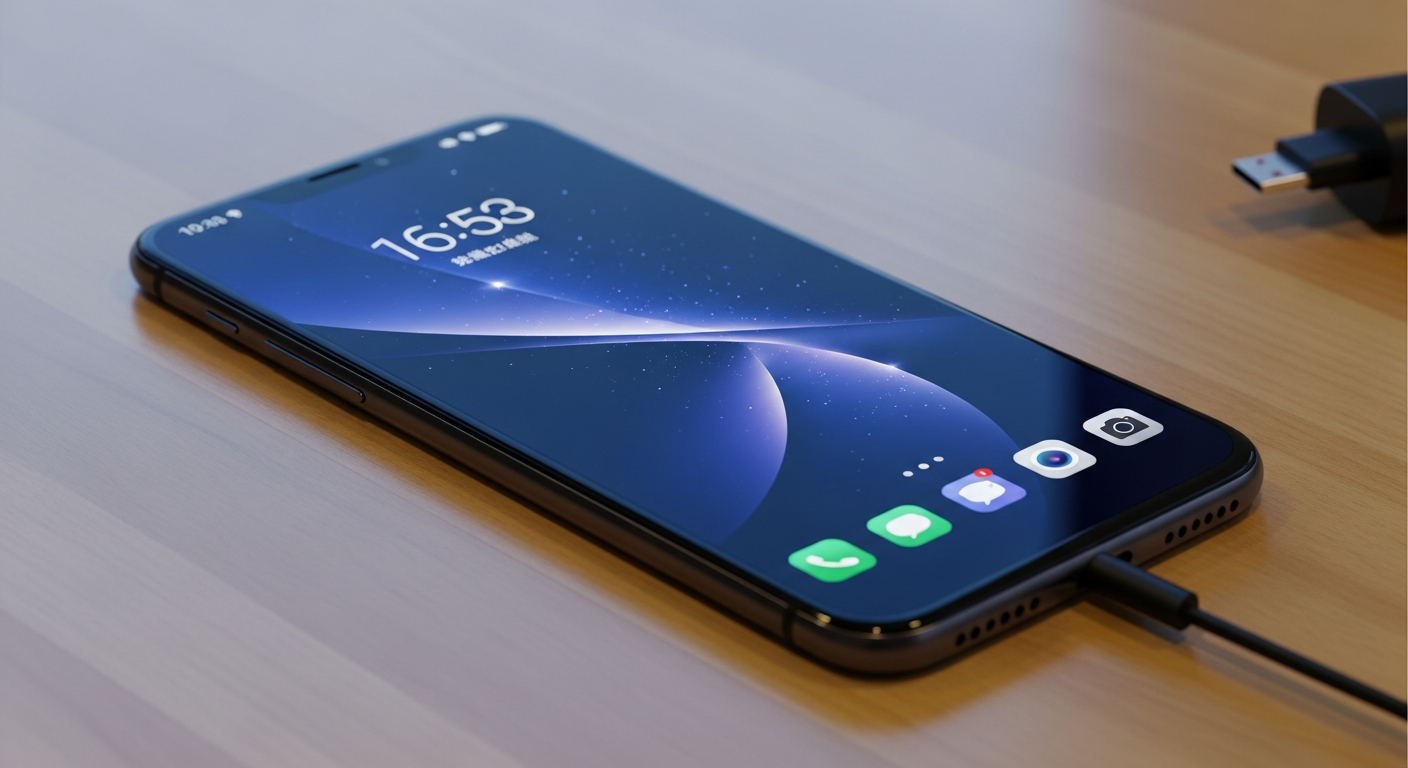
Keeping your smartphone secure is super important, just like locking your front door. This guide will help you understand simple steps to protect your phone and personal information, even if you're new to tech.
1. How do I set up a strong password or PIN?
A strong password or PIN is your phone's first line of defense. A PIN is usually 6 digits or more, like a secret number code. A password can use letters, numbers, and symbols, making it even harder to guess. Avoid easy choices like your birthday or "123456."
To set it up, go to your phone's "Settings," then look for "Security," "Biometrics and password," or "Lock screen." Choose a strong, unique PIN or password that you can remember but others can't guess. The longer and more complex, the better!
2. What is two-factor authentication and why do I need it?
Two-factor authentication (2FA) is like having two locks on a door instead of one. Even if someone guesses your password, they still need a second thing to get in. This second thing is often a code sent to your phone or generated by an app.
You need 2FA because it adds a huge layer of security to your accounts, like email and banking. If a hacker gets your password, they still can't log in without that second code, making it much harder for them to access your private information.
3. How can I find my lost or stolen phone?
Both iPhones and Android phones have built-in features to help you find them. For iPhones, it's called "Find My iPhone." For Android, it's "Find My Device." These tools let you see your phone's location on a map, make it ring loudly, or even erase all your data if it's truly lost forever.
To use them, you usually need to have the feature turned on beforehand. You can access these tools from a web browser on another device. Setting up a strong screen lock is also crucial, as it prevents anyone who finds your phone from accessing your data immediately.
Password/PIN
- Your first defense.
- Something you know (e.g., "P@ssw0rd123").
- Unlocks your device.
- Good for quick access.
Two-Factor Authentication (2FA)
- Adds a second layer of defense.
- Something you have (e.g., a code sent to your phone).
- Protects online accounts (email, banking).
- Essential for critical services.
4. What are common phone scams to watch out for?
Scammers often try to trick you into giving them money or personal information. Watch out for calls or messages pretending to be from banks, government agencies, or tech support, especially if they ask for your passwords or to send money. They might create a sense of urgency or fear.
Never give out personal details like passwords, bank account numbers, or Social Security numbers over the phone or in suspicious messages. If you're unsure, hang up and call the organization back using a trusted number from their official website, not one given by the caller.
5. Should I use public Wi-Fi?
Public Wi-Fi, like at coffee shops or airports, is convenient but often not secure. It's like having a conversation in a crowded room – anyone can potentially listen in. This means your data could be intercepted by others on the same network.
It's best to avoid doing sensitive activities like online banking or shopping when using public Wi-Fi. If you must use it, stick to browsing general websites. For anything private, use your phone's cellular data or a Virtual Private Network (VPN) for better protection.
6. How do I protect my privacy online?
Protecting your privacy means controlling who sees your personal information. Be mindful of what you share on social media, review your privacy settings on apps and websites, and only give out information when absolutely necessary. Think before you click or share.
Also, regularly check your phone's app permissions (covered in Q8) and use strong, unique passwords for all your online accounts. The less personal data you expose, the less there is for others to potentially misuse.
7. What is a VPN and do I need one?
A VPN, or Virtual Private Network, creates a secure, encrypted connection over the internet. Think of it as a private tunnel for your online activity. It hides your internet address and encrypts your data, making it much harder for others to see what you're doing online.
You might need a VPN if you frequently use public Wi-Fi, want to keep your browsing private from your internet provider, or need to access content that's restricted in your region. For everyday home use, it's less critical but still adds a layer of privacy.
How a VPN Protects You
8. How do I check app permissions for privacy?
App permissions control what an app can access on your phone, like your camera, microphone, location, or contacts. Many apps ask for these permissions when you first install them or use a feature. It's important to review these.
Go to your phone's "Settings," then "Apps," "Privacy," or "Permissions Manager." You can see which apps have access to what. If an app doesn't need access to your location to function (e.g., a calculator app), you can usually turn that permission off to protect your privacy.
9. Should I click on suspicious links in messages?
Absolutely not! Clicking on suspicious links in emails or text messages (often called "phishing" links) is one of the easiest ways to get malware on your phone or have your accounts stolen. These links often lead to fake websites designed to trick you into giving up your login details.
If you receive a link from an unknown sender, or if it looks odd even from someone you know, do not click it. Delete the message. If it claims to be from a company, go directly to their official website instead of using the link provided.
10. How do I back up my phone data securely?
Backing up your phone means making a copy of your important data, like photos, contacts, and messages, so you don't lose them if your phone is lost, stolen, or broken. Both iPhones and Android phones offer easy ways to do this.
iPhones can back up to Apple's iCloud or to a computer using iTunes/Finder. Android phones can back up to Google Drive. Make sure these backups are set to happen automatically and are protected by strong passwords and two-factor authentication for the cloud accounts.