
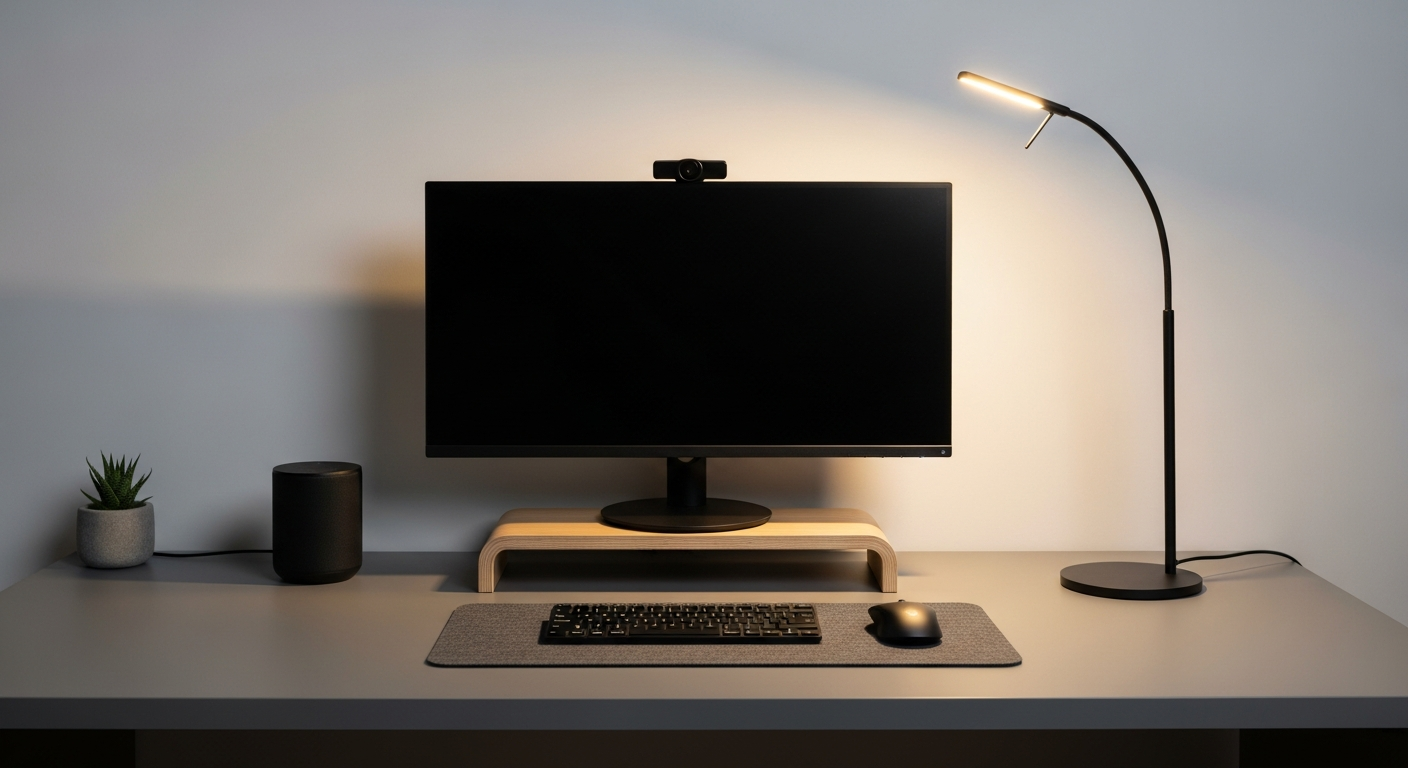
Setting up a home office can feel overwhelming, but it doesn't have to be! This guide will walk you through the essential tech choices, helping you create a comfortable and productive workspace.
1. What kind of laptop do I need?
For most home office tasks like emails, documents, and video calls, a modern laptop with at least 8GB of RAM and an SSD (Solid State Drive) for storage is perfect. You don't usually need the most expensive model. If your work involves heavy video editing or complex design, you might need a more powerful machine with a dedicated graphics card.
2. Should I get an external monitor?
Yes, absolutely! An external monitor can significantly boost your productivity and reduce eye strain. It gives you much more screen space to work with, allowing you to see multiple documents or applications at once. Look for one that's at least 24 inches for a comfortable viewing experience.
3. What's a good webcam for video calls?
While most laptops have built-in webcams, an external webcam often provides much better video quality. Look for one that offers 1080p resolution for clear images. Many modern webcams also include features like automatic lighting correction and wider viewing angles, making you look more professional on calls.
Laptop Webcam
- Convenient, built-in
- Lower resolution (often 720p)
- Fixed angle, poor lighting
- Good for quick, casual calls
External Webcam
- Higher resolution (1080p+)
- Better low-light performance
- Adjustable angle, better framing
- Ideal for professional meetings
4. Do I need a special microphone?
For most video calls, the microphone in your webcam or a good headset is sufficient. However, if you do a lot of presentations, podcasts, or client calls, a dedicated USB microphone can make your voice sound much clearer and more professional. It helps reduce background noise and improves overall audio quality.
5. What about a printer?
In 2026, many tasks are paperless. Consider if you truly need a printer. If you do, an all-in-one inkjet printer that can print, scan, and copy is usually the best choice for a home office. Look for models with wireless connectivity for easy printing from any device. Laser printers are faster and more economical for high-volume text printing.
6. How important is a reliable internet router?
Extremely important! Your router is the heart of your home office's internet connection. A reliable, modern router ensures stable Wi-Fi for your calls, downloads, and uploads. Consider a Wi-Fi 6 (802.11ax) router for faster speeds and better performance, especially if you have many devices connected simultaneously.
7. What accessories improve comfort?
Comfort is key for long work hours. An ergonomic keyboard and mouse can prevent strain. A comfortable office chair with good lumbar support is essential. Consider a monitor stand to raise your screen to eye level, reducing neck pain. Even a good desk lamp can make a big difference in reducing eye fatigue.
Home Office Comfort Boosters
Ergonomic Keyboard
Reduces wrist strain, promotes natural hand position.
Ergonomic Mouse
Fits hand comfortably, prevents repetitive strain injury.
Monitor Stand
Raises screen to eye level, improves posture.
Supportive Chair
Lumbar support, adjustable height for back health.
Desk Lamp
Reduces eye strain, provides focused task lighting.
Footrest
Improves circulation, supports lower back comfort.
8. How do I choose storage solutions?
For digital files, cloud storage services like Google Drive, OneDrive, or Dropbox are excellent for easy access and backup. For local storage, an external SSD offers fast and reliable backup for important files. Consider a network-attached storage (NAS) device if you need a lot of shared storage for multiple users or devices.
9. What software is essential?
Beyond your operating system, you'll need productivity suites like Microsoft 365 or Google Workspace for documents, spreadsheets, and presentations. Video conferencing tools like Zoom or Microsoft Teams are crucial for communication. Always have reliable antivirus software installed to protect your data from threats.
10. How do I manage power cords?
Taming cables creates a safer, tidier, and more pleasant workspace. Use cable ties, sleeves, or Velcro straps to bundle cords together. A power strip with surge protection is essential for plugging in multiple devices safely. Consider a cable management box to hide unsightly power bricks and excess wires under your desk.