
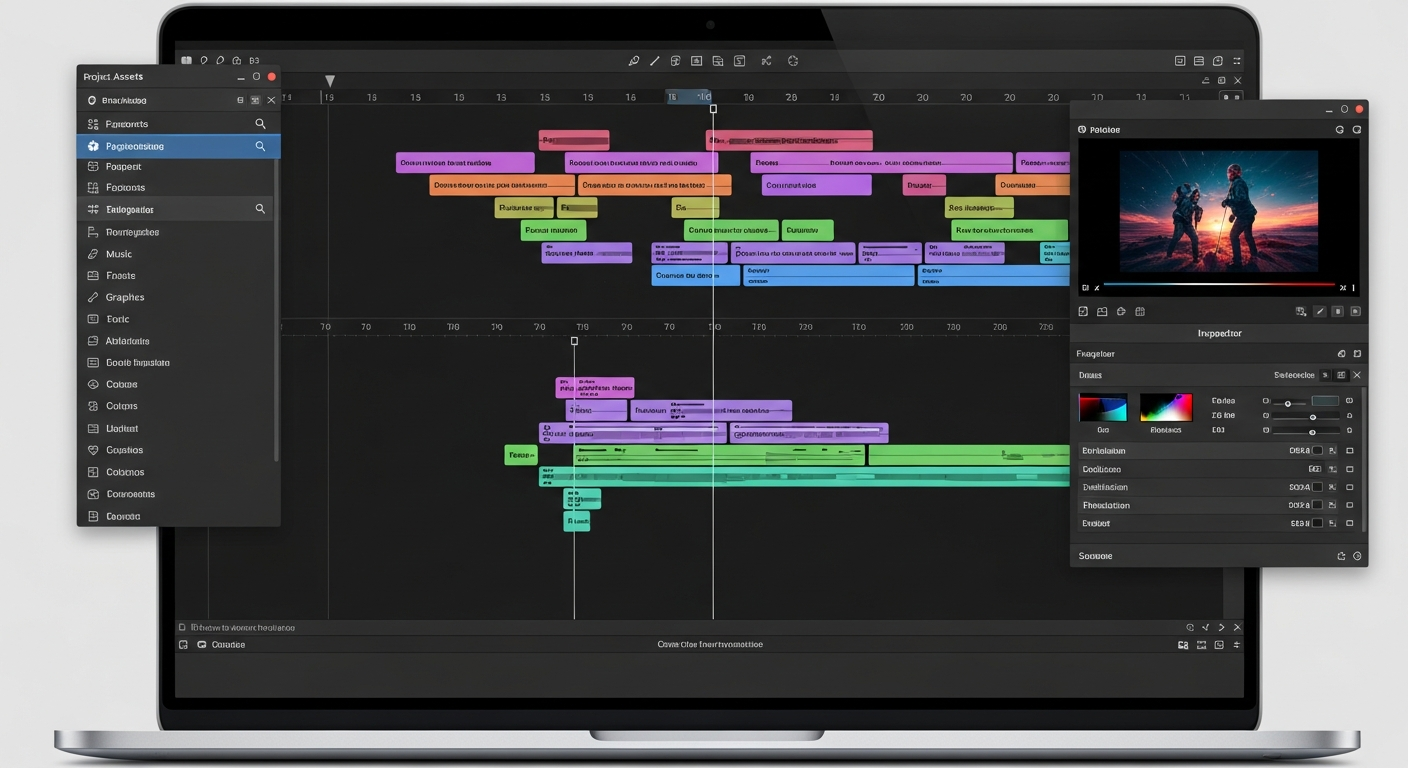
Want to make your videos shine on social media like Instagram or TikTok? This guide will help you understand the basics of video editing, even if you've never done it before. We'll cover everything from free apps to adding music and text, making it easy for anyone to create engaging content.
1. What free apps are best for editing videos on my phone for social media?
For editing videos right on your phone, CapCut and InShot are fantastic free choices. CapCut is very popular, especially for TikTok, offering many trendy effects and sounds. InShot is also great, providing a user-friendly interface for basic edits like trimming, adding music, and text. Both are excellent starting points for beginners.
2. How do I trim and cut unwanted parts from my video?
Trimming means shortening the beginning or end of a video clip, while cutting removes a section from the middle. In most apps, you'll select your video clip, then look for icons like scissors or a razor blade. You can drag the ends of the clip to trim, or split the clip into two parts and delete the unwanted middle section.
3. How can I add background music to my social media video?
Most editing apps have a "Music" or "Audio" section. You can choose from the app's built-in music library, which often includes royalty-free tracks safe for social media. Simply tap to add it, then adjust the volume of the music and your original video sound separately. You can also trim the music to fit your video's length.
CapCut
- Trendy effects & filters
- Easy TikTok integration
- Advanced features (keyframe, tracking)
- Great for dynamic, fast-paced edits
InShot
- Simple, intuitive interface
- Reliable for basic edits (trim, music, text)
- Good for quick, straightforward videos
- Less overwhelming for absolute beginners
4. What's the best video aspect ratio for Instagram Reels or TikTok?
For vertical platforms like Instagram Reels, TikTok, and YouTube Shorts, the best aspect ratio is 9:16. This means the video is taller than it is wide, filling the entire phone screen when held vertically. Most editing apps will offer a 9:16 option when you start a new project or in the canvas settings.
5. How do I add text overlays or captions to my video?
Look for a "Text" or "T" icon in your editing app. Tapping it will let you type your desired text. You can then customize its font, color, size, and position on the screen. Many apps also allow you to animate the text, making it appear or disappear with cool effects. Make sure the text is easy to read and doesn't cover important parts of your video.
6. How can I combine multiple video clips into one?
When you start a new project in most video editing apps, you can select several video clips at once. The app will automatically place them one after another on your timeline. You can then rearrange their order by tapping and dragging them. This is how you build a longer video from several shorter shots.
7. What are basic transitions and how do I use them?
Transitions are visual effects that connect one video clip to the next, making the change smoother or more interesting. Common ones include "Fade" (one clip slowly disappears as the next appears) or "Wipe" (one clip pushes the other off screen). In your app, you'll usually find a small icon (often a square or a plus sign) between two clips on your timeline. Tap it to choose a transition effect.
Video Editing Workflow
1. Import Clips
Gather all your video clips and photos into the app.
2. Trim & Arrange
Cut out unwanted parts and put clips in the right order.
3. Add Music & Text
Layer background music, captions, and overlays.
4. Refine & Enhance
Apply filters, transitions, and adjust colors.
5. Export & Share
Save your finished video and upload to social media.
8. How do I export my video in high quality for social media?
When you're finished editing, look for an "Export," "Save," or "Share" button. Before saving, most apps let you choose the video quality. For social media, aim for 1080p (Full HD) resolution and a frame rate of 30 frames per second (fps) or 60 fps if your original video was shot that way. This ensures your video looks crisp and smooth.
9. How can I speed up or slow down a video clip?
Select the video clip you want to adjust. Then, look for a "Speed" or "Time" option. You'll usually see a slider or specific speed multipliers (e.g., 0.5x for slow motion, 2x for fast motion). Adjust the slider to your desired speed. Be mindful that extreme speed changes can sometimes make your video look choppy or unnatural.
10. What are common mistakes beginners make when editing for social media?
Beginners often use too many fancy transitions, making videos look messy. Another mistake is using copyrighted music, which can lead to your video being muted or removed. Also, make sure your text is readable and doesn't cover important visuals. Finally, avoid making your videos too long; social media thrives on short, engaging content.