
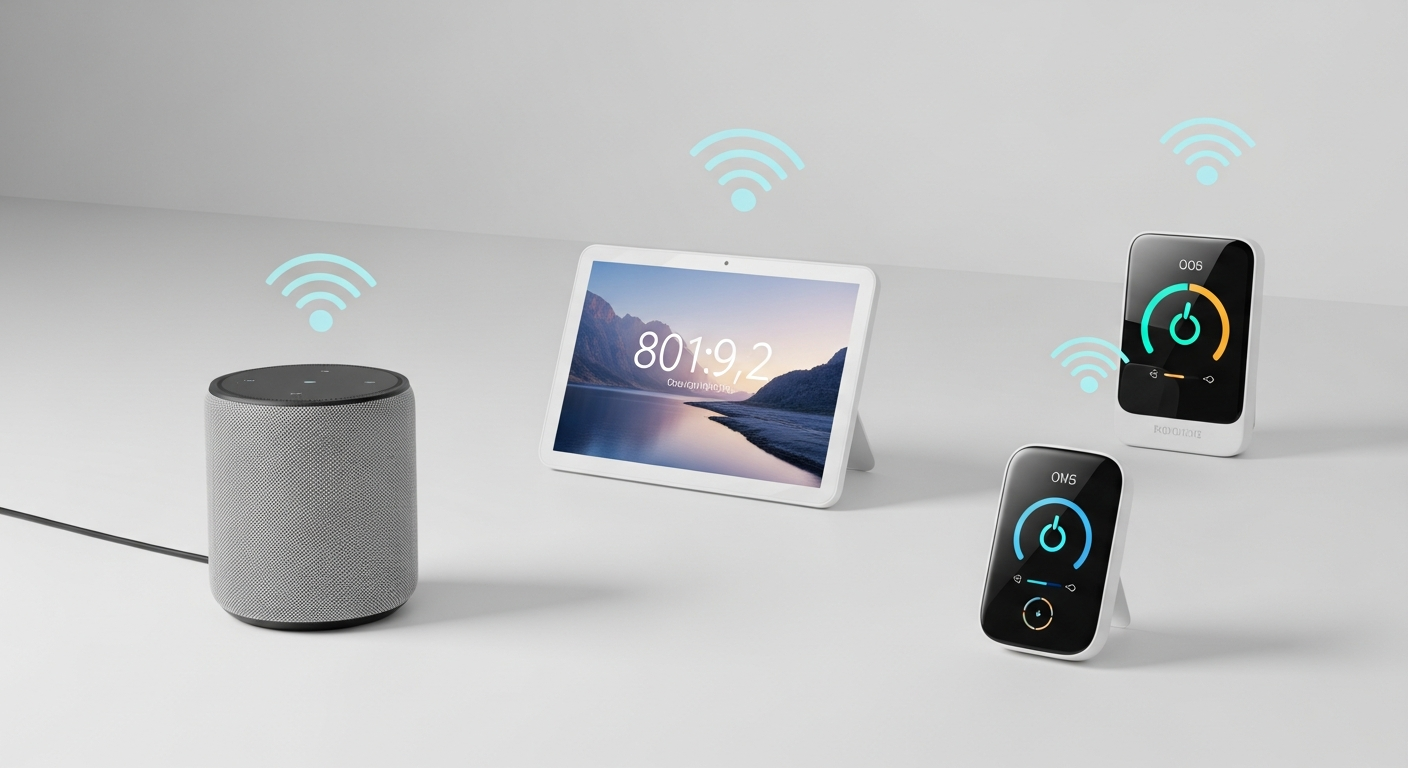
Welcome to the exciting world of smart homes! Setting up new smart devices might seem tricky, but it's often much simpler than you think. This guide will walk you through the process step-by-step, making it easy for anyone to get started.
1. What do I need before I start setting up a smart device?
Before you begin, gather a few essentials. You'll need a reliable home Wi-Fi network and its password. Make sure your smartphone or tablet is charged and has the device's app installed. Also, have any included setup guides or QR codes handy.
Ensure your Wi-Fi signal is strong where you plan to place the device. Sometimes, moving your Wi-Fi router closer or using a Wi-Fi extender can help. Having a clear idea of where each device will go also makes setup smoother.
2. Is installation complicated for smart light bulbs?
No, smart light bulbs are usually one of the easiest devices to install. Most smart bulbs screw into standard light sockets just like regular bulbs. Once screwed in, you'll typically use a smartphone app to connect them to your Wi-Fi.
The app will guide you through connecting the bulb. This often involves turning the light on and off a few times to put it into "pairing mode." From there, you can control brightness, color, and schedules directly from your phone.
3. How do I connect a smart plug to my Wi-Fi?
Connecting a smart plug is straightforward. First, plug the smart plug into a wall outlet. Next, download the specific app for your smart plug on your smartphone. Open the app and follow the on-screen instructions to add a new device.
The app will usually ask you to select your home Wi-Fi network and enter its password. Some plugs may have a small button you need to press and hold to put them into setup mode. Once connected, you can plug any appliance into the smart plug and control it with your phone.
4. What's the first step to installing a smart thermostat?
The very first step for a smart thermostat is to turn off the power to your existing thermostat at your home's circuit breaker. This is crucial for safety. Next, carefully remove your old thermostat's cover to see the wiring.
Take a clear photo of the wiring before disconnecting anything. This picture will be your guide when connecting the new smart thermostat. Most smart thermostats come with clear labels and instructions, or even a wiring diagram in their app to help you match the wires correctly.
5. Do I need professional help for any smart device installation?
Most smart devices are designed for easy DIY (Do-It-Yourself) installation. However, some devices, like smart door locks that require modifying your door, or smart thermostats that involve complex wiring, might benefit from professional installation if you're uncomfortable.
Devices connected to your home's main electrical system, like smart switches or ceiling fans, might also be better handled by a qualified electrician. Always prioritize safety and consult a professional if you're unsure about any electrical work.
6. How do I pair devices with a smart home hub?
A smart home hub acts as a central brain for many devices. To pair a device, first ensure your hub is powered on and connected to your network. Then, open your hub's app and look for an "Add Device" or "Pair Device" option.
The app will guide you through the specific steps, which often involve putting your new device into a "pairing mode." This might mean pressing a button on the device or scanning a QR code. The hub will then detect and connect to the device, allowing you to control it through the hub's app.
7. What if my device won't connect to my network?
First, double-check your Wi-Fi password for typos. Ensure your device is within range of your Wi-Fi router. Many smart devices only work on the 2.4 GHz Wi-Fi band, so check if your router supports this and if your phone is connected to it during setup.
Try restarting both your smart device and your Wi-Fi router. Sometimes, a simple reboot can fix connection issues. If problems persist, consult the device's manual or support website for specific troubleshooting steps, as some devices have unique requirements.
2.4 GHz Wi-Fi
- Longer range
- Better at passing through walls
- Slower speeds
- Most common for smart devices
5 GHz Wi-Fi
- Shorter range
- Struggles with walls
- Faster speeds
- Better for streaming & gaming
8. How do I update the firmware on my smart devices?
Firmware is like the device's internal operating system. Keeping it updated is important for security and new features. Most smart devices allow you to update their firmware directly through their companion app. Open the app and look for settings, device info, or a "Firmware Update" section.
The app will usually notify you if an update is available. Follow the on-screen prompts carefully. Ensure your device has enough battery (if applicable) and a stable internet connection during the update process. Do not unplug or turn off the device until the update is complete.
9. Can I set up devices without an internet connection?
Most smart devices require an internet connection, specifically Wi-Fi, for initial setup and ongoing control. This allows them to connect to their manufacturer's servers and your smartphone app. Without internet, they can't communicate or receive commands.
However, some specialized smart devices, especially those using local technologies like Zigbee or Z-Wave with a hub, might offer limited local control even if the internet goes down. But for initial setup and full functionality, an active internet connection is almost always necessary.
10. What are common mistakes during smart device setup?
One common mistake is not having your Wi-Fi password ready or entering it incorrectly. Another is trying to connect a device to a 5 GHz Wi-Fi network when it only supports 2.4 GHz. Forgetting to turn off the main power for devices like thermostats or switches is also a critical safety error.
Not reading the instructions or watching a quick setup video can also lead to frustration. Ensure your phone's Bluetooth is on if the device uses it for initial pairing. Finally, make sure the device is close enough to your Wi-Fi router during setup to get a strong signal.