
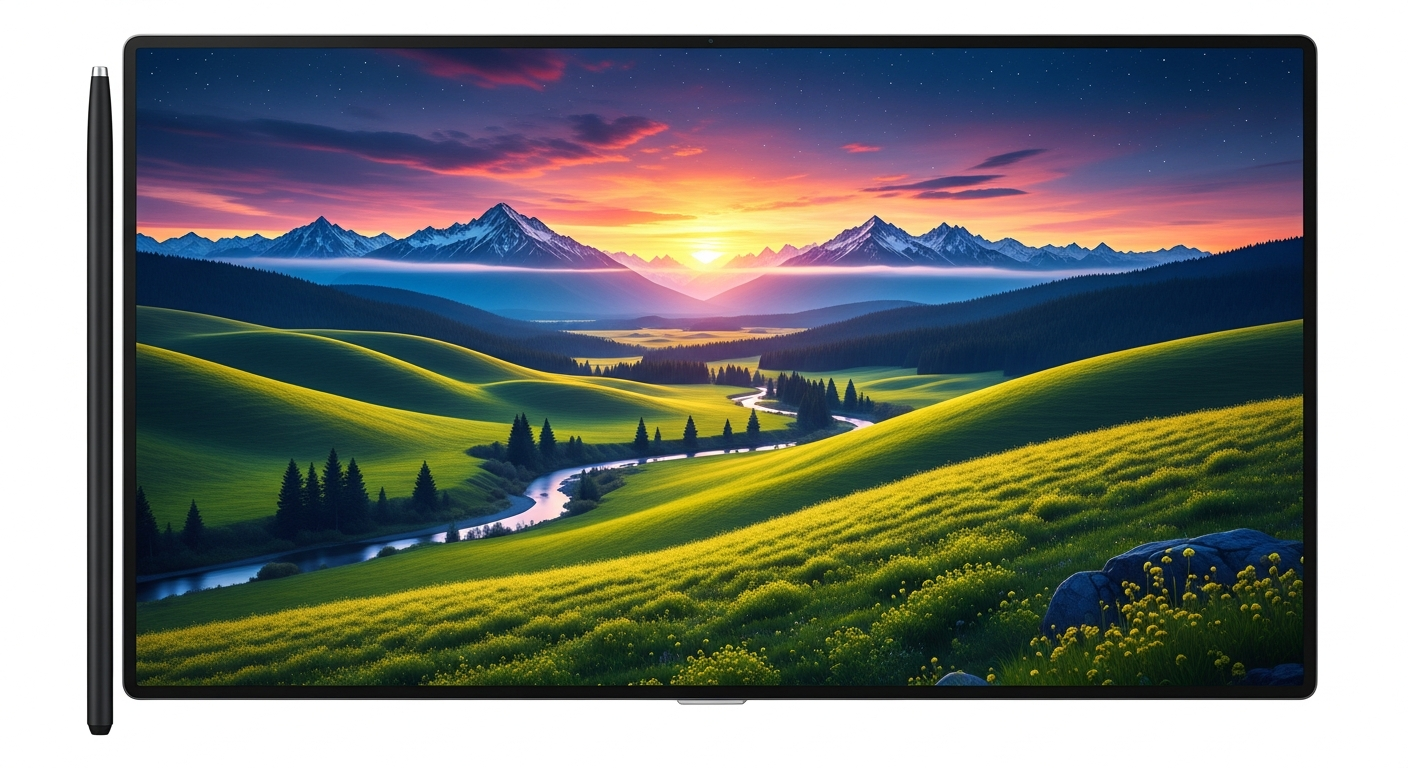
Want to make your photos look amazing without needing to be a tech wizard? This guide will show you simple tricks to improve your pictures using easy-to-understand tools and techniques.
You don't need fancy, expensive software to make your photos pop; just a few basic adjustments can make a huge difference!
1. What are the most basic adjustments I should make to any photo?
The first things to adjust are usually "exposure" (how bright or dark the photo is), "contrast" (the difference between light and dark areas), and "cropping" (cutting out unwanted parts). These three changes alone can dramatically improve most pictures, making them clearer and more focused.
2. How do I crop a photo effectively for better composition?
Cropping means cutting the edges of your photo to improve what's in the picture. Focus on your main subject and remove anything distracting from the background. Imagine a grid over your photo and try to place your subject off-center, rather than directly in the middle, for a more interesting look.
3. What's the difference between brightness, contrast, and exposure?
"Exposure" controls the overall lightness or darkness of the entire photo, as if you let more or less light into the camera. "Brightness" makes all parts of the photo lighter or darker equally. "Contrast" makes the dark parts darker and the light parts lighter, making the image look punchier and less flat.
Exposure
Adjusts overall light level.
- Makes entire photo brighter or darker.
- Like opening/closing a window.
Contrast
Adjusts difference between light/dark.
- Makes brights brighter, darks darker.
- Like sharpening edges.
4. How can I fix dull colors and make my photos more vibrant?
To make colors pop, look for "saturation" or "vibrance" sliders. "Saturation" boosts all colors equally, which can sometimes make photos look unnatural if overdone. "Vibrance" is smarter; it boosts less saturated colors more, making your photo look livelier without making skin tones look orange.
5. What are 'filters' and how do I use them wisely?
Filters are pre-set adjustments that apply a specific look or style to your photo with one tap. They can change colors, contrast, and brightness all at once. Use filters sparingly and choose ones that enhance your photo's mood without making it look fake. Less is often more when it comes to filters.
6. How can I remove red-eye or small imperfections?
Many simple editing tools have a "red-eye removal" feature that automatically fixes the glowing red eyes sometimes seen in flash photos. For small spots or blemishes, look for a "spot healing" or "blemish removal" tool. You simply tap on the imperfection, and the tool intelligently blends it away.
7. What free online tools or apps are best for quick edits?
For quick and easy edits, try apps like Google Photos (on mobile and web), Apple Photos (for iPhone/Mac users), or online tools like Pixlr E or Fotor. These offer basic adjustments, filters, and cropping, all for free. They are user-friendly and don't require any installation.
Simple Photo Editing Flow
8. How do I save my edited photos without losing quality?
When saving, always choose the highest quality option available, usually "JPG" or "JPEG" with a quality setting of 90-100%. If the option "PNG" is available, it's also excellent for preserving quality, especially for images with text or sharp lines. Avoid saving over your original photo; always save a new, edited copy.
9. What's the best way to convert a color photo to black and white?
Most editing tools have a "Black & White" or "Grayscale" option. Simply select it to remove all color. For a more dramatic effect, you can then adjust the contrast and brightness of the black and white image. Making the darks darker and the lights lighter can add depth and emotion to your monochrome photo.
10. How much editing is too much for a beginner?
As a beginner, it's best to aim for natural-looking enhancements rather than drastic changes. If your photo starts to look fake, over-processed, or has strange colors, you've probably gone too far. The goal is to make your photo look its best, not to completely transform it. Trust your eyes and compare it to the original.