
Losing your precious photos, important documents, or favorite music can be devastating. Regularly backing up your computer files is like having an insurance policy for your digital life, protecting you from unexpected data loss.
1. Why is it so important to back up my computer files regularly?
Backing up your files protects them from many common disasters. Your computer could crash, get a virus, be stolen, or simply stop working unexpectedly. Without a backup, all your irreplaceable photos, videos, and documents could be lost forever.
Having backups gives you peace of mind. If something goes wrong, you can easily get your important files back without stress or regret.
2. How often should I perform a backup of my important data?
The best frequency depends on how often your files change. If you create or edit many important files daily, you should back up daily or weekly. For those who use their computer less frequently or only store static files, a monthly backup might be sufficient.
Think about how much work you'd be willing to lose. If losing a week's worth of work is acceptable, then weekly backups are fine. If not, back up more often.
3. What are the different simple methods for backing up files?
There are two main simple methods for backing up your files. The first is using an "external hard drive," which is a physical device you plug into your computer. The second is "cloud storage," which means saving your files online to a service like Google Drive or Dropbox.
Both methods offer reliable ways to protect your data, but they have different benefits depending on your needs and preferences.
External Hard Drive
- Pros:
- Fast transfer speeds
- No internet needed
- One-time purchase cost
- Complete control over your data
- Cons:
- Can be lost or physically damaged
- Requires manual connection
- Not accessible from anywhere
- Needs to be stored securely
Cloud Storage
- Pros:
- Access files from any device, anywhere
- Automatic backups often available
- Protects against physical damage/theft
- Easy sharing with others
- Cons:
- Requires an internet connection
- Often involves a monthly subscription fee
- Potential privacy concerns
- Slower initial uploads for large files
4. What is an external hard drive, and how do I use it for backup?
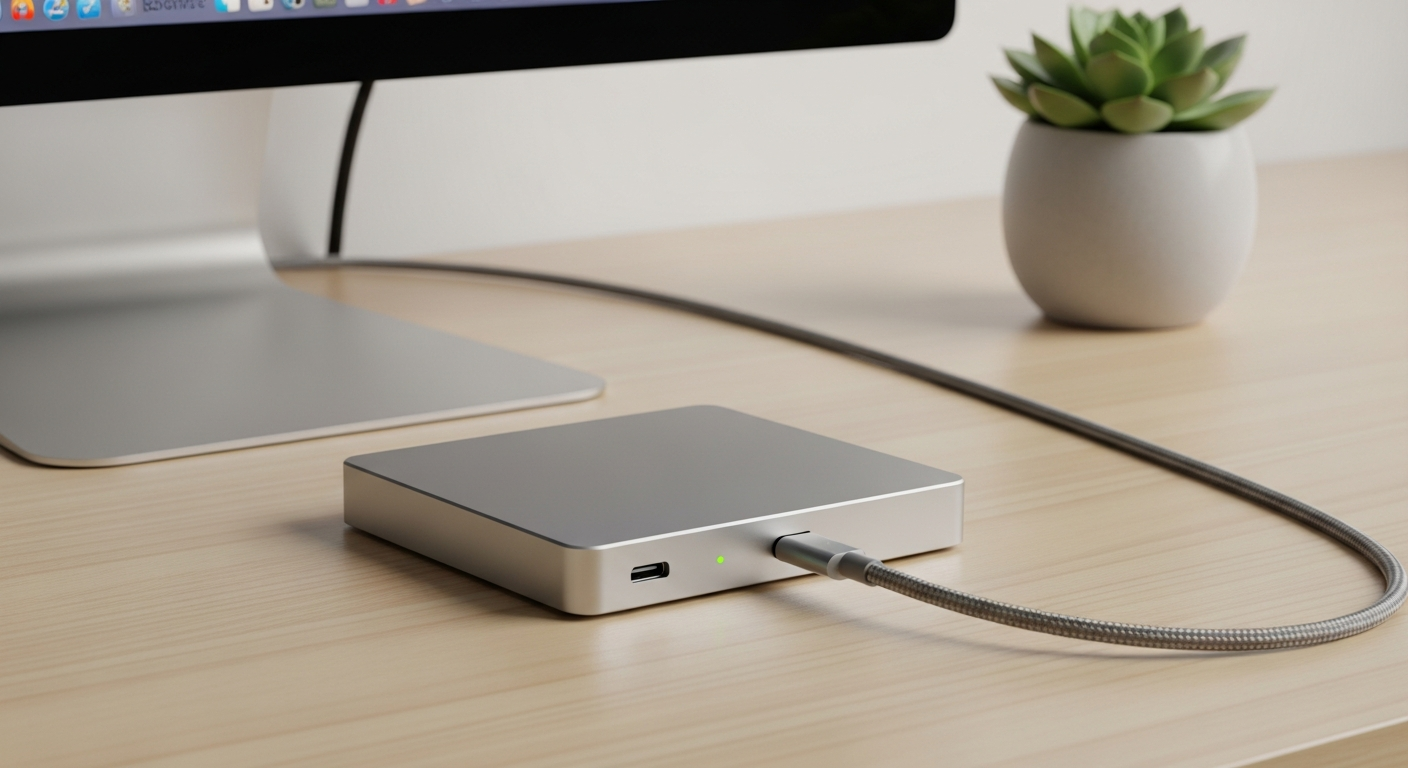
An external hard drive is a device that plugs into your computer, usually with a USB cable, to store extra files. Think of it like a very large USB stick. It's separate from your computer's internal storage.
To use it, you simply plug it in, and your computer will recognize it. You can then drag and drop files and folders from your computer onto the external drive. Many computers also have built-in backup software that can automatically copy files to it.
5. Can I use cloud storage services as a backup solution?
Yes, cloud storage services are excellent backup solutions. "Cloud storage" means your files are stored on powerful computers (servers) maintained by a company, accessible over the internet.
Services like Google Drive, Dropbox, or OneDrive let you upload files and often offer automatic syncing. This means any changes you make to a file on your computer are automatically updated in the cloud, providing a continuous backup.
6. How do I restore my files from a backup if I lose them?
Restoring files is usually straightforward. If you used an external hard drive, you simply plug it in and copy the files back from the drive to your computer. It's the reverse of backing up.
For cloud storage, you can log into your account through a web browser or the service's app. Then, you can download the specific files or folders you need back onto your computer.
7. Which files and folders should I prioritize when backing up?
Focus on files that are irreplaceable and personal. This includes your photos, videos, personal documents (like letters, resumes, tax forms), creative projects, and any unique music files.
You generally don't need to back up programs or your computer's operating system (like Windows or macOS) because you can always reinstall those from their original sources or downloads.
Simple Backup Steps
- Identify Important Files: Locate all your precious photos, documents, and videos.
- Choose Your Method: Decide between an external drive, cloud storage, or both.
- Perform the Backup: Copy files to your chosen backup location.
- Verify Your Backup: Periodically check that your copied files are accessible and correct.
- Store Safely: Keep external drives in a secure, separate location.
8. What is a 'system image' backup, and do I need one?
A "system image" is a complete snapshot of your entire computer, including the operating system, all your programs, settings, and files. It's like taking a picture of your computer's hard drive at a specific moment.
You might need one if you want to quickly restore your computer to an exact previous state after a major failure. For most users, backing up just their important personal files is sufficient, as reinstalling programs is usually easy.
9. How can I automate my backups so I don't forget?
Automation is key to consistent backups! Both Windows and macOS have built-in tools (like File History or Time Machine) that can automatically back up your files to an external drive on a schedule.
Many cloud storage services also offer automatic syncing and backup features. Once set up, these tools work in the background, ensuring your files are continuously protected without you needing to remember.
10. What should I do if my computer crashes before I've backed up?
If your computer crashes and you haven't backed up, the situation is more challenging. Avoid trying to fix it yourself if you're not experienced, as you could accidentally make data recovery harder.
Your best option is to seek help from a professional data recovery service. They have specialized tools and expertise to retrieve files from damaged computers. After any recovery, make sure to set up regular backups immediately!