
Staying connected with family is wonderful, and video calling makes it feel like they're right there with you. This guide will help seniors understand the easiest ways to see and chat with loved loved ones face-to-face, no matter the distance.
1. What is video calling?
Video calling is like a phone call, but you can see the other person on your screen, and they can see you! It uses your device's camera and microphone to share live video and audio over the internet. It's a fantastic way to feel closer to family, see grandchildren grow, and share special moments.
2. Which apps are best for video calls?
There are many apps, but some are simpler than others. Google Meet (formerly Google Duo), FaceTime (for Apple devices), and Zoom are popular choices. They are generally free to use for basic calls and work on various devices like smartphones, tablets, and computers.
3. Is Zoom easy to use?
Zoom is widely used, especially for group calls, but it can have a few more steps than other apps. For one-on-one calls, it's quite straightforward once set up. Your family can send you a link to join a call, making it simpler than starting one yourself.
Google Meet
- Works on almost any device (iPhone, Android, computer)
- Very simple interface
- Uses your Google account
- Good for one-on-one & groups
FaceTime
- Only works on Apple devices (iPhone, iPad, Mac)
- Extremely simple for Apple users
- Uses your phone number or Apple ID
- Great for one-on-one & groups
4. What about FaceTime for iPhones?
FaceTime is incredibly easy if both you and your family members have Apple devices like iPhones, iPads, or Mac computers. It's built right into these devices, so there's no app to download. You simply find a contact and tap the video icon to start a call.
5. Can I video call on a tablet?
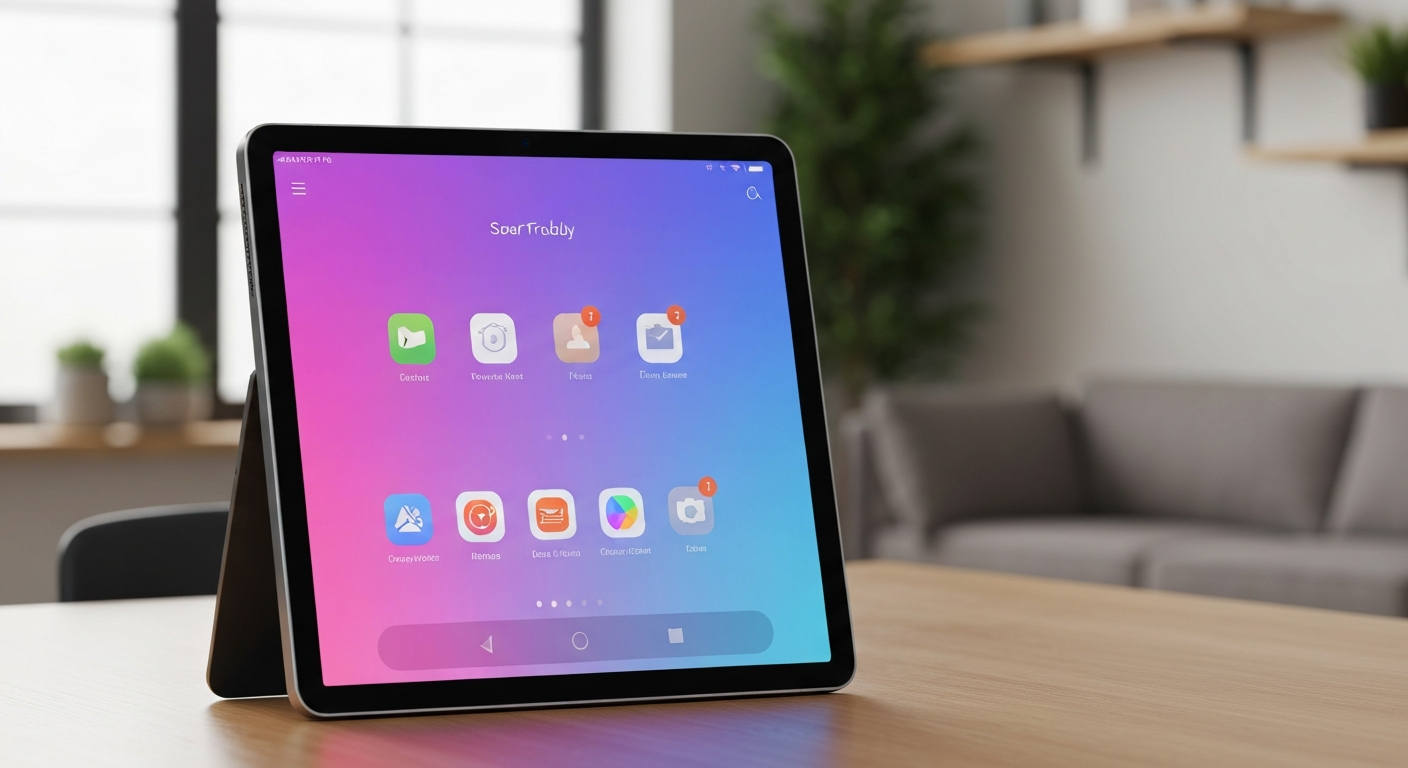
Absolutely! Tablets like iPads or Android tablets are excellent for video calls. Their larger screens make it easier to see faces, and they are portable. Most tablets have a front-facing camera perfect for video chats. Just download the video calling app you want to use.
6. Do I need Wi-Fi for video calls?
Yes, you need an internet connection. Wi-Fi (wireless internet) is the best option because it's usually free at home and provides a stable connection. If you don't have Wi-Fi, you can use your phone's mobile data, but this can quickly use up your data plan, so Wi-Fi is highly recommended.
7. How do I answer a video call?
When someone calls you, your device will ring and show a notification with the caller's name. You'll usually see a "Decline" or "End" button (often red) and an "Accept" or "Answer" button (often green). Simply tap the green button to answer and start talking and seeing your family.
Answering a Video Call
Device Rings
Your phone or tablet rings, showing who's calling.
See Options
You'll see "Decline" (red) and "Answer" (green) buttons.
Tap Green Button
Tap the green "Answer" button to connect.
Start Chatting!
You're now connected and can see and talk to your family.
8. Can someone help me set it up remotely?
Yes, many video calling apps allow family members to guide you through setup over a regular phone call. They can tell you exactly what to tap on your screen. Some devices even have features where trusted family can temporarily see your screen to help, but this requires specific setup and permission.
9. What equipment do I need?
You mostly need a device with a camera, microphone, and speakers, plus an internet connection. This could be a smartphone, tablet, or a computer (laptop or desktop with a webcam). That's usually all! Good lighting in your room also helps your family see you clearly.
10. Are video calls private?
Reputable video calling apps use encryption, which means your calls are scrambled so only you and the person you're calling can understand them. This helps keep your conversations private. Always make sure you're using official apps and only talking to people you know and trust.