
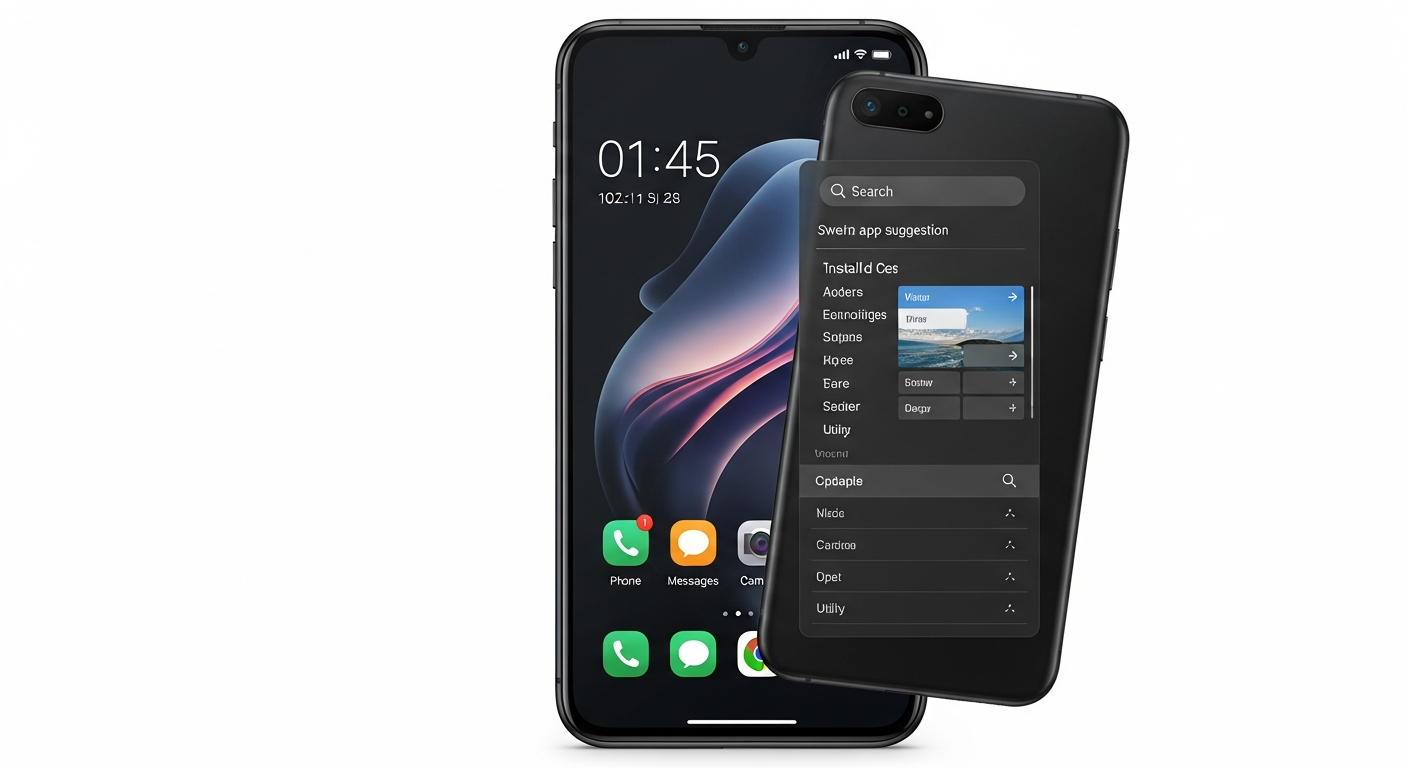
Choosing a smartphone can feel overwhelming, especially if you're new to technology or looking for something simple. This guide will help you understand what makes a smartphone easy to use for seniors, so you can pick the perfect device.
1. What makes a smartphone senior-friendly?
A senior-friendly smartphone focuses on simplicity and accessibility. This means it often has a clear, easy-to-read display, large buttons or icons, and a straightforward menu system. It prioritizes essential functions like calling, texting, and taking photos without too many complicated features.
Good senior-friendly phones also offer enhanced volume, clear sound, and compatibility with hearing aids. They might include dedicated emergency buttons or simplified modes that make the phone less intimidating to navigate. The goal is to make communication and staying connected effortless.
2. How do I choose the right phone size?
Phone size is crucial for comfort and usability. A larger screen is generally easier to see and interact with, especially for reading text or viewing photos. However, a phone that’s too big can be difficult to hold with one hand or carry in a pocket.
Consider trying out different sizes in a store to see what feels best in your hand. Look for a balance between screen visibility and comfortable handling. Many seniors find phones with screens between 5.5 and 6.5 inches to be a good compromise.
3. Are there phones with bigger buttons or screens?
Yes, absolutely! Many smartphones, especially those designed with seniors in mind, come with larger screens as a standard feature. These bigger displays make everything from text messages to photos much clearer and easier to see.
While physical buttons are rare on modern smartphones, most offer software solutions for "bigger buttons." This means you can adjust the size of app icons and on-screen keyboards to make them larger and easier to tap accurately. Look for phones that allow extensive customization of icon and text size.
Standard Smartphone
- Smaller text and icons by default
- Complex menus and many features
- Designed for tech-savvy users
- Often requires more setup
Senior-Friendly Smartphone
- Large, clear text and icons
- Simplified interface, essential features
- Designed for ease of use
- Ready to go with minimal setup
4. What are simplified modes on smartphones?
Simplified modes, often called "Easy Mode" or "Senior Mode," transform a regular smartphone's interface into something much simpler. They typically display fewer, larger app icons on the home screen, making it easier to find what you need without being overwhelmed by options.
These modes often streamline menus, increase text size automatically, and sometimes even limit accidental touches. They are perfect for users who only want to access basic functions like calling, texting, and a few favorite apps without navigating complex settings or a crowded screen.
5. How can I adjust text size and contrast?
Almost all modern smartphones allow you to easily adjust text size and screen contrast. You can usually find these settings in the "Display" or "Accessibility" section of your phone's main settings menu. Look for options like "Font Size," "Display Size," or "High Contrast Text."
Increasing text size makes reading messages and navigating apps much easier on the eyes. Adjusting contrast can make text stand out more clearly against backgrounds, which is helpful for those with vision impairments. Experiment with these settings to find what works best for you.
6. What are essential apps for seniors?
Beyond basic calling and texting, essential apps for seniors often include communication tools like video calling apps (e.g., FaceTime, WhatsApp) to connect with family. Health and wellness apps can help with medication reminders or tracking activity.
Other useful apps might include weather forecasts, simple news readers, or even games that stimulate the mind. Remember, the best apps are those that help you stay connected, informed, and entertained in ways that are meaningful to you.
7. How do I set up emergency contacts?
Setting up emergency contacts is a vital safety feature. Most smartphones have a dedicated "Emergency SOS" or "Medical ID" section, usually found in the phone's settings under "Safety & Emergency" or "Health." Here, you can list contacts who will be notified in an emergency.
Many phones also allow you to access these emergency contacts from the lock screen, meaning first responders can call them even if your phone is locked. Some senior-specific phones even have a physical SOS button that calls pre-set contacts and shares your location.
Setting Up Emergency Contacts
- Go to Phone Settings
- Find "Safety & Emergency" or "Health"
- Select "Emergency Contacts" or "Medical ID"
- Add names and numbers of trusted contacts
- Enable "Show on Lock Screen" for quick access
8. Are voice commands useful for seniors?
Absolutely! Voice commands, powered by virtual assistants like Siri (Apple) or Google Assistant (Android), can be incredibly useful. You can simply speak commands like "Call [Name]," "Send a text to [Name] saying [Message]," or "What's the weather?"
This feature is especially helpful for those who find typing difficult or have limited dexterity. It makes using the phone hands-free and more intuitive. Learning a few basic voice commands can greatly simplify daily tasks and communication.
9. What about hearing aid compatibility?
Hearing aid compatibility (HAC) is an important consideration. Most modern smartphones are designed to work well with hearing aids. Look for phones with a HAC rating, which indicates how well they reduce interference when used with hearing aids.
Many phones also offer "Live Caption" or "Live Transcribe" features, which convert spoken audio into text on your screen. This can be a huge benefit for those with hearing difficulties, making phone calls and videos more accessible.
10. Where can I get help learning to use a smartphone?
There are many resources available! Your phone carrier's store often offers basic setup help and tutorials. Family and friends are usually happy to assist. Community centers, libraries, and senior organizations frequently host workshops or one-on-one tech support sessions.
Online tutorials and videos can also be very helpful. Don't hesitate to ask for help; learning something new takes time, and there are plenty of people ready to guide you through the process of mastering your new smartphone.