
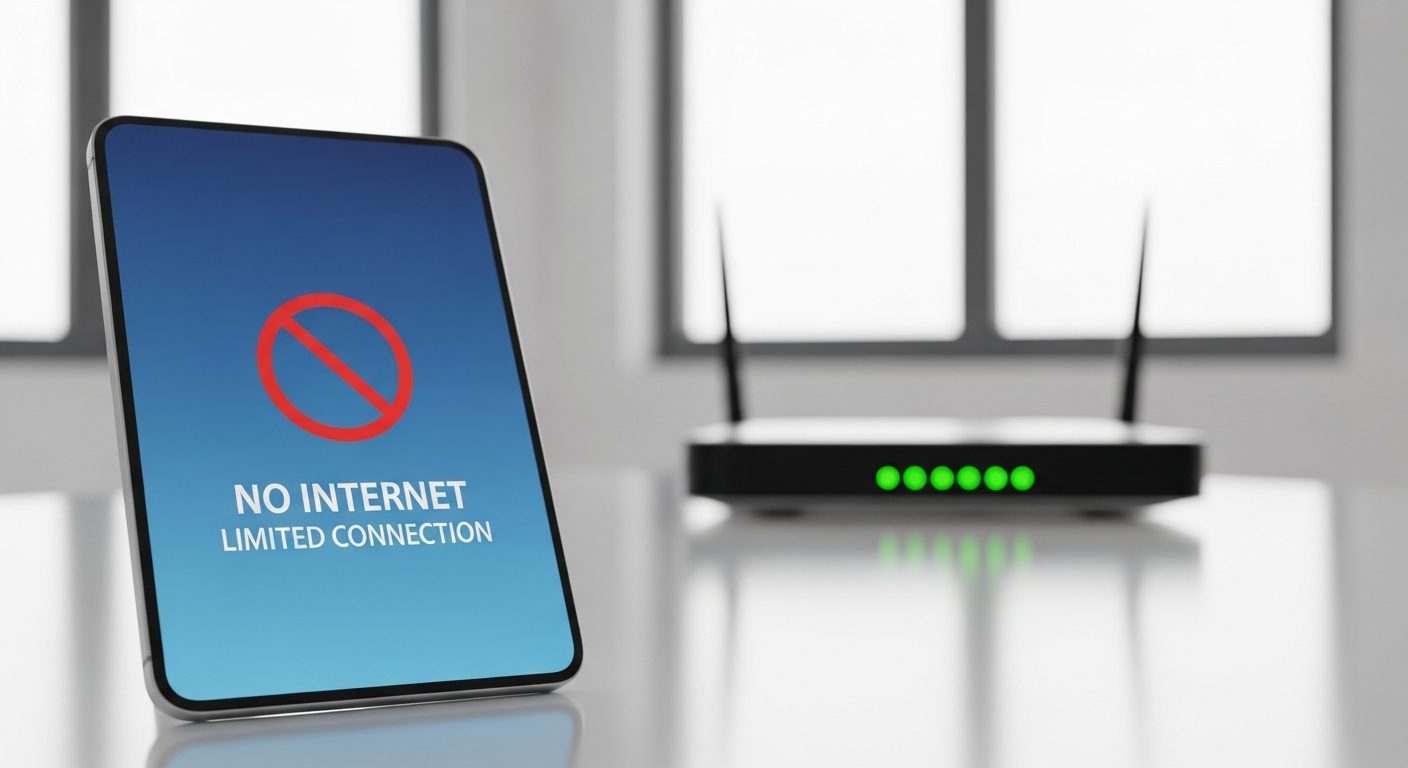
Having trouble getting your device online? It's frustrating when your phone or computer won't connect to Wi-Fi, but many common issues have simple solutions.
Let's walk through some easy troubleshooting steps to get you back online.
1. Why can't my phone connect to Wi-Fi?
There are several reasons your phone might not connect. It could be a simple mistake like typing the wrong password, or your Wi-Fi might be turned off. Sometimes, your Wi-Fi router itself might be having a temporary glitch, or your phone's network settings need a quick refresh.
2. How do I forget a network on my device?
Forgetting a network clears its saved password and settings, which can fix connection issues. On most phones, go to "Settings," then "Wi-Fi." Tap the name of the network you want to forget, then select "Forget This Network" or "Remove." On computers, find your Wi-Fi settings, select "Manage known networks," and choose to forget the problematic one.
3. What if my Wi-Fi password is correct but it still won't connect?
If your password is correct, try restarting your device (phone, tablet, computer) and your Wi-Fi router. Unplug your router for 30 seconds, then plug it back in. Also, double-check for "Caps Lock" on your keyboard if you're using a computer, as passwords are case-sensitive. Sometimes, old network settings can cause issues, even with the right password.
Restart Your Device
Turns your device completely off and then back on. This clears out temporary software glitches, refreshes its memory, and can resolve minor connection errors without affecting your saved data or settings.
Restart Your Wi-Fi Router
Unplugging your router for 30 seconds and plugging it back in reboots its internal system. This can fix issues with the router itself, like slow speeds, dropped connections, or failure to assign IP addresses to devices.
4. How do I update my device's network drivers?
Network drivers are special software that helps your device communicate with Wi-Fi. For phones and tablets, these drivers usually update automatically with system software updates. For computers, you might need to manually check. On Windows, go to Device Manager, find "Network adapters," right-click your Wi-Fi adapter, and select "Update driver." Mac updates drivers through system updates.
5. What is airplane mode?
Airplane mode is a setting that quickly turns off all wireless communication on your device. This includes Wi-Fi, cellular data, and Bluetooth. Toggling airplane mode on for a few seconds and then off again can sometimes fix minor Wi-Fi connection problems by forcing your device to reconnect to all wireless services from scratch.
6. How do I reset network settings on my phone/computer?
Resetting network settings deletes all your saved Wi-Fi passwords, Bluetooth pairings, and VPN configurations, essentially starting fresh. On iPhones, go to "Settings" > "General" > "Transfer or Reset iPhone" > "Reset" > "Reset Network Settings." On Android, it's usually in "Settings" > "System" > "Reset options" > "Reset Wi-Fi, mobile & Bluetooth." For Windows, search "Network Reset" in the Start menu.
7. Could my device's Wi-Fi adapter be broken?
The Wi-Fi adapter is the part of your device that receives Wi-Fi signals. If only your specific device can't connect to any Wi-Fi networks (but other devices connect fine), the adapter might be faulty. Check if the Wi-Fi option is even visible or can be turned on. If not, professional repair or replacement might be needed.
Wi-Fi Troubleshooting Flow
Check Wi-Fi is On
Ensure your device's Wi-Fi is enabled. Look for the Wi-Fi icon in quick settings or control center.
Restart Your Device
Turn your phone or computer off and on again. This often resolves temporary software glitches.
Restart Your Router
Unplug your Wi-Fi router for 30 seconds, then plug it back in. Wait a few minutes for it to fully restart.
Forget & Reconnect
Tell your device to "forget" the Wi-Fi network, then try connecting again with the correct password.
Reset Network Settings
If issues persist, reset all network settings on your device (this will erase saved Wi-Fi passwords).
8. What is a captive portal?
A captive portal is a special web page you often see when connecting to public Wi-Fi networks in places like airports, hotels, or cafes. It requires you to agree to terms, enter a room number, or log in before you can access the internet. If it doesn't pop up automatically, try opening your web browser to any website; it should redirect you.
9. Why does my device keep disconnecting?
Frequent disconnections can be due to a weak Wi-Fi signal, meaning you're too far from the router. It could also be interference from other electronic devices, an outdated router, or too many devices trying to use the Wi-Fi at once. Sometimes, your device's power-saving settings might be aggressively turning off Wi-Fi to save battery.
10. How do I check for Wi-Fi signal strength on my device?
Most devices show Wi-Fi signal strength with a series of bars or a fan-like icon. More bars mean a stronger signal. On phones, you can often see a more detailed strength indicator (like "Excellent" or a specific dBm value) within the Wi-Fi settings menu when you tap on the connected network. On computers, hovering over the Wi-Fi icon in the taskbar usually shows the signal strength.