
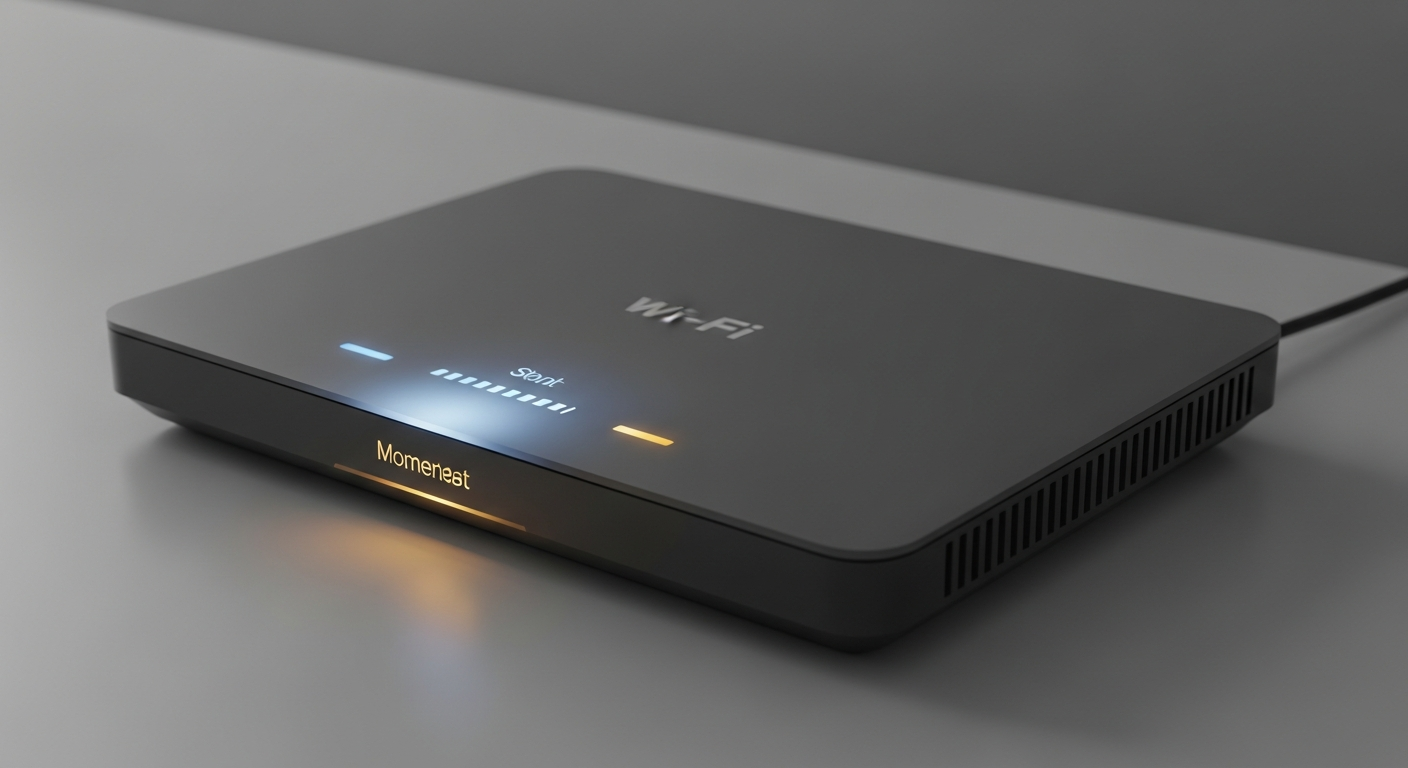
Connecting your devices to Wi-Fi lets them access the internet wirelessly. This guide will walk you through the simple steps to get your gadgets online, no tech experience needed!
1. How do I connect a smartphone to Wi-Fi?
First, open your phone's "Settings" app. Look for an option like "Network & Internet," "Connections," or "Wi-Fi." Tap on "Wi-Fi" and make sure the switch is turned "On." Your phone will then show a list of available Wi-Fi networks nearby.
Find your home network's name (SSID) in the list and tap on it. You'll then be asked to enter your Wi-Fi password (sometimes called a network key). Type it carefully and tap "Connect." Your phone should now be online!
2. How do I connect a laptop to Wi-Fi?
On a Windows laptop, click the Wi-Fi icon in the bottom-right corner of your screen (it looks like radiating waves). On a Mac, click the Wi-Fi icon in the top-right menu bar. A list of available networks will appear.
Select your home Wi-Fi network from the list. If prompted, enter your Wi-Fi password. Click "Connect," and your laptop should join the network. You'll see the Wi-Fi icon change to show it's connected.
3. How do I connect a smart TV to Wi-Fi?
Grab your TV remote and go to the "Settings" menu. Look for sections like "Network," "Connectivity," or "General Settings." From there, select "Network Settings" or "Wi-Fi Settings."
Choose "Wireless" or "Wi-Fi" as your connection type. Your TV will scan for networks. Select your home Wi-Fi network from the list, enter your password using the on-screen keyboard, and confirm. Your TV will then connect to the internet.
Wi-Fi (Wireless)
- No cables needed
- Connects multiple devices easily
- Great for phones, tablets, laptops
- Convenient for moving devices around
Ethernet (Wired)
- Needs a physical cable
- Faster and more stable connection
- Better for gaming, streaming 4K
- Good for desktop PCs, smart TVs
4. What if my device can't find the Wi-Fi network?
First, make sure your Wi-Fi router is turned on and plugged in. Check if the Wi-Fi light on the router is lit up. Try moving your device closer to the router. Sometimes, walls or distance can block the signal.
You can also try restarting your router by unplugging it for 30 seconds and then plugging it back in. Wait a few minutes for it to fully start up. Then, try searching for the network on your device again.
5. What if the password isn't working?
Wi-Fi passwords are case-sensitive, meaning "Password123" is different from "password123." Double-check that you're typing it exactly as it appears, including any capital letters, numbers, and symbols. Look for a "show password" option to reveal what you're typing.
If you're unsure of the password, it's often printed on a sticker on the bottom or side of your Wi-Fi router. If you've changed it and forgotten, you might need to reset your router to factory settings (which will revert the password to the one on the sticker).
6. How do I forget a network on my device?
On a smartphone or tablet, go to "Settings" > "Wi-Fi." Tap on the network you want to forget and look for an option like "Forget Network" or "Remove This Network." This clears its password and settings.
On a Windows laptop, go to "Settings" > "Network & Internet" > "Wi-Fi" > "Manage known networks." Select the network and click "Forget." On a Mac, go to "System Settings" > "Network" > "Wi-Fi," then click "Details" next to the network and choose "Forget This Network."
7. What is a Wi-Fi Direct connection?
Wi-Fi Direct is a feature that allows two devices to connect directly to each other without needing a Wi-Fi router. Think of it like a private, temporary Wi-Fi network just between those two devices.
It's often used for things like printing from your phone to a Wi-Fi Direct printer, or sharing files between two phones. It's different from connecting to your home Wi-Fi, which uses a router to give all your devices internet access.
Connecting a New Device to Wi-Fi
8. How do I connect a printer to Wi-Fi?
Most modern printers have a small screen and buttons. Go to the printer's menu, look for "Setup," "Network Settings," or "Wireless Settings." Choose "Wi-Fi Setup Wizard" or "Wireless Setup."
The printer will scan for networks. Select your home Wi-Fi network from the list. Use the printer's buttons to type in your Wi-Fi password. Confirm, and the printer will connect. You can then print wirelessly from your connected devices.
9. What is an Ethernet cable?
An Ethernet cable is a physical wire that connects devices directly to your internet router or modem. It looks like a thicker phone cable with larger plastic connectors on each end. It provides a wired internet connection.
Unlike Wi-Fi, which uses radio waves, Ethernet sends data through the cable. This makes the connection very fast and stable, as it's not affected by signal interference or distance like Wi-Fi can be.
10. When should I use Ethernet instead of Wi-Fi?
You should use an Ethernet cable when you need the fastest, most reliable internet connection possible. This is ideal for devices that don't move much, like desktop computers, gaming consoles, or smart TVs that stream 4K video.
Ethernet provides lower "latency" (less delay), which is crucial for online gaming. It also ensures a consistent speed for large downloads or video calls, especially if your Wi-Fi signal is weak or your home has many Wi-Fi devices.