
Is your computer acting up? Don't panic! Many common computer problems have simple solutions you can try yourself.
This guide will help you understand and fix some of the most frequent issues, getting you back online quickly.
1. What should I do if my computer freezes?
When your computer freezes, it means it stops responding to your clicks and typing. First, wait a minute or two; sometimes it's just really busy. If it's still frozen, try pressing the "Ctrl," "Alt," and "Delete" keys at the same time. This often opens a menu where you can choose "Task Manager" to close a misbehaving program.
2. Why is my computer making strange noises?
Unusual noises often point to a problem with moving parts inside your computer. A common culprit is the fan, which cools the computer. If it's whirring loudly, it might be dusty or failing. Clicking or grinding sounds could indicate an issue with your hard drive, which stores your files. These sounds are a sign to investigate further.
3. My computer won't turn on, what now?
First, check all power connections. Ensure the power cable is firmly plugged into both the computer and the wall outlet. If it's a laptop, check the charger and try a different outlet. Sometimes, a simple loose cable is the only problem. If it's still not turning on, try holding the power button down for 15-30 seconds to fully reset it.
Desktop Computer Power Check
- Power cable plugged into wall?
- Power cable plugged into computer?
- Power strip/surge protector turned on?
- Monitor cable connected?
Laptop Computer Power Check
- Charger plugged into wall?
- Charger plugged into laptop?
- Charging indicator light on?
- Try a different wall outlet.
4. Why is my screen black?
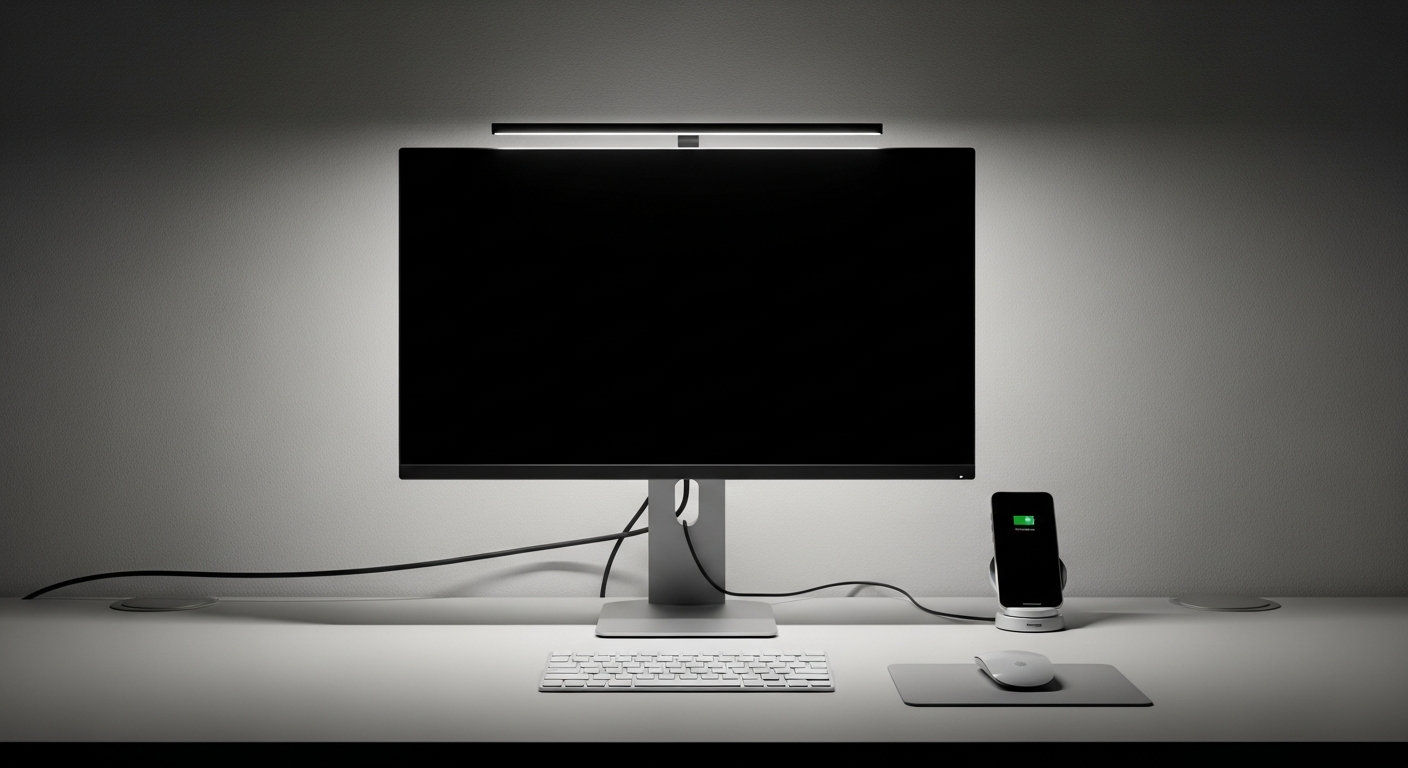
A black screen can be caused by a few things. First, check if your monitor is plugged in and turned on. Ensure the cable connecting your computer to the monitor is secure at both ends. If you have a laptop, sometimes the screen brightness is just turned all the way down. Try pressing the function keys (Fn) with a sun icon to adjust brightness.
5. My mouse or keyboard isn't working, what's wrong?
If your mouse or keyboard stops working, first check its connection. For wired devices, unplug and re-plug them into a different USB port. For wireless devices, ensure they are charged or have fresh batteries. Also, check if the wireless receiver (a small USB dongle) is plugged in correctly. A quick restart of your computer can also often fix this.
6. Why is there no sound from my computer?
No sound can be frustrating! Start by checking the volume levels. Look for the speaker icon in the bottom right corner of your screen and make sure it's not muted and the volume is turned up. Also, check if your speakers or headphones are properly plugged in. Sometimes, simply restarting your computer can resolve sound issues.
7. What does "blue screen of death" mean?
The "blue screen of death" (often called BSOD) is a full-screen error message on a blue background. It means your computer encountered a serious problem and had to stop suddenly to prevent damage. It usually provides an error code. While it sounds scary, your computer often restarts itself afterward. Note down any error codes if you see them, as they can help diagnose the issue.
Troubleshooting No Sound
- Check Volume: Is the speaker icon muted or volume low?
- Check Connections: Are speakers/headphones plugged in firmly?
- Restart Computer: A quick reboot can often fix temporary glitches.
- Check Device Manager: (Advanced) Ensure sound drivers are installed.
8. My computer is restarting unexpectedly, why?
Unexpected restarts can be caused by several factors. Overheating is a common reason; your computer shuts down to prevent damage. Ensure air vents aren't blocked and fans are clean. Software issues, like a buggy update or a virus, can also cause restarts. Sometimes, a faulty power supply unit is the culprit. Keep your software updated and run antivirus scans regularly.
9. How do I force shut down my computer safely?
If your computer is completely frozen and unresponsive, you might need to force a shut down. To do this, press and hold the power button for about 5-10 seconds until the computer completely turns off. This should only be used as a last resort, as repeatedly doing so can sometimes lead to data loss or system issues. Always try other solutions first.
10. When should I call for technical support?
It's time to call for technical support if you've tried the basic troubleshooting steps and your computer still isn't working. If you hear grinding noises, see persistent error messages, suspect a virus, or if the problem is beyond your comfort level, professional help is best. Don't hesitate to reach out to a technician or your computer's manufacturer for assistance.