
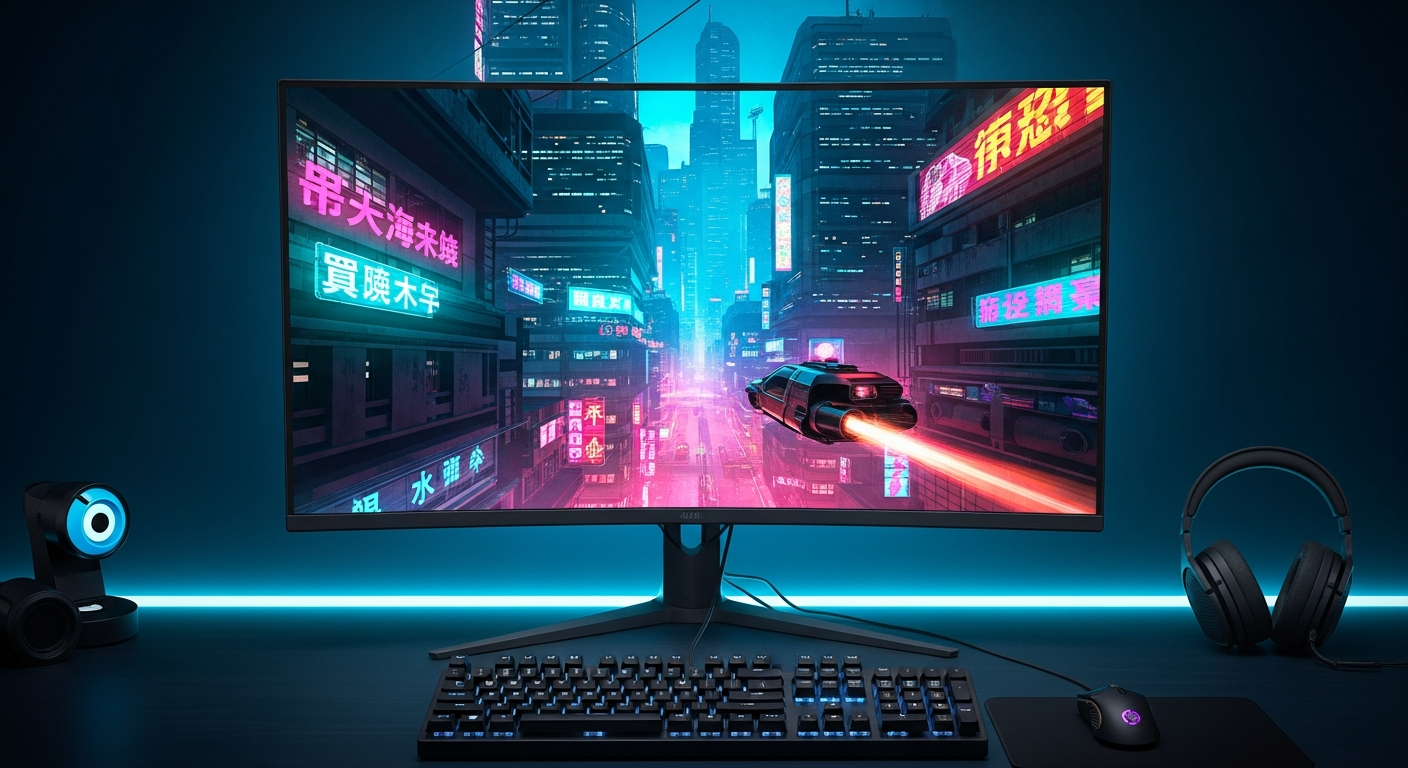
Choosing the right screen for gaming can feel confusing with all the tech talk. This guide will help you understand what really matters, so you can pick the perfect TV or monitor for your games.
1. What's the difference between a TV and a gaming monitor?
A TV is generally designed for watching movies and shows from a distance, often with built-in speakers and smart features. A gaming monitor, on the other hand, is built specifically for close-up viewing and fast-paced action. Monitors prioritize speed and responsiveness over things like smart TV apps.
2. What is "refresh rate" and why is it important?
Refresh rate is how many times per second your screen updates the image. It's measured in Hertz (Hz). A higher refresh rate, like 120Hz or 144Hz, means smoother motion, especially in fast games. This helps reduce blur and makes the game feel more fluid, giving you a slight edge.
3. What is "response time"?
Response time is how quickly a pixel on your screen can change from one color to another. It's measured in milliseconds (ms). A lower response time, like 1ms or 5ms, means less "ghosting" or blur behind moving objects. This is crucial for competitive gaming where every millisecond counts.
Gaming Monitor
- Faster response times (1-5ms)
- Higher refresh rates (120Hz+)
- Compact size, often desk-mounted
- Fewer smart features
- Optimized for close viewing
Gaming TV
- Larger screen sizes
- Good for living room setups
- Built-in speakers & smart apps
- Can have good refresh rates (120Hz)
- Often better for movies/shows too
4. Do I need a 4K TV for gaming?
4K means the screen has four times the pixels of a regular Full HD screen, making the image much sharper and more detailed. Many modern consoles (like PS5, Xbox Series X) support 4K gaming, and PC graphics cards can too. While not strictly "needed," 4K offers a visibly better experience if your gaming system can handle it.
5. What is HDR?
HDR stands for High Dynamic Range. It makes the bright parts of an image much brighter and the dark parts much darker, with more colors in between. This creates a more realistic and vibrant picture with greater depth. For gaming, HDR can make worlds feel more immersive and visually stunning.
6. Should I look for specific "gaming modes" on a TV?
Yes, definitely! Many TVs have a "Game Mode" that you can turn on. This mode reduces something called "input lag," which is the delay between when you press a button on your controller and when you see that action happen on screen. Game Mode often turns off extra picture processing to make the TV faster.
7. What size screen is best for gaming?
The best screen size depends on how far away you sit and your personal preference. For monitors, 24-27 inches is common for desk setups. For TVs, 55-65 inches is popular for living rooms. Bigger isn't always better; if you sit too close to a very large screen, you might have trouble seeing the whole picture at once.
Choosing Your Gaming Screen
1. Decide on TV vs. Monitor
Living room console gaming (TV) or desk PC gaming (Monitor)?
2. Check Refresh Rate
Aim for 120Hz or higher for smoother gameplay.
3. Look for Low Response Time
1ms for monitors, 5-10ms for TVs is good.
4. Consider Resolution
Full HD (1080p) is fine, 4K is great if your system supports it.
5. Don't Forget HDR & Game Mode
Enhance visuals and reduce input lag.
8. What are HDMI 2.0 vs. HDMI 2.1?
HDMI is the cable that connects your gaming device to your screen. HDMI 2.0 supports 4K at 60 frames per second. HDMI 2.1 is newer and much more powerful, supporting 4K at 120 frames per second, or even 8K. For the best experience with modern consoles and high-end PCs, HDMI 2.1 is highly recommended.
9. Is a curved monitor better for gaming?
Curved monitors are designed to wrap slightly around your field of vision, which can make the game feel more immersive, especially in larger sizes. They can also reduce eye strain by making all parts of the screen equidistant from your eyes. However, it's mostly a matter of personal preference; flat screens are still excellent for gaming.
10. How do I connect my console to a monitor?
Connecting a console to a monitor is usually straightforward. You'll use an HDMI cable to plug one end into your console's HDMI output port and the other end into your monitor's HDMI input port. If your monitor doesn't have built-in speakers, you'll need headphones or external speakers connected to the monitor or console.