
Buying a new computer or laptop can feel overwhelming with all the technical terms. This guide will help you understand the basics so you can choose the perfect device for your needs without any stress.
1. What's the difference between a laptop and a desktop?
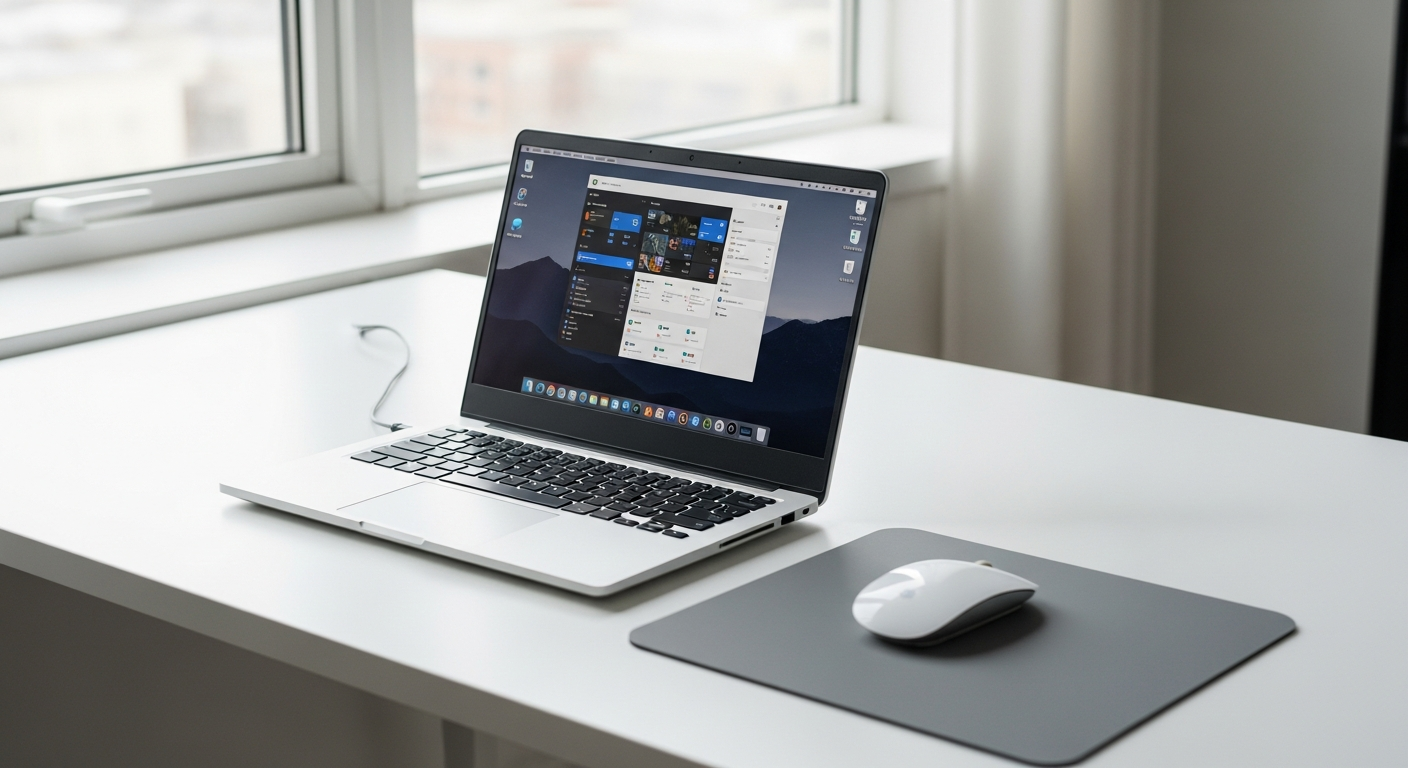
A laptop is a portable computer, meaning it's all in one piece and you can carry it around easily. It has a built-in screen, keyboard, and trackpad. Laptops are great for students, travelers, or anyone who needs to work from different locations.
A desktop computer is designed to stay in one place, usually on a desk. It typically has separate parts like a monitor (screen), keyboard, and mouse that connect to a main box. Desktops often offer more power and are easier to upgrade or repair, making them good for home offices or gaming.
2. How much RAM do I really need?
RAM (Random Access Memory) is like your computer's short-term memory. It helps your computer run multiple programs at once smoothly. More RAM means you can have more browser tabs open or switch between apps without your computer slowing down.
For basic use like web browsing and email, 8GB of RAM is usually enough. If you do more, like editing photos or light gaming, 16GB is a better choice. Serious gamers or video editors might want 32GB or more for the best performance.
3. What is storage and how much should I get?
Storage is where your computer keeps all your files, like photos, documents, and programs, even when it's turned off. There are two main types: HDD (Hard Disk Drive) and SSD (Solid State Drive). SSDs are much faster and more common in new computers.
For most people, 256GB of SSD storage is a good starting point if you use cloud storage (like Google Drive or Dropbox) for many files. If you keep lots of photos, videos, or games on your computer, aim for 512GB or even 1TB (1000GB) of SSD storage.
SSD (Solid State Drive)
- Speed: Very Fast
- Durability: More durable (no moving parts)
- Cost: More expensive per GB
- Noise: Silent
HDD (Hard Disk Drive)
- Speed: Slower
- Durability: Less durable (moving parts)
- Cost: Less expensive per GB
- Noise: Can make slight noise
4. What is a processor (CPU) and which one is good?
The processor, or CPU (Central Processing Unit), is like the brain of your computer. It handles all the calculations and instructions, making everything run. The faster the processor, the quicker your computer can complete tasks.
Look for Intel Core i5 or AMD Ryzen 5 for good everyday performance. For more demanding tasks like video editing or serious gaming, an Intel Core i7/i9 or AMD Ryzen 7/9 will offer better speed. The latest generations (e.g., 13th Gen Intel, 7000 Series AMD) are generally faster.
5. Do I need a fancy graphics card?
A graphics card (also called a GPU) handles everything you see on your screen. Most computers have a basic one built into the main processor, which is fine for everyday tasks like browsing, streaming videos, and light photo editing.
You only need a "fancy" or dedicated graphics card if you plan to play modern video games, do professional video editing, or work with 3D design. These cards are powerful but also add to the cost and can use more battery in laptops.
6. What operating system should I choose?
The operating system (OS) is the main software that manages your computer's hardware and software. The most common choices are Windows, macOS, and ChromeOS. Each has its own look and feel.
Windows is the most popular, offering the widest range of software and hardware compatibility. macOS is known for its user-friendly design and is exclusive to Apple computers. ChromeOS is simpler, web-focused, and found on Chromebooks, great for basic tasks and online work.
7. What's a good screen size for a laptop?
Laptop screen size is measured diagonally in inches. Your ideal size depends on how you'll use it. Smaller screens are more portable, while larger screens offer a better viewing experience.
13-14 inches is excellent for portability and students. 15-16 inches is the most popular size, offering a good balance of screen space and portability for most users. 17 inches or larger is great for those who need a lot of screen space and don't move their laptop often, like for gaming or design work.
Laptop Screen Size Guide
13-14 inches
Best for: Travel, Students, Portability
Pros: Lightweight, easy to carry
Cons: Smaller viewing area
15-16 inches
Best for: Everyday Use, Work, Home
Pros: Good balance of size & portability
Cons: Can be a bit bulky for small bags
17+ inches
Best for: Gaming, Design, Desktop Replacement
Pros: Immersive viewing, more screen space
Cons: Heavy, less portable, uses more battery
8. How important is battery life for a laptop?
Battery life is crucial for laptops, especially if you plan to use your computer away from a power outlet frequently. It determines how long you can work or play without needing to plug in. Manufacturers often list "up to X hours," but real-world use can vary.
Look for laptops offering 8 hours or more of advertised battery life if you're often on the go. For occasional travel or home use, 5-7 hours might be sufficient. Keep in mind that demanding tasks like gaming or video editing will drain the battery much faster.
9. Where is the best place to buy a computer?
You have several options, each with pros and cons. Large electronics retailers (like Best Buy) offer a wide selection, competitive prices, and often have staff to help. Online stores (like Amazon, Newegg) usually have the best prices and selection, but you can't physically see the computer.
Manufacturer's websites (Dell, HP, Apple) allow for custom configurations and direct support. Local computer shops might offer more personalized service and support, which can be valuable if you're less tech-savvy.
10. What accessories should I consider buying with a new computer?
Even if your new computer is ready to go, a few accessories can greatly improve your experience. An external mouse is often more comfortable than a laptop trackpad. A good quality webcam and headset are essential for video calls.
Consider an external hard drive or cloud storage subscription for extra backup. A laptop sleeve or bag protects your device on the go. Finally, a surge protector is a wise investment to protect your electronics from power spikes.