
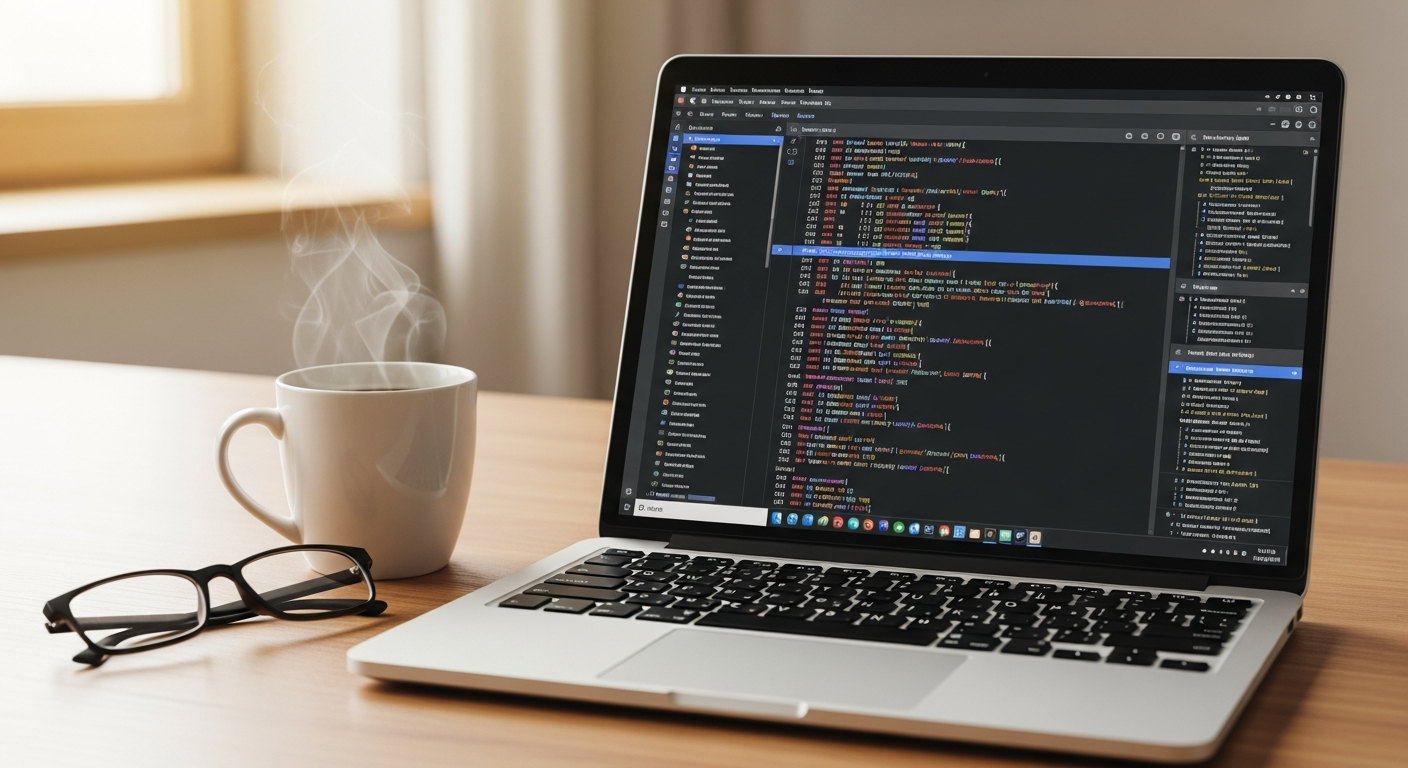
Buying your first computer can feel overwhelming, but it doesn't have to be! This guide will help you understand the basics and choose the perfect computer for your needs, even if you have zero tech knowledge.
1. What's the difference between a laptop and a desktop?
A laptop is a portable computer that combines all its parts – screen, keyboard, and internal components – into one compact unit. It runs on a battery, so you can use it anywhere without being plugged in, making it great for travel or moving around your home.
A desktop computer is designed to stay in one place, usually on a desk. It has separate parts like a monitor (screen), keyboard, and mouse, all connected to a main box called the "tower." Desktops often offer more power and are easier to upgrade later, but they aren't portable.
2. Should I get a Mac or a PC?
Macs are computers made by Apple, known for their sleek design, user-friendly software (macOS), and strong security features. They are often preferred by creative professionals and people who already use other Apple devices like iPhones.
PCs (Personal Computers) are made by many different companies and usually run Microsoft Windows. They offer a much wider range of models, prices, and customization options. PCs are generally more common and compatible with a broader variety of software and hardware.
3. What specifications (CPU, RAM, storage) do I need?
The CPU (Central Processing Unit) is the "brain" of your computer. For beginners, an Intel Core i3/i5 or AMD Ryzen 3/5 is usually plenty for everyday tasks like browsing, email, and streaming.
RAM (Random Access Memory) is like your computer's short-term memory. 8GB of RAM is a good starting point for smooth multitasking. Storage is where your files are saved permanently. An SSD (Solid State Drive) of at least 256GB is recommended for speed, or 512GB if you plan to store many photos or videos.
Laptop
- Portable & compact
- Built-in screen, keyboard, trackpad
- Battery-powered
- Good for travel, students
Desktop
- Stationary & powerful
- Separate monitor, keyboard, mouse
- Always plugged in
- Good for home office, gaming
4. How much should I spend on a new computer?
For a beginner's computer that handles everyday tasks well, expect to spend between $400 and $800. This range typically gets you a reliable laptop or desktop with decent specifications for browsing, email, word processing, and streaming.
Spending less might mean a slower computer that frustrates you, while spending more might give you features you don't need yet. Focus on getting the best value within this beginner-friendly price range.
5. Where is the best place to buy a computer?
Large electronics stores like Best Buy or Micro Center allow you to see and try out different models in person. Their staff can also answer questions, and they often offer setup services. Online retailers like Amazon, Dell, HP, or Apple's websites provide a wider selection and competitive pricing, but you can't physically inspect the computer first.
Local computer shops can offer personalized service and support, which can be very helpful for beginners. Compare prices and check return policies regardless of where you buy.
6. What accessories do I need with a new computer?
For a laptop, a protective sleeve or bag is essential for safe transport. A good mouse can be more comfortable than a built-in trackpad. For a desktop, you'll definitely need a monitor, keyboard, and mouse if they aren't included.
Other useful accessories include a webcam (if not built-in), headphones or speakers, an external hard drive for backup, and a surge protector to protect your investment from power spikes.
7. What operating system is best for beginners?
The operating system (OS) is the main software that manages your computer. Windows is the most common OS and is very user-friendly, with lots of online resources and software compatibility. macOS, found on Apple computers, is also very intuitive and known for its simple interface and strong security.
For absolute beginners, either Windows or macOS is a great choice. If you already use an iPhone, macOS might feel more familiar. If you want the broadest compatibility and choice, Windows is a solid option.
First Computer Setup Flow
8. How do I transfer files from my old computer to a new one?
The easiest way to transfer files is by using an external hard drive or a USB flash drive. Simply copy your important documents, photos, and videos from your old computer to the drive, then plug the drive into your new computer and copy them over.
Cloud storage services like Google Drive, Dropbox, or OneDrive also make transfers simple. Upload your files from the old computer to the cloud, then download them to your new computer. Some manufacturers offer special transfer tools, but external drives or cloud services are generally reliable.
9. What warranty should I look for?
Most new computers come with a standard one-year warranty that covers manufacturing defects. This means if something goes wrong that wasn't your fault, the manufacturer will repair or replace it. Read the warranty details carefully to understand what is and isn't covered.
You might be offered an extended warranty for an additional cost. For beginners, this can offer extra peace of mind, but decide if the cost is worth the additional coverage, especially if you're buying from a reputable brand.
10. Are refurbished computers a good option?
Refurbished computers are previously owned machines that have been inspected, repaired if necessary, and cleaned to be sold again. They can be a great way to get a more powerful computer for less money, often coming with a limited warranty from the seller.
However, it's crucial to buy refurbished from a reputable seller, like the manufacturer's official refurbished store or a certified reseller. Ensure they offer a clear return policy and a warranty, even if it's shorter than a new computer's. This is a good option if you're on a tight budget and trust the seller.