
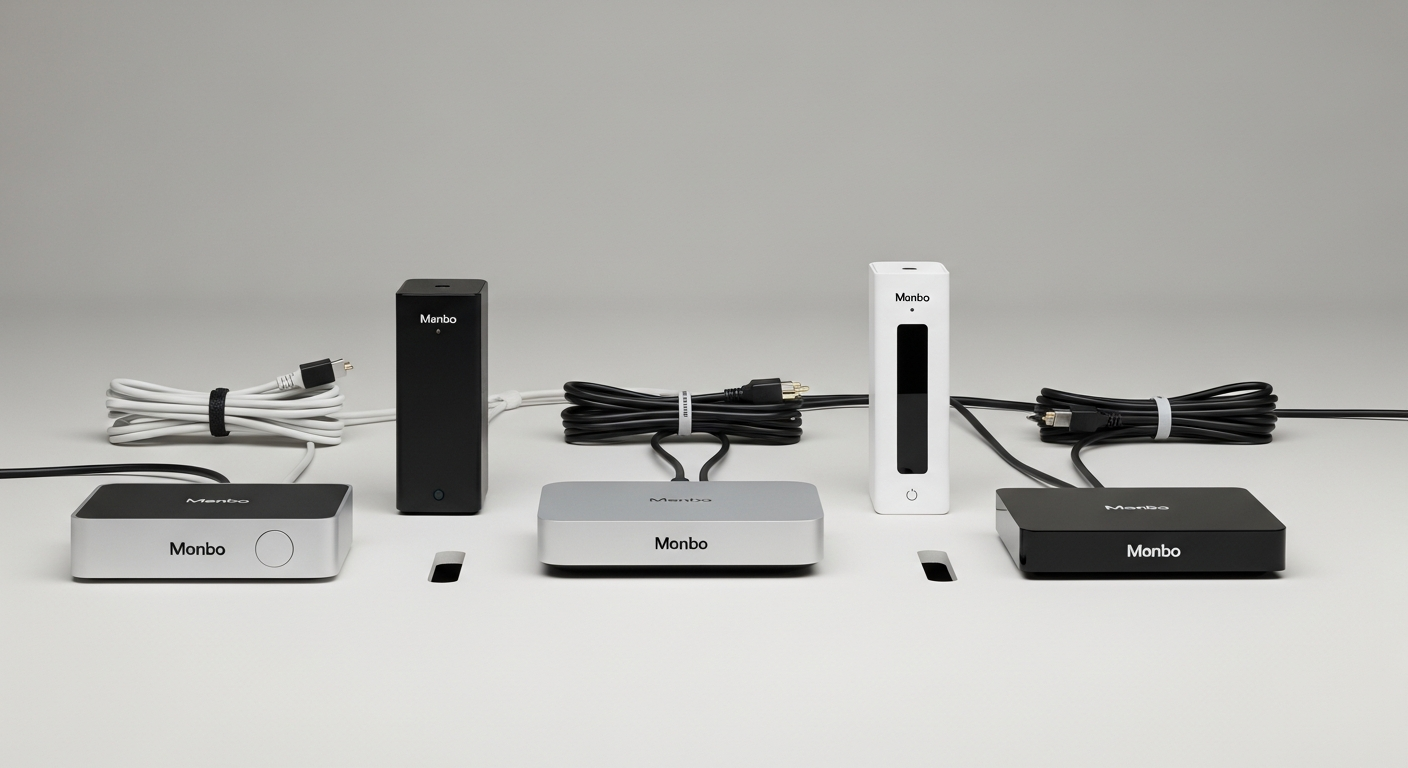
Confused about which streaming device is right for your TV? This guide will help you understand the differences between popular options like Roku, Fire Stick, and Apple TV, making your decision easy.
We'll break down what each device does and help you pick the perfect one for your home entertainment needs.
1. What are the main types of streaming devices?
Streaming devices are small gadgets that plug into your TV, letting you watch movies, TV shows, and more from the internet. Think of them as making your regular TV "smart." They connect to your home Wi-Fi and bring services like Netflix, Hulu, and YouTube directly to your big screen.
2. What's the difference between a Roku, Fire Stick, and Apple TV?
Roku devices are known for being easy to use and having a huge selection of apps. Fire Sticks (Amazon Fire TV Stick) are great if you use Amazon services a lot, like Prime Video, and come with Alexa voice control. Apple TV is best for people who already own Apple products like iPhones and iPads, offering a very smooth experience within the Apple ecosystem.
3. Do I need a streaming device if I have a smart TV?
Not always, but often it's a good idea. Smart TVs already have apps built-in, but dedicated streaming devices can be faster, offer more apps, and receive updates longer. They can also give older smart TVs a performance boost or access to newer features that the TV itself might not get.
Roku Devices
- Pros: Widest app selection, very user-friendly, good value.
- Cons: Less integration with smart home systems, basic interface.
- Best for: Simplicity, variety of content, budget-conscious users.
Amazon Fire TV Stick
- Pros: Alexa voice control, deep Amazon integration, good for gaming.
- Cons: Interface can feel Amazon-centric, some ads.
- Best for: Amazon Prime members, Alexa users, interactive features.
Apple TV
- Pros: Seamless Apple ecosystem integration, premium build, powerful.
- Cons: Higher price point, less open ecosystem.
- Best for: Apple users, premium experience, gaming, smart home control.
4. How do I connect a streaming device to my TV?
Most streaming devices plug into an HDMI port on the back or side of your TV. You'll also need to plug the device into a power outlet using the provided cable and adapter. Once connected, switch your TV's input (or source) to the HDMI port where the device is plugged in, and follow the on-screen setup instructions.
5. What factors should I consider when buying a streaming device?
Think about what you watch most: Do you use Amazon Prime Video a lot? Are you an Apple user? Consider your budget, as prices vary widely. Also, check if the device supports 4K HDR if your TV does, for the best picture quality. Ease of use and voice control features are also important.
6. Are there any hidden costs with streaming devices?
The device itself is a one-time purchase. However, most streaming services like Netflix, Disney+, or HBO Max require monthly subscriptions. Some devices might offer free content channels, but the popular premium services always have a cost. You also need a reliable internet connection, which is a separate expense.
7. Can I use a streaming device on an older TV?
Yes, absolutely! As long as your older TV has an HDMI port, you can use most modern streaming devices. This is a fantastic way to upgrade an older TV, giving it all the smart features of a brand-new one without buying a whole new set. Just remember, you won't get 4K quality if your TV isn't 4K.
Setting Up Your Streaming Device
- Plug In: Connect the device to your TV's HDMI port and to a power outlet.
- Select Input: Use your TV remote to choose the correct HDMI input (e.g., HDMI 1, HDMI 2).
- Connect to Wi-Fi: Follow on-screen prompts to connect your device to your home Wi-Fi network.
- Sign In/Create Account: Log in with your existing streaming service accounts or create new ones.
- Start Streaming: Browse apps, download new ones, and enjoy your favorite content!
8. How do I install apps on a streaming device?
Each device has an "app store" or "channel store." You navigate to this section, search for the app you want (like YouTube or Hulu), and then select "install" or "add channel." Most apps are free to download, but as mentioned, many require a separate subscription to watch content.
9. What if my device doesn't have an app I want?
It's rare for popular apps to be missing from major streaming devices. Roku, Fire Stick, and Apple TV all have vast app libraries. However, if a very niche app isn't available, you might be able to "cast" content from your phone or computer to your TV using technologies like AirPlay (for Apple devices) or Chromecast (often built into Fire TV and some Roku devices).
10. How do I update my streaming device's software?
Most streaming devices update their software automatically in the background. You usually don't need to do anything! However, if you ever experience issues, you can typically find a "System" or "Settings" menu option to manually check for updates. Keeping your device updated ensures you have the latest features and security.