
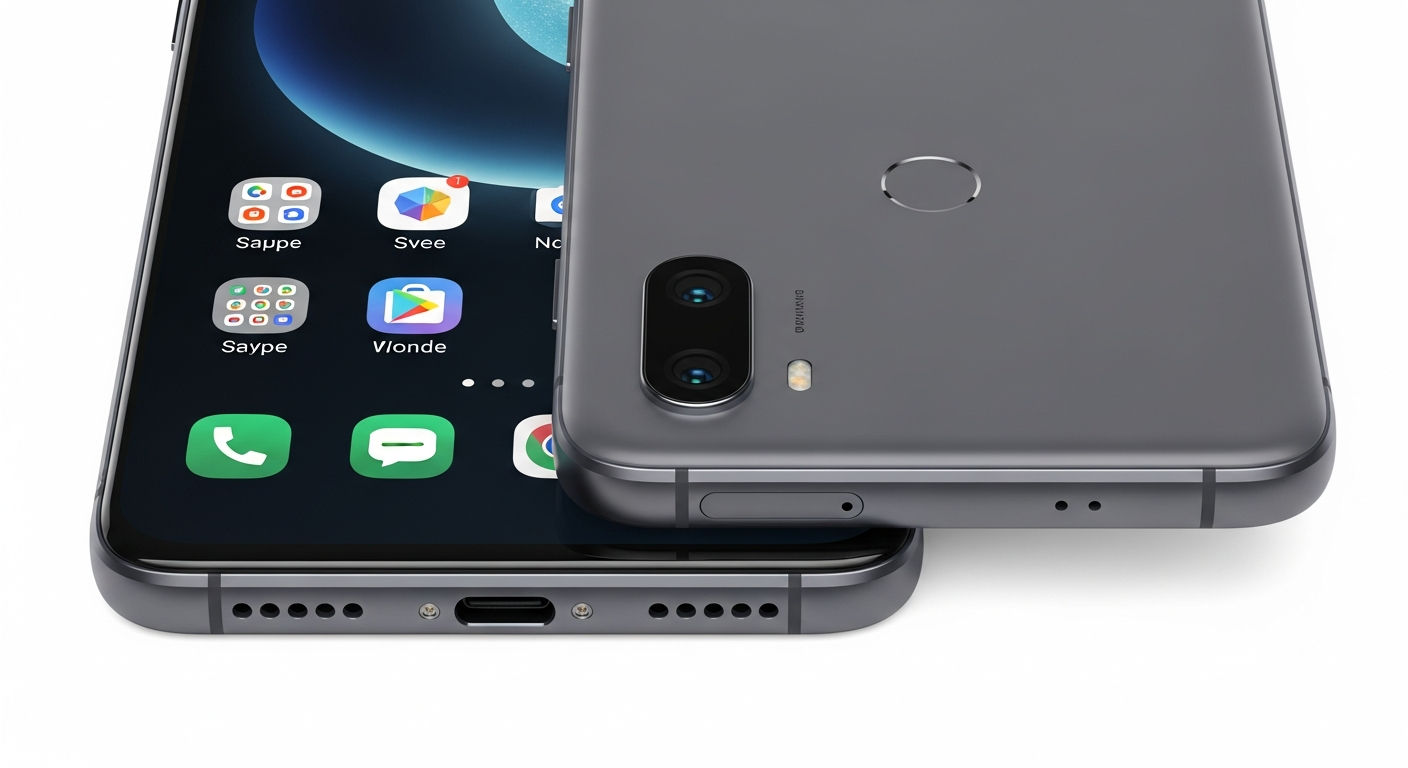
Choosing a new smartphone can feel overwhelming, but it doesn't have to be! This guide will help you understand which phones are best for seniors and how to use their most important features.
1. Which smartphones are easiest for seniors to use?
Many seniors find iPhones (Apple) or Android phones from brands like Google Pixel or Samsung Galaxy to be user-friendly. These phones have large screens, clear menus, and strong accessibility features. Some companies also make simplified Android phones specifically for seniors, like the Jitterbug Smart4.
2. How do I make text larger on my phone?
Both iPhones and Android phones let you easily adjust text size. Look for "Display" or "Accessibility" in your phone's Settings menu. There, you'll find options like "Text Size" or "Font Size" to make everything on your screen bigger and easier to read.
3. What are "accessibility features" on a smartphone?
"Accessibility features" are special tools built into phones to make them easier for everyone to use, especially those with different needs. This includes things like magnifying screens, reading text aloud, making buttons bigger, and using voice commands. They are designed to customize your phone for your comfort.
iPhone (Apple)
- Pros: Very simple menus, strong privacy, excellent customer support.
- Cons: Can be more expensive, less customization.
Android (Google, Samsung)
- Pros: Wider range of prices, more customization, many models available.
- Cons: Can have more complex menus, varying update speeds.
4. How do I make calls and send texts?
To make a call, tap the "Phone" app icon (often looks like a phone receiver). You can then tap numbers to dial or choose a contact. To send a text message, tap the "Messages" app icon (often looks like a speech bubble). You can then select a contact and type your message.
5. Can I use voice commands on my phone?
Absolutely! Both iPhones and Android phones have voice assistants. iPhones have Siri, and Android phones have Google Assistant. You can activate them by saying "Hey Siri" or "Hey Google" (or pressing a button) and then tell your phone to call someone, send a text, set a reminder, or even ask a question.
6. How do I connect to Wi-Fi?
Connecting to Wi-Fi saves your mobile data and often provides a faster internet connection. Go to your phone's "Settings" menu, then find "Wi-Fi." Turn Wi-Fi "On" and your phone will show a list of available networks. Tap on your home network's name and enter the password (usually found on a sticker on your internet router).
7. What are some essential apps for seniors?
Useful apps include video calling apps like FaceTime (iPhone) or Google Meet (Android) to connect with family. Weather apps, news apps, and simple game apps can also be enjoyable. Health tracking apps and medication reminders can be very helpful too. Always download apps from your phone's official App Store (Apple App Store or Google Play Store).
Connecting to Wi-Fi
- Open "Settings" app.
- Tap "Wi-Fi" (or "Network & Internet").
- Turn Wi-Fi "On."
- Select your home Wi-Fi network name.
- Enter Wi-Fi password.
- Tap "Connect."
8. How do I keep my phone charged?
To keep your phone charged, simply plug the charging cable into the charging port at the bottom of your phone and the other end into a wall adapter, then into a power outlet. It's a good habit to charge your phone overnight or whenever the battery level gets low, ideally before it drops below 20%.
9. What if I forget my password?
If you forget your phone's unlock password or PIN, you might need to reset your phone, which can erase your data. It's best to write down your password in a safe, private place. For app passwords, many apps have a "Forgot Password?" option that lets you reset it using your email or phone number.
10. Where can I get help with my smartphone?
Many places offer help! Your phone's user manual or online support pages are great resources. Your wireless carrier (like AT&T, Verizon, T-Mobile) often has customer support or in-store help. Don't hesitate to ask a trusted family member or friend. Local community centers or libraries sometimes offer tech workshops too.