
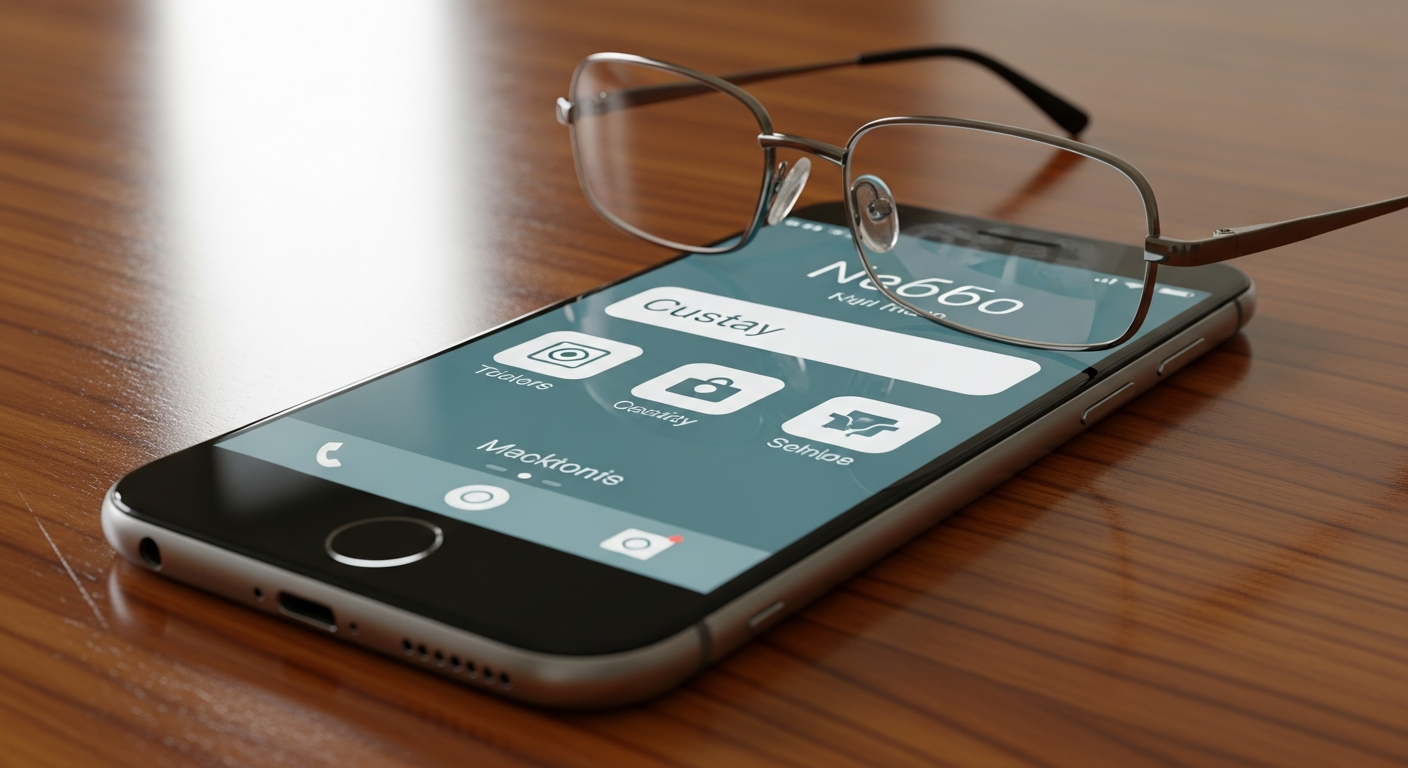
Choosing a smartphone can feel overwhelming, but it doesn't have to be! This guide will help you understand what features are best for seniors and how to use your new device with confidence.
1. What features should I look for in a senior-friendly smartphone?
Look for phones with large, clear screens and easy-to-press buttons, or on-screen buttons that are well-spaced. Good sound quality for calls and loud speakers are also important. Simple menus and a long-lasting battery make daily use much easier.
Many senior-friendly phones also offer special features like an emergency button, which can call pre-set contacts quickly. Some have enhanced accessibility settings built-in, making them easier to customize for your needs right out of the box.
2. How do I make text and icons larger on my phone?
To make text and icons bigger, go to your phone's "Settings" menu. Look for "Display" or "Accessibility." Inside, you'll find options like "Font size" and "Display size" or "Zoom." You can often drag a slider to make everything on the screen easier to see.
Most phones also let you adjust the size of the keyboard. This can be found in the keyboard settings, usually under "Settings" > "System" > "Languages & input" > "On-screen keyboard." Making these adjustments can greatly improve your phone experience.
3. What are simplified modes or launchers for smartphones?
Simplified modes, sometimes called "Easy Mode" or "Senior Mode," change your phone's look to be much simpler. They often feature larger icons, fewer apps on the home screen, and easier navigation. This makes it less confusing to find what you need.
These modes can be found in your phone's "Settings," often under "Display" or "Accessibility." Alternatively, you can download "launchers" from the app store, which are apps that completely change how your phone's home screen looks and acts, making it more user-friendly.
Standard Smartphone Interface
- Many small icons
- Complex menus
- Lots of features visible
- Can be overwhelming
Simplified Mode/Launcher
- Large, clear icons
- Simple, direct menus
- Only essential features
- Easy to navigate
4. How do I make and receive calls easily?
To make a call, tap the "Phone" app icon, which usually looks like a telephone receiver. Then, you can tap numbers on the keypad or choose a contact from your "Contacts" list. Tap the green call button to start the call.
When someone calls you, your phone will ring and show the caller's name or number. Swipe or tap the green button to answer. If you can't hear well, use the "Speaker" button during a call to make the sound come out of the phone's louder speaker.
5. How can I send and receive text messages?
To send a text, open the "Messages" app, which often looks like a speech bubble. Tap the "New Message" or "+" button. Type the person's name or number, then type your message in the box at the bottom. Tap the "Send" button (often an arrow) to send it.
When you receive a text, a notification will appear, and you can tap it to open the message. You can then type your reply in the box at the bottom and send it back. Texting is a great way to stay in touch quickly.
6. What are some useful apps for seniors?
Many apps can make life easier and more enjoyable. Communication apps like WhatsApp or FaceTime allow free video calls. Reminder apps can help with medication schedules or appointments. Weather apps keep you informed about the day.
Other useful apps include those for reading e-books, listening to audiobooks, or playing simple brain games. Health apps can track steps or monitor certain conditions. Always download apps from official stores like the Google Play Store or Apple App Store for safety.
7. How do I keep my smartphone secure?
Always set a passcode, PIN, or fingerprint lock on your phone to prevent unauthorized access. Be careful about opening links or attachments from unknown senders in emails or texts, as these can be scams or viruses.
Keep your phone's software updated, as updates often include important security fixes. Avoid connecting to public Wi-Fi networks for sensitive tasks like banking. If you're unsure about an app or message, it's best not to interact with it.
Smartphone Security Checklist
8. What are common battery tips for smartphones?
To make your battery last longer, dim your screen brightness and turn off Wi-Fi or Bluetooth when you're not using them. Closing apps you're not actively using can also save power. Avoid letting your battery completely die before recharging.
Charging your phone overnight is generally fine, as modern phones stop charging once full. Extreme temperatures, both hot and cold, can also affect battery life, so try to keep your phone at a comfortable room temperature.
9. How do I connect to Wi-Fi?
Connecting to Wi-Fi saves your mobile data and often provides a faster internet connection. Go to "Settings" and look for "Wi-Fi" or "Network & Internet." Turn Wi-Fi "On" if it's off.
Your phone will then show a list of available networks. Tap on your home network's name (it might be on a sticker on your router). You'll need to enter the Wi-Fi password, which is usually found on the same sticker. Tap "Connect," and you're all set!
10. Where can I get help if I have a problem?
If you encounter a problem, don't worry! Start by checking your phone's instruction manual or the manufacturer's website for troubleshooting guides. Many phone companies offer online support chats or phone lines.
Family members or friends who are tech-savvy can also be a great resource. Additionally, your phone carrier (like Verizon, AT&T, T-Mobile) often has customer support that can help with basic usage and network issues. Local electronics stores might also offer assistance.