
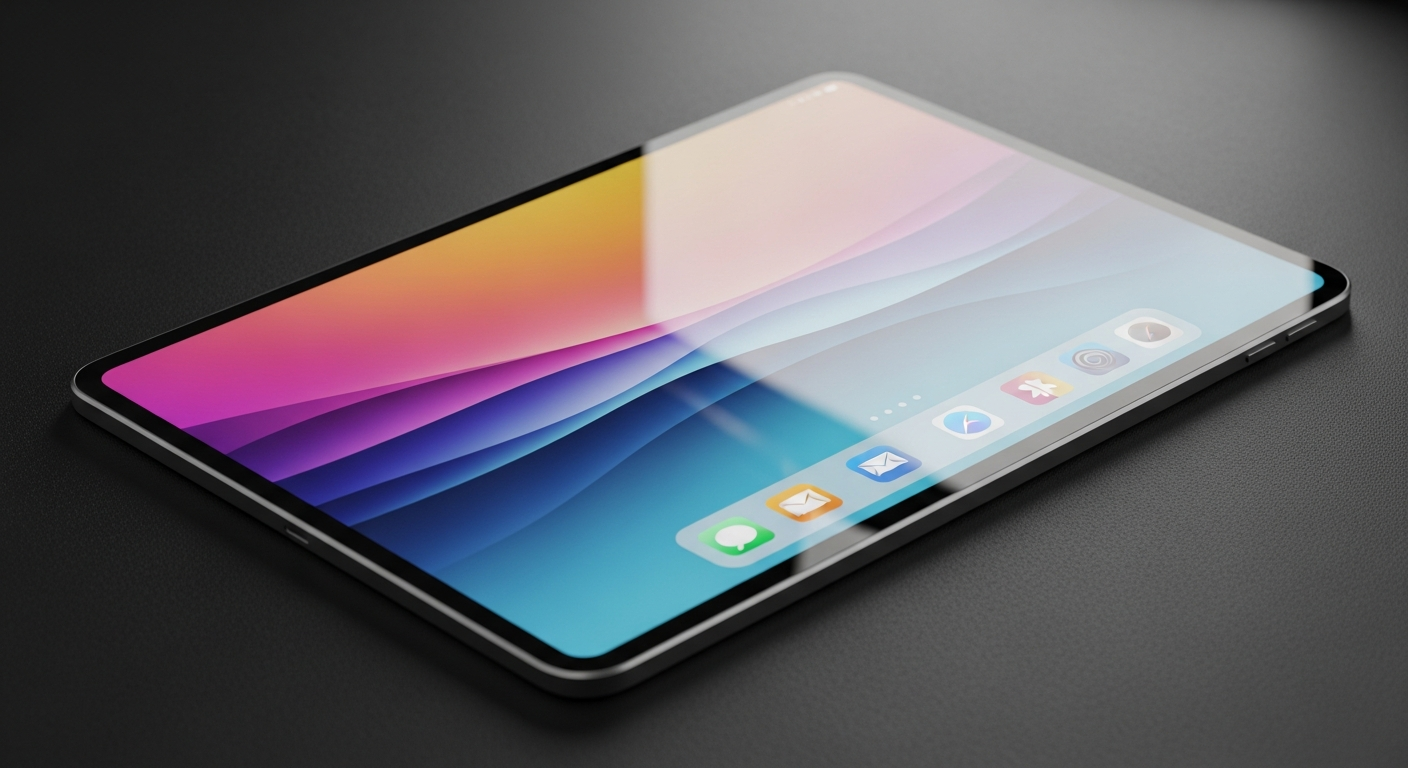
Finding the right tablet can make a big difference for seniors and beginners, opening up a world of connection and entertainment. This guide will help you understand what features matter most and how to choose a tablet that's easy and enjoyable to use.
1. What makes a tablet accessible for seniors and beginners?
An accessible tablet is easy to see, hear, and touch. This means it has large, clear screens, simple menus, and strong sound. It also offers features like bigger text, voice commands, and settings that can be changed to fit individual needs, making technology less intimidating.
2. Which tablet brands offer the best accessibility features?
Apple iPads and Samsung Galaxy tablets are top choices for accessibility. Both offer a wide range of built-in features like screen readers, magnifiers, and voice control. They also have large app stores with many helpful tools designed for various needs, making them very versatile.
3. How can I adjust screen size, font, and contrast on a tablet?
Most tablets let you easily change these settings. Look in the "Settings" menu under "Display" or "Accessibility." You can often drag a slider to make text larger, choose a bolder font, or switch to a high-contrast mode (like white text on a black background) to improve readability.
iPad Accessibility
- VoiceOver: Reads screen content aloud.
- Zoom: Magnifies parts of the screen.
- Display Accommodations: Adjusts colors, reduces transparency.
- Siri: Voice commands for tasks.
- Guided Access: Stays in one app.
Android Tablet Accessibility
- TalkBack: Reads screen content aloud.
- Magnification Gestures: Magnifies parts of the screen.
- Color Correction/Inversion: Adjusts screen colors.
- Google Assistant: Voice commands for tasks.
- Easy Mode: Simplified home screen.
4. Are there voice control options for navigating a tablet?
Yes, absolutely! iPads have Siri, and Android tablets use Google Assistant. You can use your voice to open apps, send messages, set reminders, search the internet, and even control some tablet settings. This is incredibly helpful for those who find typing or tapping difficult.
5. What are useful apps for seniors on a tablet (games, news, books)?
Tablets offer many useful apps. For games, try simple puzzles like Sudoku or Solitaire. News apps like BBC News or The New York Times provide easy-to-read articles. For books, Kindle or Libby (for library books) are excellent. Communication apps like Zoom or WhatsApp are also vital for staying connected.
6. How do I simplify the tablet interface for easier use?
Many tablets offer "Easy Mode" or "Simple Mode" settings, which make icons larger and reduce clutter on the home screen. You can also remove unnecessary apps, group frequently used apps together, and set a simple background. This makes the tablet less overwhelming and easier to navigate.
7. Are there durable cases or stands that help seniors use tablets?
Yes, many accessories can help. Rugged cases protect against drops and often have textured grips. Stands are excellent for hands-free use, whether for video calls or watching videos, reducing strain. Stylus pens can also help with precise tapping for those with unsteady hands.
Setting Up a Tablet for Easy Use
1. Adjust Display
Go to Settings > Display. Increase text size, bold text, and adjust contrast for better visibility.
2. Enable Voice Control
Go to Settings > Accessibility. Turn on Siri (iPad) or Google Assistant (Android) for hands-free commands.
3. Simplify Home Screen
Remove unused apps. Use "Easy Mode" if available. Arrange important apps for quick access.
4. Add Essential Apps
Install video call, news, book, and simple game apps. Delete confusing or complex ones.
5. Get Accessories
Consider a sturdy case, a tablet stand, or a stylus for added comfort and protection.
8. What are common issues seniors face with tablets and their solutions?
Common issues include small text, accidental touches, and complex menus. Solutions involve using accessibility settings to enlarge text and icons, enabling "Touch Accommodations" to ignore accidental taps, and simplifying the home screen. Patience and practice are also key.
9. Can a tablet be used for video calls and staying connected?
Absolutely! Tablets are fantastic for video calls. Apps like Zoom, FaceTime (on iPad), and Google Meet make it easy to see and talk to family and friends. Their larger screens and built-in cameras are perfect for staying connected, reducing feelings of isolation.
10. What's the difference between an iPad and an Android tablet for seniors?
iPads are known for their simplicity and consistent user experience, making them very intuitive. Android tablets, like Samsung's, offer more customization options and a wider range of prices. Both have excellent accessibility features, so the best choice often comes down to personal preference and budget.