
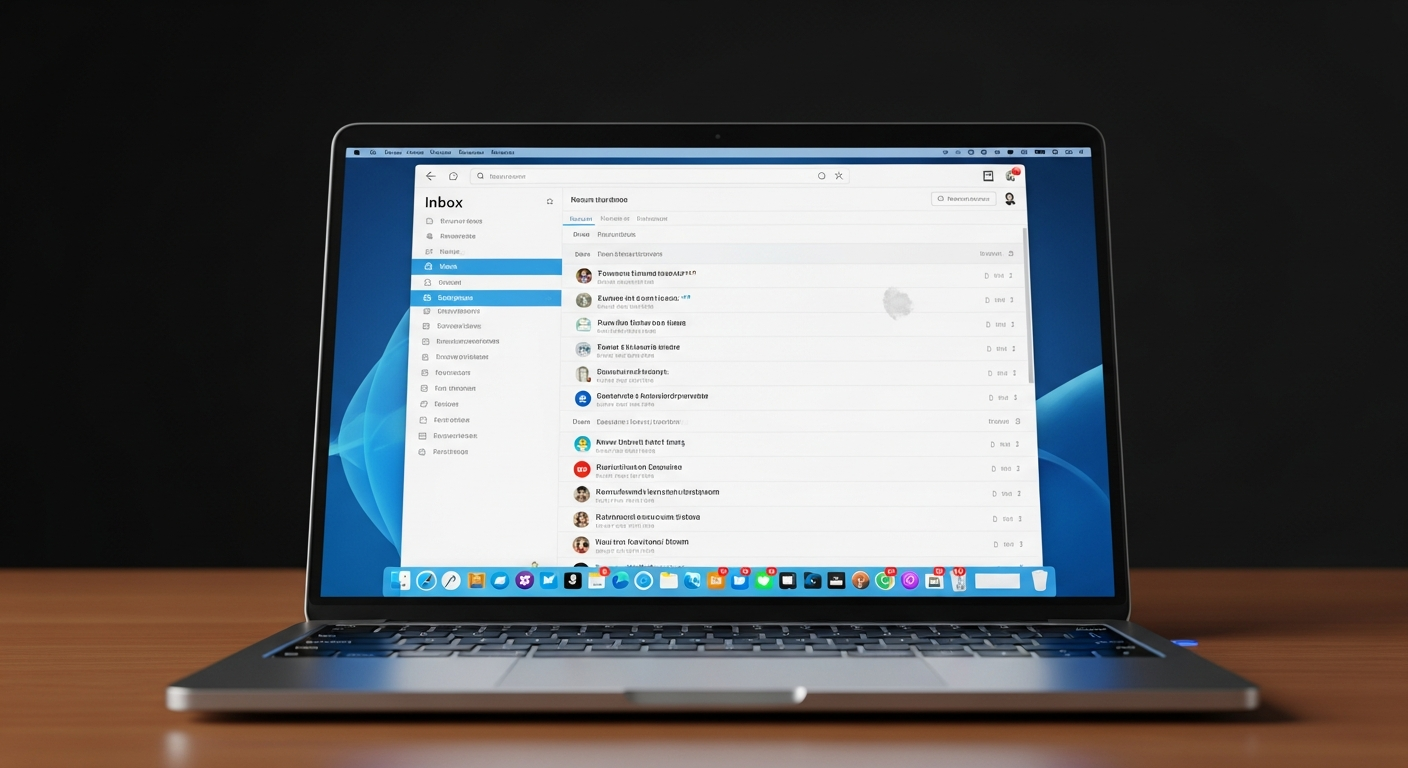
Welcome to the world of email! This guide will help you understand the basics of sending, organizing, and keeping your digital messages safe. Let's get started on your journey to becoming an email pro.
1. What is email and how does it work?
Email, short for "electronic mail," is a way to send messages over the internet. Think of it like sending a letter, but instead of paper and stamps, you use a computer or phone and the internet. Your message travels almost instantly from your email address to someone else's.
When you send an email, it goes from your email service (like Gmail or Outlook) to the recipient's email service. These services act like digital post offices, making sure your message reaches the correct inbox. It's a fast, convenient, and free way to communicate.
2. How do I send an email?
To send an email, you first need to open your email program or website. Look for a button that says "Compose," "New Email," or "Write." Click it, and a new message window will pop up.
In this window, you'll fill in a few key parts: the recipient's email address in the "To" field, a short "Subject" line explaining what your email is about, and then type your message in the main body area. Once you're done, click "Send."
3. What are "To," "Cc," and "Bcc"?
"To" is for the main recipient(s) of your email – the people you expect to directly respond or take action. You can put multiple email addresses here, separated by commas.
"Cc" stands for "Carbon Copy." Use this for people who need to know about the email but aren't the primary recipients. They'll see everyone else who received the email, including those in "To" and "Cc."
"Bcc" stands for "Blind Carbon Copy." This is like "Cc," but the people in the "Bcc" field are hidden from all other recipients. No one in "To" or "Cc" will know that someone in "Bcc" received the email. It's useful for privacy when sending to a large group.
Cc (Carbon Copy)
- Everyone sees who's Cc'd.
- Used for transparency.
- Good for team updates.
Bcc (Blind Carbon Copy)
- Recipients are hidden.
- Used for privacy.
- Good for large mailing lists.
4. How do I attach a file to an email?
Attaching a file means sending a document, picture, or other item along with your email message. When composing a new email, look for a paperclip icon. This is the universal symbol for "attach file."
Click the paperclip icon, and a window will open, letting you browse files on your computer or phone. Select the file you want to send and click "Open" or "Attach." You'll usually see the file name appear in your email draft, confirming it's attached.
5. What are email folders or labels?
Email folders (sometimes called labels, like in Gmail) are like physical folders for your paper documents. They help you organize your incoming and outgoing emails. Instead of having all your emails in one giant list, you can sort them into different categories.
Common folders include "Inbox" (for new messages), "Sent" (for messages you've sent), and "Drafts" (for messages you started but didn't send). You can also create your own custom folders, like "Work," "Family," or "Receipts," to keep things tidy and easy to find.
6. How do I reply to an email?
To reply to an email, open the message you received. Look for a "Reply" button or icon, which often looks like a curved arrow pointing left. Clicking "Reply" will automatically open a new message window addressed back to the original sender, with the subject line pre-filled.
If you want to reply to everyone who received the original email (the sender, and anyone in "To" or "Cc"), look for a "Reply All" button. This is useful for group discussions. Type your message and click "Send."
7. How do I forward an email?
Forwarding an email means sending a message you received to someone new. Open the email you want to forward and look for a "Forward" button or icon, which often looks like a curved arrow pointing right.
Clicking "Forward" will open a new message window containing the original email's content. You'll then need to enter the email address of the new recipient in the "To" field. You can also add your own message above the forwarded content before sending it.
Email Action Flow
8. What is email spam and how do I avoid it?
Email spam, also known as junk mail, refers to unwanted, unsolicited messages, usually advertisements or scams. It clutters your inbox and can sometimes be dangerous. Most email services have a "Spam" or "Junk" folder where these messages are automatically sent.
To avoid spam, be careful where you share your email address online. Never open suspicious emails or click on links from unknown senders. Mark unwanted emails as "Spam" or "Junk" to help your email service learn what to filter out in the future.
9. How can I keep my email account secure?
Keeping your email secure is very important, as it often holds personal information and is linked to other online accounts. Always use a strong, unique password that combines letters, numbers, and symbols. Don't use the same password for multiple accounts.
Enable "Two-Factor Authentication" (2FA) if your email service offers it. This adds an extra layer of security, usually requiring a code from your phone in addition to your password. Be wary of "phishing" emails that try to trick you into giving away your login details.
10. What are popular email services?
There are many great email services available, most of which are free to use. Some of the most popular ones include Gmail (from Google), Outlook.com (from Microsoft), and Yahoo Mail. These services offer reliable email sending, good organization tools, and strong security features.
Choosing an email service often comes down to personal preference and what other services you might already use (like Google Drive with Gmail, or Microsoft 365 with Outlook). They all provide similar core functions, so you can pick the one that feels most comfortable for you.