
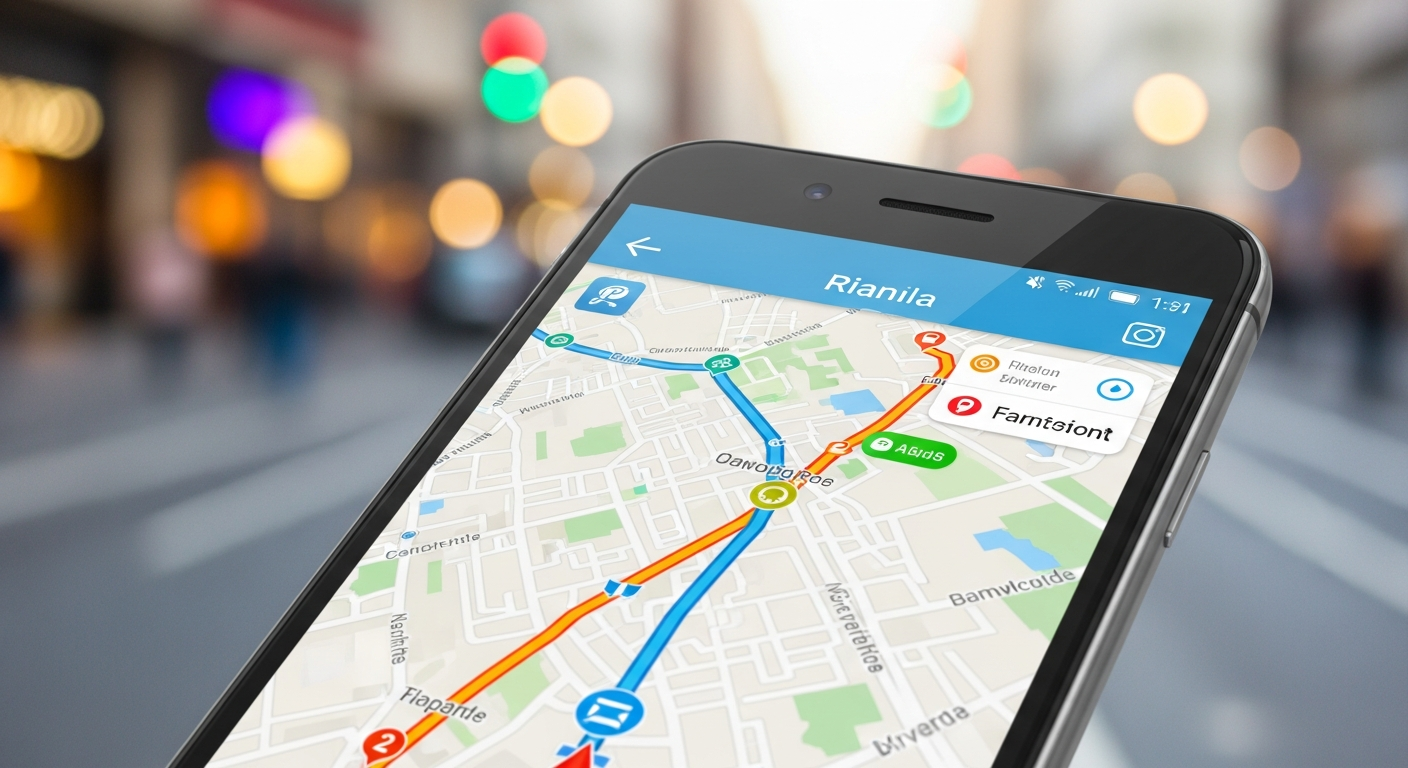
Welcome to your simple guide to map apps! These handy tools on your phone help you find your way around, whether you're walking, driving, or just exploring. Let's break down how to use them, step by step.
1. What are the main features of a map app?
Map apps like Google Maps and Waze are like having a super-smart navigator in your pocket. Their main features include showing you maps, giving you directions to places, helping you find nearby businesses, and even telling you about traffic. They use your phone's location to know where you are.
2. How do I search for a location?
To find a place, simply tap on the search bar, usually at the top of the app screen. You can type in an address, a business name (like "Central Park" or "Starbucks"), or even a type of place (like "pizza near me"). The app will then show you results and pinpoint them on the map.
3. Can I get walking directions?
Yes, absolutely! After you search for a location, the app will often give you options for different ways to travel. Look for a small icon that looks like a person walking. Tap this icon, and the app will calculate a route specifically designed for pedestrians, often using sidewalks and footpaths.
Google Maps
- Detailed maps, global coverage
- Excellent for walking and public transport
- Good for finding businesses
- Street View available
Waze
- Real-time, community-reported traffic
- Focus on driving directions
- Alerts for hazards and police
- Less detailed for walking/public transport
4. How do I get driving directions?
Once you've searched for your destination, tap the "Directions" button. The app will usually default to driving directions, marked by a car icon. It will show you the fastest route and an estimated travel time. Tap "Start" or "Go" to begin turn-by-turn voice navigation, which guides you verbally as you drive.
5. What do the different route colors mean?
On map apps, different colors on roads usually indicate traffic conditions. Green means traffic is flowing smoothly, with no delays. Yellow or orange means there's moderate traffic, so things are a bit slower. Red indicates heavy traffic, meaning significant delays or even a standstill. This helps you choose the quickest path.
6. Can I save my favorite places?
Yes, you can! Most map apps let you save locations you visit often, like your home, work, or a friend's house. Look for an option like "Save" or a star icon when viewing a location. Saving places makes it much quicker to get directions later without having to type in the address every time.
7. How do I avoid traffic with a map app?
Map apps are excellent for avoiding traffic. They constantly update with real-time traffic information. If there's a jam on your route, the app will often automatically suggest an alternative, faster route. Apps like Waze rely heavily on user reports to keep traffic data current, helping you steer clear of delays.
Getting Directions: A Simple Flow
8. What is "Street View" and how do I use it?
"Street View" (mostly found in Google Maps) lets you see panoramic photos of streets and places as if you were standing there. To use it, drop the small yellow "Pegman" icon (usually found at the bottom right) onto a blue highlighted street on the map. You can then virtually walk down the street and look around.
9. Can map apps help me find nearby restaurants?
Absolutely! Map apps are fantastic for discovering local businesses. You can search for "restaurants near me," "coffee shops," or even specific types of food like "Italian food." The app will show you nearby options, often with ratings, reviews, opening hours, and contact information, making it easy to choose.
10. How do I share my location with someone?
Most map apps allow you to share your real-time location with friends or family. Look for a "Share location" or "Share trip progress" option within the app, often found in the menu or after you start navigation. You can usually choose how long to share your location, and it sends a link to your chosen contact.