
Is your internet acting up? Don't worry, we've all been there! This guide will walk you through simple steps to get your Wi-Fi back online, even if you're not tech-savvy.
1. What does it mean when my Wi-Fi isn't working?
When your Wi-Fi isn't working, it means your devices (like your phone or laptop) can't connect to the internet wirelessly. You might see a "no internet connection" message or a Wi-Fi symbol with an "X" or exclamation mark. This prevents you from browsing websites, streaming videos, or using online apps.
2. How do I check if my router is on?
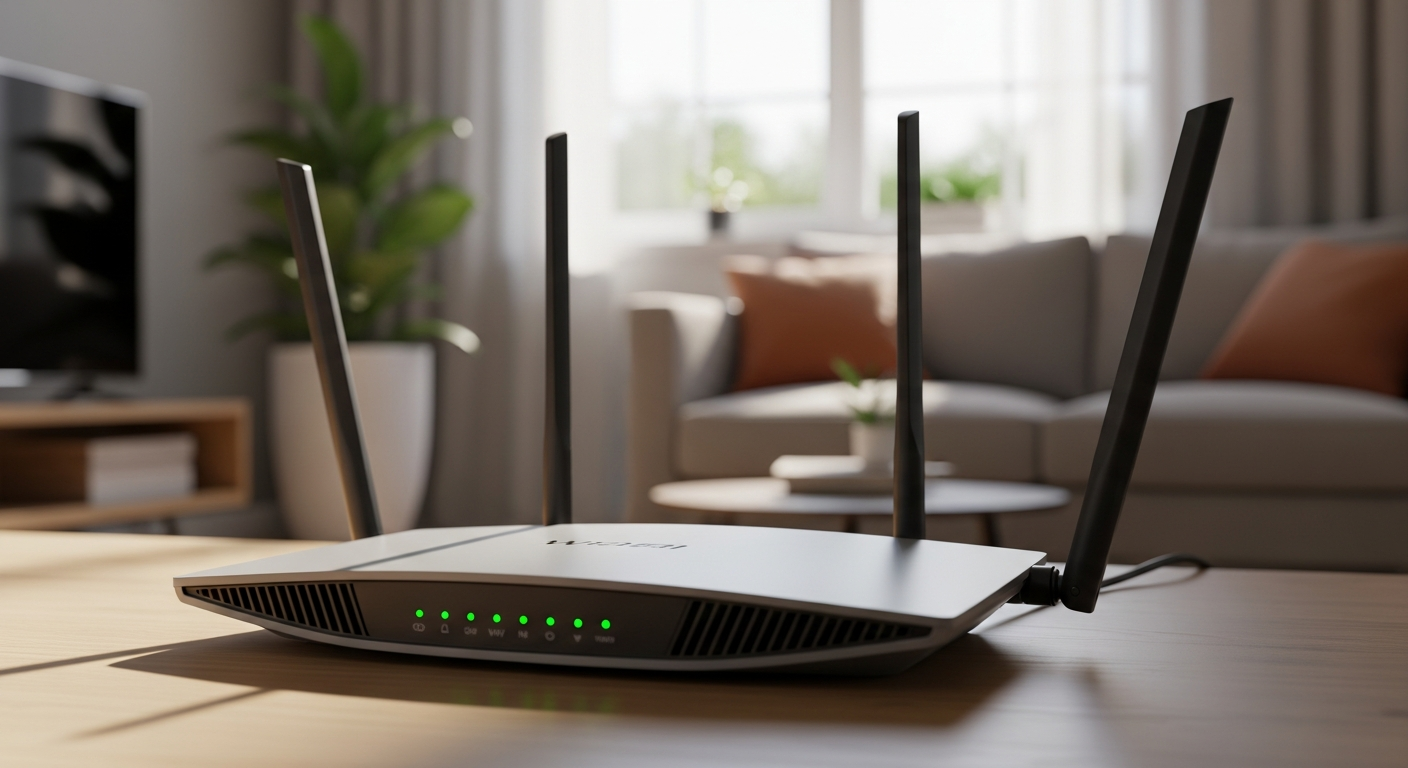
Your router is the box that creates your Wi-Fi signal. Look at the front or top of the router for small lights. There should be a power light, and usually lights indicating internet activity. If no lights are on, or only the power light is on, it might not be working correctly. Make sure it's plugged into a wall outlet.
3. What is a modem and how do I check it?
The modem is the device that connects your home to your internet provider's network, bringing the internet into your house. It might be a separate box or combined with your router. Like the router, check its lights. There should be a power light and lights indicating it's connected to the internet and your router. If these lights are off or blinking unusually, there might be a problem.
Router
- Creates your home Wi-Fi signal
- Connects multiple devices wirelessly
- Often has antennas
Modem
- Connects to your internet provider
- Brings internet into your home
- Often has a cable or fiber connection
4. Should I restart my router and modem?
Yes, restarting your router and modem is often the first and most effective step. It's like giving them a fresh start. Unplug both devices from their power outlets, wait for about 30 seconds, then plug the modem back in first. Wait another minute for its lights to stabilize, then plug the router back in. Wait a few more minutes for all lights to come back on.
5. How do I restart my devices (phone, laptop)?
After restarting your network equipment, restart the device you're trying to connect. For a phone, simply turn it off and then on again. For a laptop, click the "Start" menu (Windows) or Apple menu (Mac) and choose "Restart." This helps your device refresh its connection to the Wi-Fi network.
6. What if only one device can't connect?
If only one specific device (like your phone) can't connect, but others (like your laptop) work fine, the problem is likely with that device. First, restart the device. If that doesn't work, try "forgetting" the Wi-Fi network on that device and then reconnecting, entering the password again. Check if the device's Wi-Fi is turned on.
7. How do I check my Wi-Fi password?
Your Wi-Fi password (also called a network key or security key) is usually printed on a sticker on the bottom or side of your router. If you've changed it, you might have it written down somewhere. On a Windows computer, you can often find it in "Network and Sharing Center" or "Wi-Fi Settings." On a Mac, it's in "Keychain Access."
Wi-Fi Troubleshooting Flow
8. What if my Wi-Fi light is red?
A red light on your modem or router usually means there's a serious problem with your internet connection. It often indicates that the device isn't receiving an internet signal from your provider. After trying a restart, if the light remains red, it's a strong sign that the issue is outside your home and with your internet service provider.
9. When should I call my internet provider?
You should call your internet provider (like Comcast, Spectrum, AT&T) if you've tried all the basic troubleshooting steps – restarting your modem, router, and devices – and still have no internet. Especially if your modem's internet light is red or completely off, it's likely an issue they need to fix on their end.
10. What are common error messages?
Common error messages include "No Internet Access," "Connected, No Internet," "Wi-Fi doesn't have a valid IP configuration," or "Cannot connect to this network." These messages generally mean your device can see the Wi-Fi network but isn't successfully getting an internet signal or the correct network address to use it.