
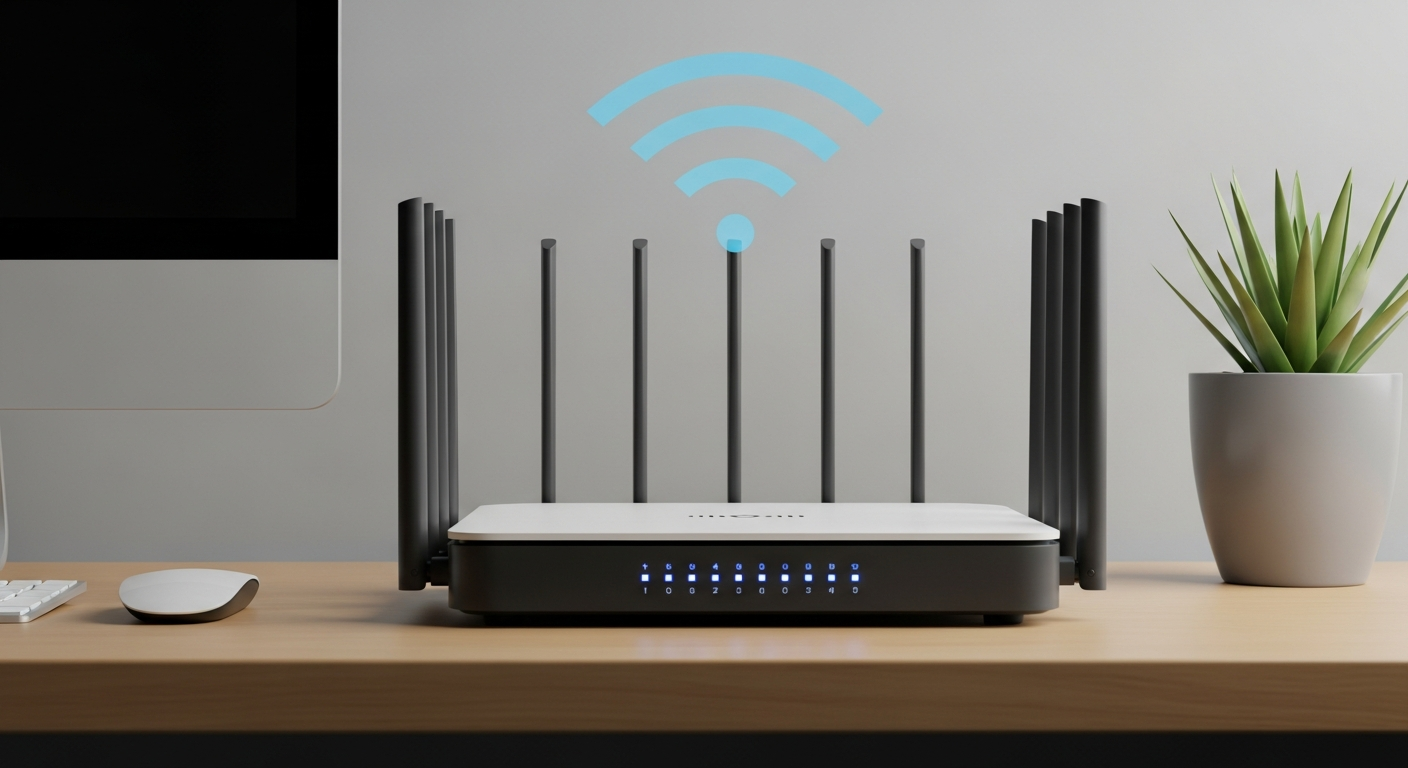
It's frustrating when your Wi-Fi stops working, especially when you need to get online. This guide will help you understand common Wi-Fi problems and how to fix them with simple steps, even if you're not tech-savvy.
1. What is Wi-Fi?
Wi-Fi is like an invisible radio signal that lets your devices connect to the internet without cables. It sends internet data from your router to your phone, computer, or tablet, allowing them to browse websites, stream videos, and send emails wirelessly.
2. How do I know if my Wi-Fi is down?
You'll notice your devices can't access the internet. Look for a Wi-Fi symbol with an exclamation mark or a line through it on your phone or computer. Websites won't load, and apps that need internet will show error messages.
3. What's the first thing to check when Wi-Fi isn't working?
Always start by checking if your Wi-Fi is simply turned off on your device. Most phones and computers have a quick setting or button to toggle Wi-Fi on or off. Make sure it's switched "on" before trying anything else.
4. How do I restart my router?
To restart your router, find its power cable and unplug it from the wall outlet. Wait about 30 seconds, then plug it back in. Give it a few minutes (2-5) to fully power on and reconnect to the internet. You'll see lights on the router blinking or turning solid.
5. What's the difference between a modem and a router?
Think of a modem as the "translator" that brings the internet into your home from your internet provider. A router then takes that internet connection and shares it wirelessly (Wi-Fi) or through cables to all your devices. Sometimes, these two are combined into one device called a gateway.
6. Why do I need to restart both?
Restarting both ensures that both devices clear any temporary glitches and re-establish their connection properly. The modem gets a fresh connection to your internet provider, and the router gets a fresh connection to the modem, ensuring a clean start for your home network.
7. How do I check if my internet service is out?
If restarting your equipment doesn't work, check your internet provider's website or app using mobile data. They often have service status updates. You can also call a neighbor who uses the same provider to see if their internet is also down.
Modem
- Connects to outside internet line (cable, fiber)
- Converts internet signal for home use
- Often has fewer lights
- Usually provided by your internet company
Router
- Creates your home Wi-Fi network
- Connects multiple devices wirelessly
- Often has antennas
- Can be bought separately or rented
8. What if only one device can't connect?
If only one device (like your phone or laptop) can't connect, the problem is likely with that specific device. Try restarting the device itself. Also, ensure its Wi-Fi is on and it's trying to connect to the correct network with the right password.
9. How do I forget and reconnect to a Wi-Fi network?
On your device, go to Wi-Fi settings, find your network name, and choose "Forget" or "Remove." Then, search for available networks again, select your network name, and enter your Wi-Fi password. This can fix connection issues by giving your device a fresh start with the network.
10. When should I call my internet provider?
You should call your internet provider if you've tried all the above steps and still have no internet. This includes checking your device Wi-Fi, restarting your modem and router, and confirming that only your home is affected. They can check for outages or issues with your service line.