
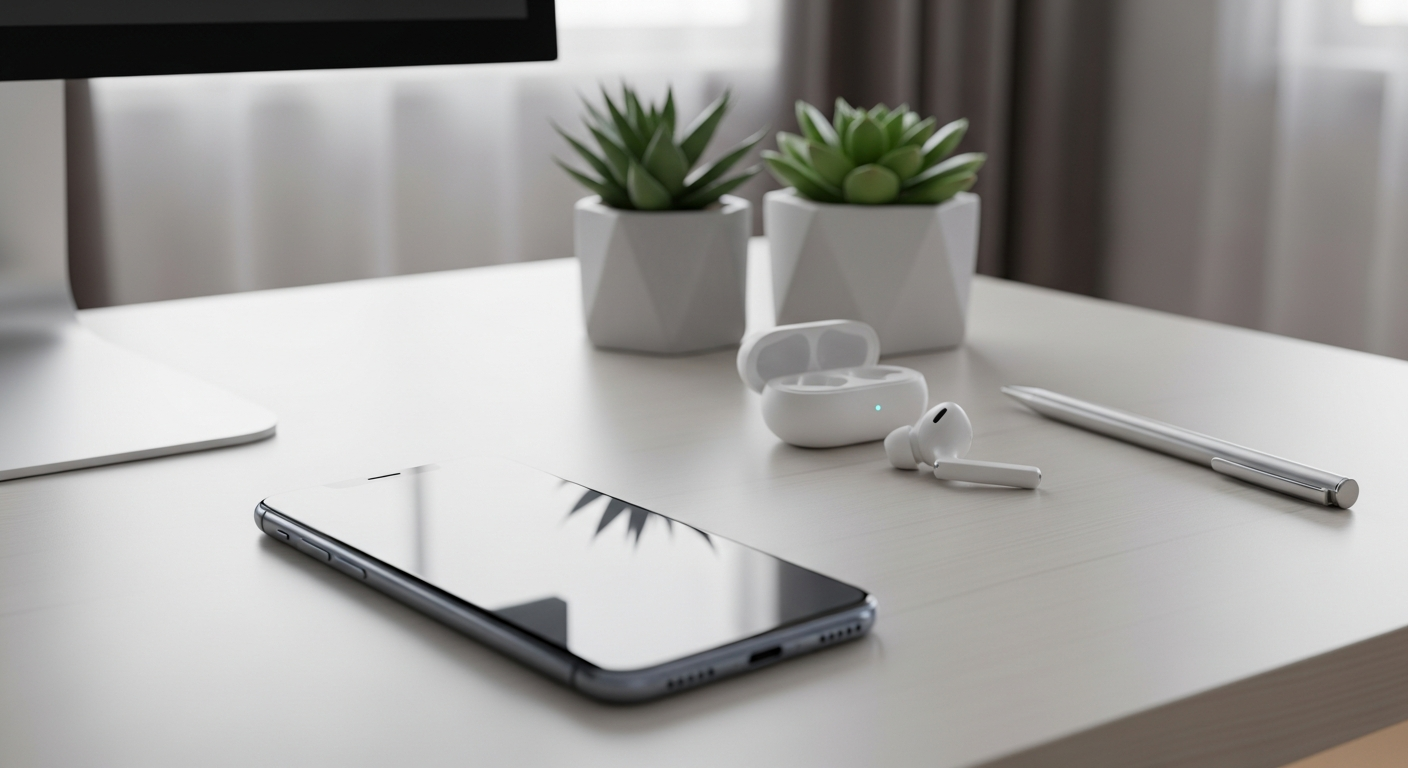
Your smartphone holds a lot of personal information, from photos to banking details. Keeping it secure is crucial to protect your privacy and prevent problems.
1. Why is smartphone security important?
Smartphone security protects your personal information, like photos, messages, and banking details, from falling into the wrong hands. Without it, someone could access your accounts, steal your identity, or even lock you out of your own device.
It also helps prevent unwanted software, like viruses, from harming your phone or stealing your data. A secure phone means peace of mind, knowing your digital life is safe.
2. What is a strong password for my phone?
A strong password, or passcode, for your phone is one that's hard for others to guess. It should be at least 6 digits long for a PIN, or a mix of letters, numbers, and symbols if you use a password.
Avoid easy-to-guess things like birthdays, "123456," or "password." The longer and more complex your passcode, the safer your phone will be.
3. How do I enable screen lock on my phone?
Enabling a screen lock means setting up a PIN, pattern, fingerprint, or face recognition to unlock your phone. Go to your phone's "Settings" app, then look for "Security," "Lock screen," or "Biometrics & password."
From there, you can choose your preferred lock method and follow the on-screen instructions to set it up. Make sure your phone automatically locks after a short period of inactivity.
Setting Up Your Screen Lock
- Go to Settings
- Find Security or Lock Screen
- Choose Screen Lock Type (PIN, Pattern, Fingerprint, Face)
- Follow On-Screen Steps to Create Your Lock
- Confirm and Test It!
4. What are app permissions and why do they matter?
App permissions are requests from apps to access parts of your phone, like your camera, microphone, location, or contacts. For example, a map app needs location permission to show you directions.
They matter because granting too many permissions to an app can be a privacy risk. Always review and only allow permissions that make sense for the app's function. You can manage these in your phone's "Settings" under "Apps" or "Privacy."
5. Should I download apps from anywhere other than app stores?
No, it's generally not recommended to download apps from places other than official app stores like Google Play Store for Android or Apple App Store for iPhones. These official stores have security checks to filter out harmful apps.
Downloading from unknown sources, sometimes called "sideloading," greatly increases the risk of installing malicious software (malware) that can steal your data or damage your phone.
6. What is phishing and how can I avoid it on my phone?
Phishing is when tricksters try to fool you into giving them your personal information, like passwords or bank details, by pretending to be a trustworthy company or person. This often happens through fake emails, text messages, or websites.
To avoid it, be wary of unexpected messages asking for personal info. Look for typos, strange sender addresses, or urgent demands. Never click suspicious links or download attachments from unknown sources.
7. Is it safe to use public Wi-Fi on my phone?
Public Wi-Fi, like in cafes or airports, is generally not secure. It's easy for others on the same network to potentially snoop on your internet activity, especially if the network isn't encrypted.
Avoid doing sensitive things like online banking or shopping when using public Wi-Fi. If you must use it, consider using a Virtual Private Network (VPN) app, which encrypts your connection and makes it much safer.
Public Wi-Fi vs. Mobile Data
Public Wi-Fi
- Often Free
- Can be Faster than mobile data
- Less Secure (easy for others to snoop)
- Risk of Malware from unverified networks
Mobile Data
- Uses your Data Plan (can cost money)
- Speed depends on Signal Strength
- Generally More Secure (private connection)
- No Risk from unknown networks
8. How do I backup my phone data securely?
Backing up your phone data means saving a copy of your important information, like photos, contacts, and app data. This way, if your phone is lost or broken, you won't lose everything.
Most smartphones offer built-in cloud backup services (like Google Drive for Android or iCloud for iPhone). Enable these in your phone's "Settings" to automatically back up your data over a secure connection. You can also back up to a computer.
9. What should I do if my phone is lost or stolen?
If your phone is lost or stolen, act quickly. Use your phone's "Find My Device" (Android) or "Find My" (iPhone) feature from another device or computer. This allows you to locate, lock, or even erase your phone remotely.
Report the theft to the police and your mobile carrier. Change important passwords for accounts you accessed on your phone, like email and banking, as a precaution.
10. Are antivirus apps necessary for smartphones?
For iPhones, antivirus apps are generally not necessary because Apple's operating system (iOS) is designed with strong built-in security features that make it very difficult for viruses to spread.
For Android phones, while the built-in security is good, an antivirus app can add an extra layer of protection, especially if you tend to download apps from various sources or click on many links. Stick to reputable antivirus brands from the Google Play Store.