
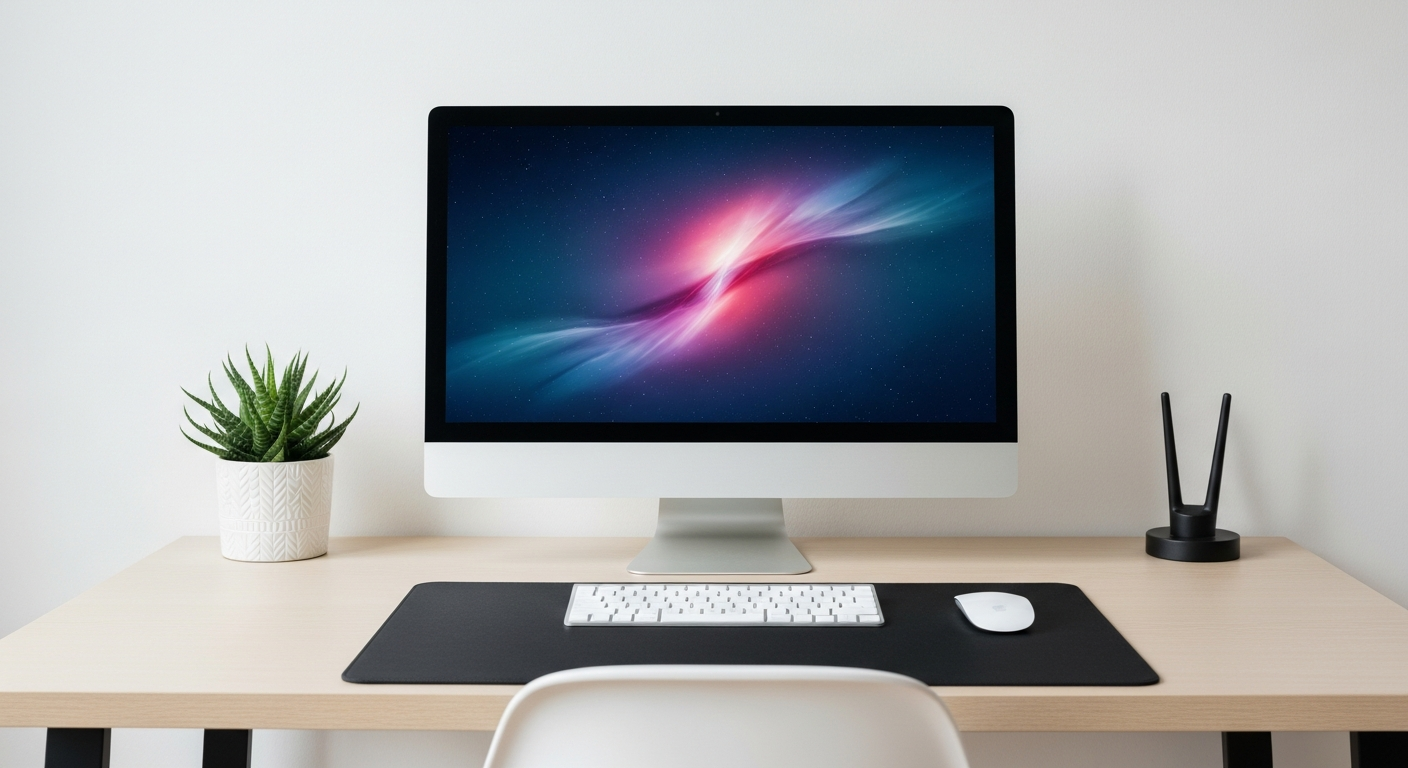
Setting up a home office for remote work can feel overwhelming, but it doesn't have to be complicated. This guide will walk you through the basic essentials to create a comfortable and productive workspace right in your home.
1. What are the absolute essentials for a home office?
The core essentials include a reliable computer (laptop or desktop), a comfortable desk and chair, and a stable internet connection. These items form the foundation of your workspace, allowing you to perform most work tasks effectively from home.
Beyond these, you'll also need a power strip to plug everything in safely and good lighting to prevent eye strain. A basic setup focuses on functionality and comfort to support your daily work.
2. How do I choose a good desk?
A good desk should be large enough to hold your computer and any other items you need, like a notebook or a second monitor, without feeling cramped. Measure your space before buying to ensure it fits well in your room.
Consider the desk's height; your arms should be at a comfortable 90-degree angle when typing. Some desks offer adjustable height, which can be great for switching between sitting and standing, but a fixed-height desk is perfectly fine for a basic setup.
3. What kind of chair is best for long hours?
An ergonomic chair is best for long hours because it supports your back, neck, and arms properly. Look for features like adjustable height, armrests, and lumbar support (a curve that supports your lower back).
While ergonomic chairs can be an investment, they prevent discomfort and potential health issues over time. A good chair helps maintain good posture, which is crucial when spending many hours sitting.
Basic Office Chair
- Lower upfront cost
- Limited adjustments
- Less back support
- Good for short tasks
Ergonomic Office Chair
- Higher upfront cost
- Many adjustments (height, armrests, lumbar)
- Excellent back and posture support
- Ideal for long hours
4. Do I need a separate monitor?
While not strictly essential, a separate monitor can significantly boost your productivity and comfort. It allows you to view more information at once, reducing the need to constantly switch between windows on a small laptop screen.
Look for a monitor that is at least 24 inches for a good viewing experience. Ensure it has the correct connection port for your computer, such as HDMI or USB-C. Placing it at eye level helps prevent neck strain.
5. What about a webcam and microphone?
Most modern laptops have built-in webcams and microphones that are sufficient for basic video calls. However, if you frequently attend online meetings or present, an external webcam and microphone can offer much better video and audio quality.
An external webcam often provides clearer images, especially in low light, and an external microphone makes your voice sound crisper and reduces background noise. This makes you sound more professional during virtual interactions.
6. How can I manage cables neatly?
Cable management is key to a tidy and safe workspace. Start by using cable ties, Velcro straps, or cable sleeves to bundle wires together. This prevents tangles and makes your desk look much cleaner.
You can also use adhesive cable clips to secure wires along the edge of your desk or wall. A cable management box can hide power strips and excess cable length, further reducing clutter and making cleaning easier.
7. Where should I place my router?
Place your Wi-Fi router in a central location in your home, ideally elevated and away from large metal objects or other electronics that can interfere with the signal. This ensures the best possible internet coverage for your entire home, including your office.
If your office is far from the router, consider using a Wi-Fi extender or a mesh Wi-Fi system to boost the signal. A strong, stable internet connection is vital for remote work, especially for video calls and cloud-based tasks.
Optimal Router Placement
8. What lighting is ideal for a home office?
Good lighting is crucial to prevent eye strain and maintain focus. Aim for a mix of natural light and adjustable artificial light. Position your desk so natural light comes from the side, not directly in front or behind your screen, to avoid glare.
For artificial light, a desk lamp with adjustable brightness and color temperature is ideal. A soft, diffused light is generally better than harsh, direct light. Avoid working in a dimly lit room, as it can cause fatigue.
9. How do I keep my workspace tidy?
Regular tidying is key. Dedicate a few minutes at the end of each workday to put things away, wipe down surfaces, and organize papers. Use desk organizers, drawers, or shelves to store items when not in use.
A clutter-free environment helps you focus and reduces distractions. Only keep items on your desk that you use daily. Everything else should have a designated storage spot.
10. What's a good budget for a basic setup?
A basic home office setup can range from a few hundred dollars to over a thousand, depending on whether you already own a computer and your choices for new items. You can start with essentials and upgrade over time.
Prioritize a good chair and a functional desk, as these impact your comfort and health most directly. You can often find good quality used items or sales to help manage costs. Remember, a productive setup doesn't always mean the most expensive.