
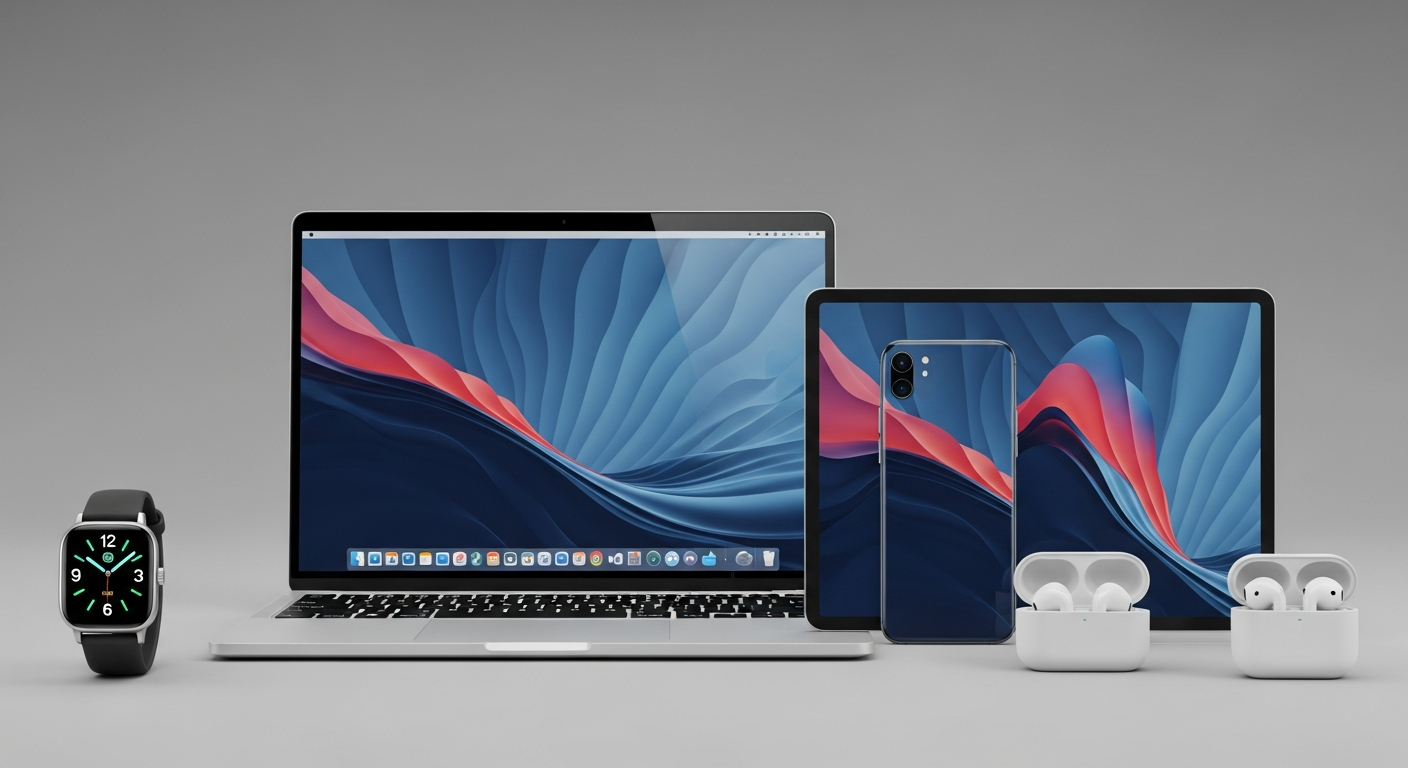
Yes, you absolutely can! Cloud storage makes your files available from almost anywhere, as long as you have an internet connection.
This article will explain how you can easily get to your important documents, photos, and videos using different devices.
1. How do I access my cloud files from my smartphone?
To access your cloud files on a smartphone, you'll typically use a special app provided by your cloud storage service (like Google Drive, Dropbox, or iCloud). First, download the app from your phone's app store. Then, open the app and sign in with your username and password. Once logged in, you'll see all your stored files and folders.
2. Can I view my cloud files on a tablet?
Yes, viewing cloud files on a tablet is very similar to a smartphone. Tablets also use apps from your cloud service provider. Download the app from your tablet's app store, sign in, and you'll have full access to your files. The larger screen of a tablet often makes it easier to browse and view documents or photos.
3. Do I need an app to access cloud storage on mobile?
For the best experience, yes, an app is highly recommended. Cloud apps are designed to work smoothly on mobile devices, offering features like automatic photo uploads, offline access, and easy sharing. While you might be able to access some services through a web browser on your phone, it's usually less convenient and may lack certain features.
Using the App
- Easy to use
- Fast loading
- Special features (like offline access)
- Automatic photo backup
Using a Web Browser
- No download needed
- Works on any device
- Might be slower
- Fewer features
4. What if I don't have internet access?
If you don't have internet, you can't access your entire cloud storage. However, most cloud apps allow you to mark specific files or folders for "offline access." This downloads a copy of those files directly to your device. You can then view or edit them even without an internet connection. Once you're back online, the app will automatically update any changes you made.
5. Can I edit documents from my phone or tablet?
Yes, many cloud services integrate with mobile office apps (like Microsoft Office Mobile, Google Docs, or Apple Pages). You can open a document from your cloud app, edit it using a compatible office app on your device, and then save the changes directly back to the cloud. This means your updated document is immediately available on all your other devices.
6. How do I sync files between my computer and mobile device?
File syncing happens automatically when you use cloud storage. On your computer, you usually install a desktop app that creates a special folder. Any files you put in this folder are automatically uploaded to the cloud. On your mobile device, the cloud app then shows these same files. Changes made on one device are reflected on all others, as long as they are connected to the internet.
7. Is it safe to access my cloud files on public Wi-Fi?
Accessing cloud files on public Wi-Fi (like at a cafe or airport) carries some risks. Public networks are often less secure, making it easier for others to potentially snoop on your activity. While cloud services use encryption to protect your data, it's always safer to avoid accessing sensitive information or making important changes while on public Wi-Fi. If you must, use a Virtual Private Network (VPN) for added security.
Public Wi-Fi Access: Steps for Safety
8. What happens if my device gets lost or stolen?
This is where cloud storage shines! If your device is lost or stolen, your files are still safe in the cloud. You can simply sign in to your cloud account from a new device and all your files will be there. For extra security, many cloud services allow you to remotely "wipe" or sign out of your account on the lost device, protecting your data from unauthorized access.
9. Can I access cloud storage from someone else's computer?
Yes, you can. The safest way is to open a web browser (like Chrome or Firefox) and go directly to your cloud service's website. Sign in with your username and password. Remember to use a "private" or "incognito" browsing window if available. This helps ensure that your login details or browsing history aren't saved on the computer after you close the window.
10. How do I log out of my cloud account on shared devices?
Logging out is crucial on shared or public devices. After you're finished, always look for a "Sign Out," "Log Out," or your profile picture/name, usually found in the top corner of the screen. Click or tap it, then select the log out option. This prevents the next person from accessing your personal files. If you used a private browsing window, simply closing it usually logs you out automatically.